


Twenty-three million downloads. Six hundred thousand active installations. A 5-star rating held across more than 4,500 reviews. TablePress is not a niche utility that WordPress developers stumble on in a GitHub README. It is the most-downloaded WordPress table plugin in the directory, built and maintained by one developer, Tobias Bäthge, since he originally launched the project as WP-Table Reloaded in 2006.
That scale earns your attention. What the numbers cannot tell you is whether TablePress actually belongs on your site, whether the free version does enough, or when the paid plans start earning their price. That is what this review covers.
I tested the live frontend demo on tablepress.org, reviewed the admin interface through the official plugin screenshots on WordPress.org (version 3.3.2), and worked through the official documentation, FAQ, tutorials, and changelog. Pricing and feature coverage were verified against tablepress.org on July 1, 2026. Note on pricing: the amounts displayed on the TablePress pricing page are location-dependent. This review observed the page in EUR; buyers in other regions may see different currency amounts at checkout. Verify the current price for your location on tablepress.org/pricing/ before purchasing.
At a glance
Tested on: tablepress.org demo, WordPress.org admin screenshots (version 3.3.2), official documentation, FAQ, pricing page, and changelog. Current version: 3.3.2 (June 10, 2026). Security fix: reflected XSS. Active development, WordPress 7.0 compatible. Free tier: genuinely full-featured. Unlimited tables, import from Excel and Google Sheets, sorting, search, pagination, block editor integration. Pro (89/year in displayed checkout currency): adds responsive tables, fixed rows/columns, style customizer, row grouping, advanced filtering, and user action buttons. Max (189/year in displayed checkout currency): adds server-side processing, automatic periodic imports, fuzzy search, REST API, and advanced access rights on top of Pro. Bottom line: the strongest free WordPress table plugin available in 2026. A credible paid upgrade for teams that need responsive layouts, large dataset handling, or automated data pipelines.
Quick verdict
If you need to display structured data on a WordPress site and you do not have a developer on hand, TablePress free is the plugin I would start with. Best for: bloggers, content publishers, small businesses, researchers, and anyone who needs to put structured data online without writing code. Best plan for most individuals: the free version is enough for most use cases on content sites. TablePress Pro (89/year in your checkout currency) is worth it if your audience browses on mobile or you need filtering controls. Best plan for large sites and businesses: TablePress Max (189/year in your checkout currency) for server-side processing, automated imports, and REST API access. Standout: the richest free tier in the WordPress table plugin category, consistently maintained by a single dedicated developer for nearly two decades, and 5-star rated across 4,500+ reviews. Watch out for: pricing is shown in your location's currency and VAT or GST is added at checkout; no real drag-and-drop visual table builder; and the free version's responsive behavior requires manual CSS work or a Pro license.
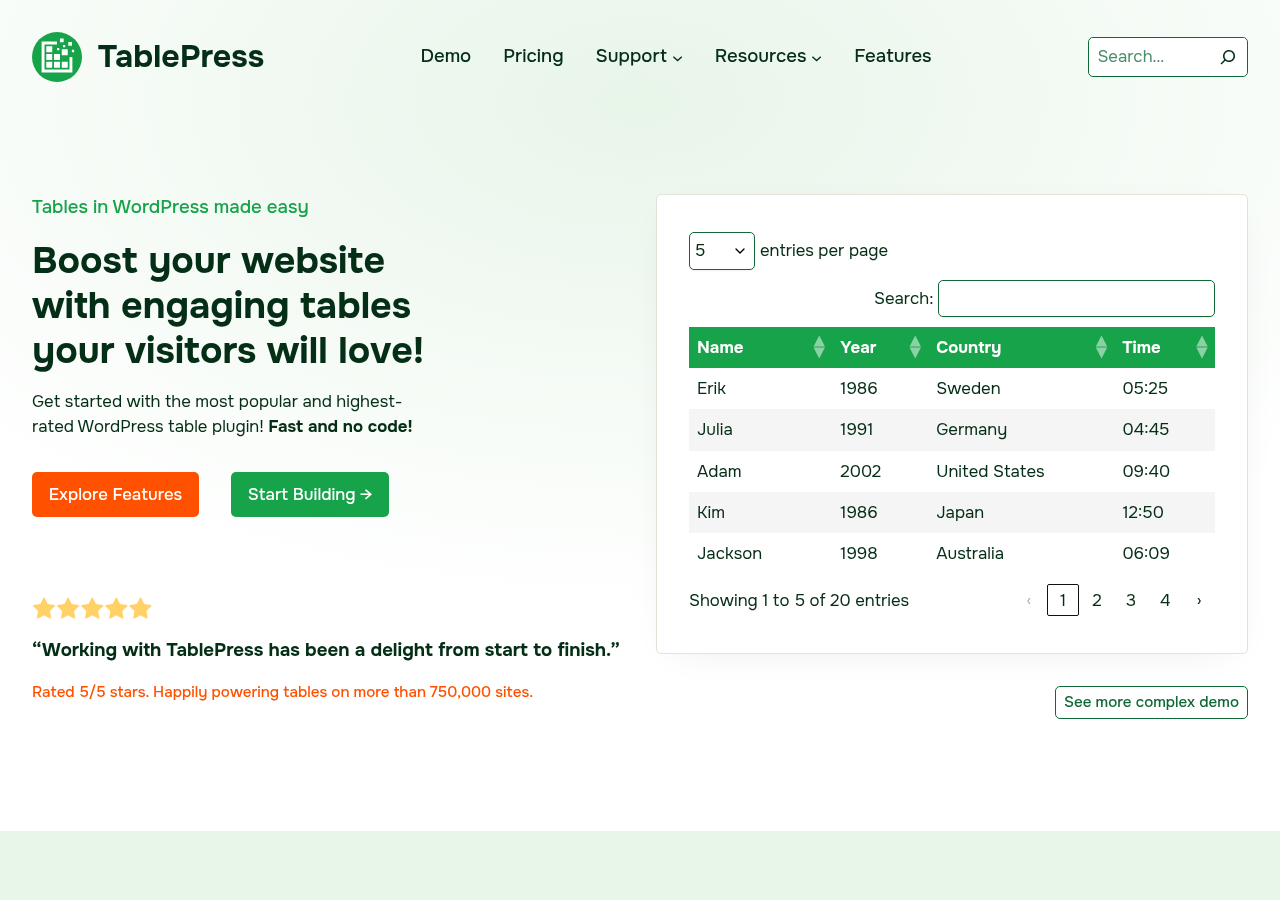
What TablePress is
TablePress is a self-hosted WordPress plugin that creates, manages, and embeds HTML data tables. It was originally released as WP-Table Reloaded in 2006, rewritten and relaunched as TablePress in 2012, and has been actively developed by Tobias Bäthge ever since. The current stable release is version 3.3.2.
The plugin stores tables as structured data inside WordPress rather than as shortcode-stuffed post content. Each table is an independent object with its own ID, name, and description. You manage tables from a dedicated TablePress admin screen, separate from the post editor. Embedding a table in a post or page means adding a “TablePress table” block in the block editor and selecting the table you want, or using a shortcode like [table id=1 /] if you are using a classic or third-party page builder.
That separation between table data and content placement is one of the things that makes TablePress practical for sites with many tables. You edit the table once, and every post or page that embeds it updates automatically. There is no hunting through old posts to update a price list or a schedule.
As a WordPress table plugin, TablePress covers four main use cases:
- Static data display: price lists, product specifications, team rosters, schedules, and comparison tables.
- Searchable directories: large datasets where visitors need to filter or search, such as product catalogs, member directories, or research datasets.
- Imported spreadsheet data: tables sourced from Excel files, CSV exports, or live Google Sheets, updated manually or automatically.
- Interactive data tables: tables with sorting, filtering, pagination, and user-controlled visibility, powered by the DataTables JavaScript library under the hood.
Who TablePress is best for
Strong fit:
- Content publishers, bloggers, and journalists who need to display structured data without touching code.
- Small businesses displaying price lists, service comparisons, or inventory tables.
- Schools, nonprofits, and research sites that need to publish schedules, datasets, or member lists.
- Developers and agencies managing multiple client sites that rely on tabular data.
- Teams maintaining tables sourced from Google Sheets or Excel files, especially those using the Max tier's automatic periodic import to keep tables in sync without manual updates.
- Sites where accessibility matters: TablePress generates semantic HTML table markup with proper ARIA attributes, making it compatible with screen readers and keyboard navigation.
- Anyone who wants a table plugin that does not push core features behind a paywall.
Weak fit:
- Sites that need a visual drag-and-drop table builder. TablePress uses a spreadsheet-like grid inside the WordPress admin. It is fast and functional once you know it, but it is not a WYSIWYG drag-and-drop canvas. Plugins like WP Table Builder are closer to that experience.
- Sites that need charts and visualizations alongside tables. wpDataTables is better suited here, with built-in chart generation from the same data source.
- Very large tables (tens of thousands of rows) without the Max license. Server-side processing, which offloads sorting and filtering to the database rather than loading everything into the browser, is a Max-only feature.
- WooCommerce product tables with “Add to Cart” functionality. wpDataTables and Ninja Tables have dedicated WooCommerce integrations that TablePress does not match.
Installing and getting started
TablePress installs from Plugins > Add New inside the WordPress admin. It is the first result when you search “TablePress.” After activation, a TablePress item appears in the left sidebar with five sub-items: All Tables, Add New, Import, Export, Plugin Options, and About.
The admin interface is clean and well-organized. The “All Tables” screen lists every table with its ID, name, description, author, and last modified date. From there you can edit, copy, export, or delete any table. The search box at the top right filters the list instantly.
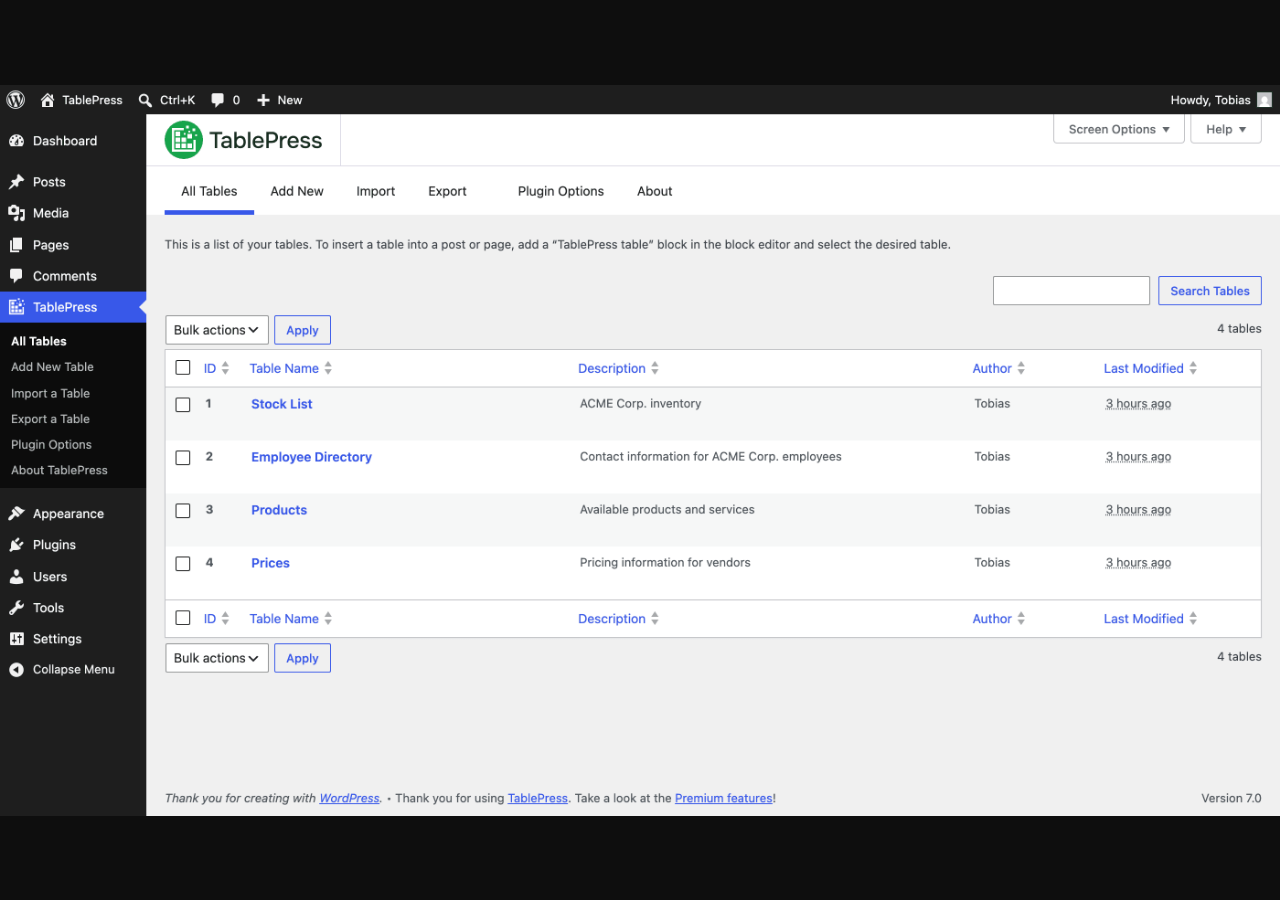
I noticed something that most table plugins get wrong: TablePress does not nag you to upgrade on every screen. The premium features are surfaced through a “Check out the Premium features” link in the footer and through help modals next to the options that require a paid plan. The free version's interface is not cluttered with locked padlocks and upsell banners on every setting.
Creating and editing tables
Clicking “Add New” shows a simple form asking for a table name, optional description, and the initial number of rows and columns. After you submit, the table opens directly in the Edit screen.
The Edit screen is the core of the TablePress experience. It has four collapsible sections:
- Table Information: name, description, ID, shortcode, and last modified timestamp.
- Table Content: the spreadsheet grid where you enter and edit cell data.
- Table Manipulation: tools to insert rows and columns, move them up/down or left/right, hide/show specific rows or columns, and combine/merge cells.
- Table Options: header/footer row settings, alternating row colors, row hover highlighting, and a custom CSS class field.
- Table Features for Site Visitors: toggles for sorting, search/filtering, pagination, pagination length change, info display, and horizontal scrolling.
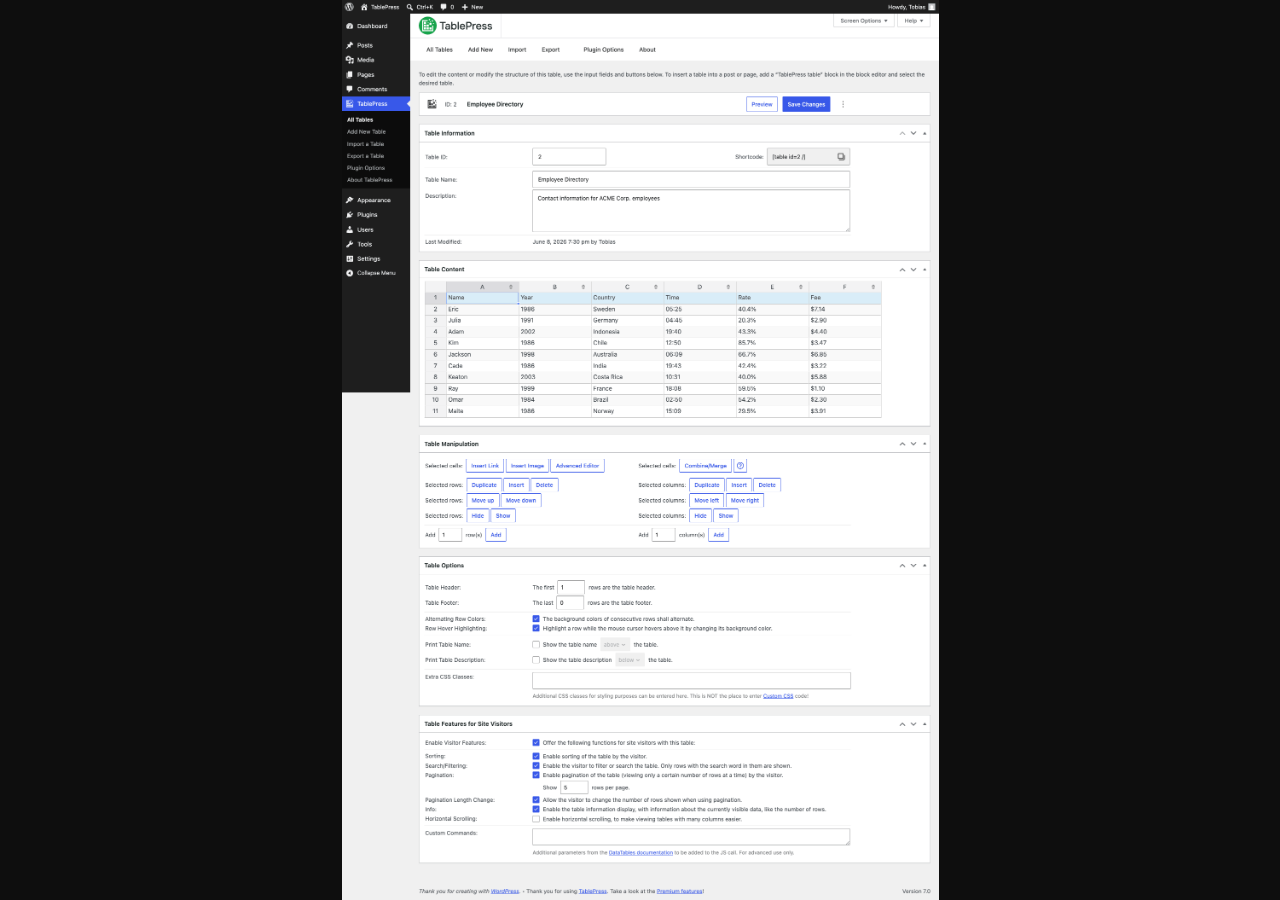
The grid handles typing and paste well. You can paste directly from Excel or Google Sheets into the grid and the data lands in the correct cells. For inserting links, images, or math formulas, TablePress provides insertion dialogs above the grid: “Insert Link,” “Insert Image,” and “Advanced Editor” for HTML or formula content.
TablePress 3.3, released in April 2026, added a sticky header bar on the Edit screen that keeps the “Save Changes” and “Preview” buttons visible as you scroll down through long tables. A “Quick Navigation” dropdown lets you jump to any section instantly. These are small improvements, but they matter when you are editing a table with 50 or more rows.
The math formula support is genuine. TablePress uses an Excel-compatible formula engine. You can reference other cells (A1, B2), use functions like SUM(), AVERAGE(), MIN(), MAX(), and IF(), and the results update when the table renders on the frontend. The official documentation confirms these formula types work as they would in a spreadsheet, and the changelog for version 3.3.2 notes a specific bugfix for the FIXED() function to match Excel and Google Sheets behavior, which indicates the engine is actively maintained for accuracy.
One real limitation: cell merging (using #colspan# and #rowspan# keywords) and JavaScript-powered features like sorting and pagination cannot be used at the same time. The documentation is clear about this: merged cells break the column count that DataTables needs for sorting and pagination. This is a DataTables library constraint rather than a TablePress-specific choice, but it does affect tables that need both visual merging and interactive sorting.
Importing data
The Import screen is one of TablePress's strongest points. It accepts four import sources:
- File Upload: drag and drop, or browse to select files. Supports XLSX, XLS, CSV, ODS, HTML, and JSON.
- URL: paste a URL to a file and TablePress fetches it at import time. Works with Google Sheets published-as-CSV URLs, OneDrive, and Dropbox shared links.
- File on server: reference a file path on your server for automated workflows.
- Manual Input: paste raw data directly.
After choosing a source, you decide whether to create a new table, replace an existing one entirely, or append the imported rows to an existing table. The append option is particularly useful for cumulative datasets where you add new records regularly without touching old ones.
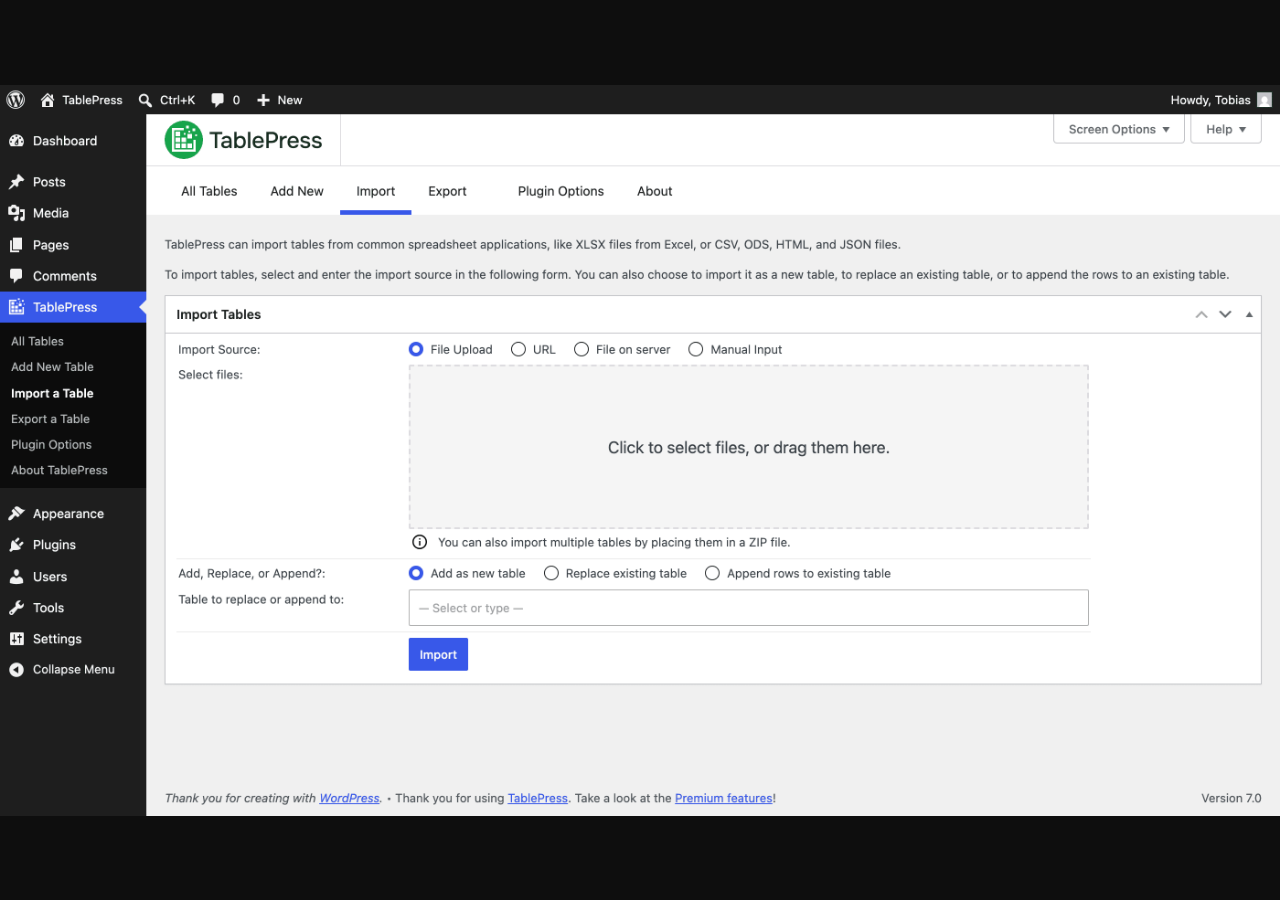
The URL import option is documented to work with Google Sheets (using the publish-to-web CSV URL), OneDrive shared files, and Dropbox links. The import reads the data and populates the table. Formatting from Google Sheets (bold text, merged cells) does not carry over, which is expected: TablePress imports data, not styling. Any visual formatting needs to be applied through TablePress's table options or custom CSS after import. Multiple user reviews on WordPress.org confirm this workflow works reliably for keeping tables in sync with live spreadsheets.
The export side mirrors this. You can export any table to CSV, HTML, or JSON, either the full table or a subset. Multiple tables can be bundled into a ZIP. The export works immediately without any file-size warnings or limits in the free version.
Embedding tables in the block editor
TablePress integrates with the WordPress block editor through a dedicated “TablePress table” block. In the block editor, you search for “TablePress” in the block inserter, add the block, and choose which table to embed from a dropdown. The block shows a preview of the table inside the editor.
The block also exposes a handful of per-embed overrides: you can set a specific number of header rows, control whether the footer row shows, and toggle visitor features like search and sorting without editing the table's global settings. This is useful when the same table appears in multiple posts with different display requirements.
For non-block-editor setups, the shortcode [table id=N /] works in any context that renders shortcodes, including classic editor posts, widget areas, and third-party page builders like Elementor (through the Elementor widget) and Divi. TablePress also provides PHP template tags for embedding tables directly in theme files.
Frontend experience and interactive features
When the “Enable Visitor Features” toggle is turned on for a table, TablePress loads the DataTables JavaScript library and renders the table with:
- Sorting: clickable column headers sort the table ascending or descending. Sort order persists across pagination.
- Live search: a search box above the table filters rows in real time as the visitor types. Matching content highlights automatically.
- Pagination: the table shows a configurable number of rows per page (default 10, but the dropdown lets visitors choose 10, 25, 50, 100, or all). Navigation arrows and page numbers appear below.
- Info display: shows “Showing 1 to 10 of 47 entries” below the table, or “Showing 1 to 3 of 3 entries (filtered from 47 total entries)” during a search.
- Horizontal scrolling: for wide tables on narrow screens, horizontal scroll is available as a free option that prevents tables from breaking out of their container.
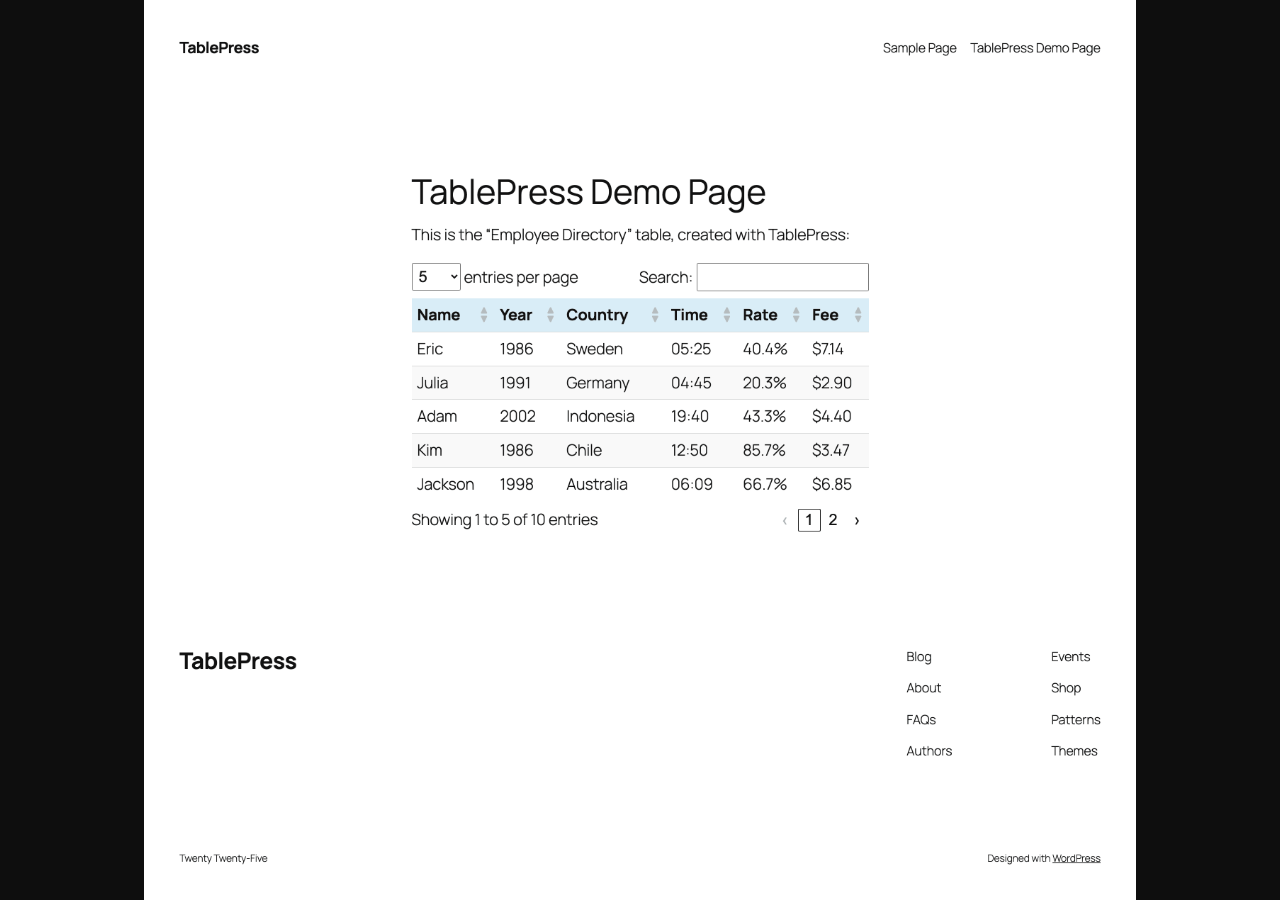
The frontend rendering is clean. I did not see any layout shift or flash of unstyled content when loading the demo page. The default table style is minimal: light grey column headers, no heavy borders, and the alternating row color is subtle enough that it does not compete with the content.
One thing worth noting: TablePress loads the DataTables JavaScript library from a local copy bundled with the plugin rather than a third-party CDN. This is good for performance (no external request) and privacy (no data sent to a CDN provider).
Responsive behavior
This is where the free version's most significant gap shows. On mobile, a free TablePress table with many columns will often overflow its container or force the user to scroll horizontally. Horizontal scrolling is available as a free option, but it is the most basic form of mobile handling.
The “Responsive Tables” module is a Pro feature. It offers two main approaches:
- Scroll mode: the table becomes horizontally scrollable inside a fixed-width container, with optional scroll buttons for touch devices.
- Flip mode: on narrow screens, each row is converted into a card-style layout where column headers become row labels and each value sits below its header. This is the approach that works best for directories and schedules where every column matters.
- Stack mode (Pro): collapses columns below a breakpoint into a vertical stack within each row.
For sites where a significant share of traffic arrives on mobile (and that is most sites), the Responsive Tables module is the single most important reason to buy a Pro license. The free horizontal-scroll approach works, but it is not the same as columns collapsing intelligently for a small screen.
Pro plan: what it unlocks
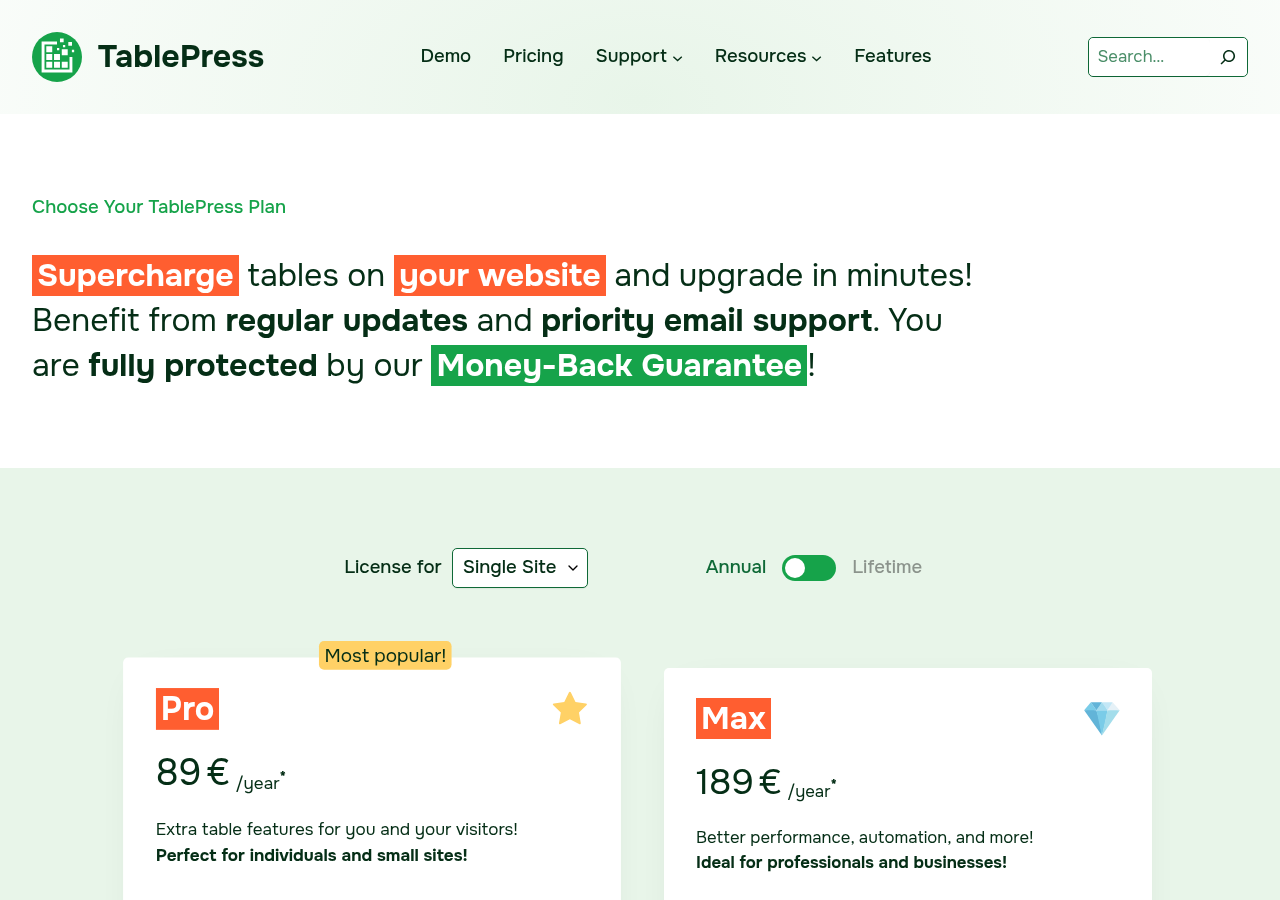
TablePress Pro is priced at 89/year for a single site (in the currency displayed for your location; multi-site packages are available for 5, 25, and 100 sites). It is labelled “Most popular” on the pricing page, and reviewing the feature list, I understand why.
Beyond responsive tables, Pro unlocks:
- Fixed Rows and Columns: freeze the header row so it stays visible as visitors scroll down a long table. Freeze one or more columns so they stay visible when scrolling horizontally. Both are genuinely useful for wide comparison tables.
- Default Style Customizer: a visual color picker lets you set table header background, text color, hover color, and odd/even row colors without writing CSS. This covers the most common styling requests without requiring any code.
- User Action Buttons: buttons above the table let visitors export the table data as an Excel file, copy it to the clipboard, print it, or toggle column visibility to hide columns they do not need. These are useful for directories and reference tables where visitors may want to take the data away.
- Row Grouping: group rows by a shared category or keyword, collapsing them under a category header. Useful for product catalogs organized by category, or schedules organized by date.
- Column Filter Dropdowns: each column can have a dropdown filter showing all unique values in that column. Visitors select a value to show only rows matching that filter. Combined with the search box, this is practical for directories with categorical fields.
- Advanced Pagination: customizable pagination with options like a “show all rows” option, scroll-to-top on pagination, and additional display formats.
- Search Highlighting: matched text highlights in the table cells during a search.
- Index Column: adds a row-number column automatically so visitors can see their position in a sorted or filtered view.
Max plan: server-side power and automation
TablePress Max is priced at 189/year for a single site (in the currency displayed for your location) and adds capabilities aimed at larger, more technical use cases.
The headline Max feature is Automatic Periodic Table Import. You configure a table to re-import from a URL on a schedule (hourly, daily, weekly, or monthly). If your data lives in a Google Sheet that gets updated by a non-technical team member, the Max plan means the table on your website updates automatically without anyone having to remember to log into WordPress and run an import. For sports clubs publishing live standings, businesses updating price lists, and schools posting updated schedules, this removes a manual step that is easy to forget.
Server-side Processing is the other major Max feature. Standard TablePress sends the entire table data to the browser and lets DataTables sort, search, and paginate it client-side. This works well for tables up to a few thousand rows. For tables with tens of thousands of rows, the page load time increases significantly as the browser has to parse and sort all that data. Server-side Processing offloads sorting, filtering, and pagination to the database, sending only the visible page of data to the browser. Load times stay fast regardless of table size.
Max also adds:
- Fuzzy Search: accepts typos and near-matches in the search box instead of requiring exact string matches. More forgiving for visitor searches.
- Custom Search Builder: lets visitors construct their own multi-condition filter through a UI rather than typing into a search box.
- REST API: programmatic read and write access to TablePress tables from external applications, automations, or custom WordPress themes.
- Advanced Access Rights: per-table user permission management. Restrict which WordPress users or roles can view, edit, or delete specific tables. Useful on multi-author sites where you want editors to manage only their own tables.
- Email Notifications: receive email alerts when a table is modified, created, or imported.
The Max plan is aimed at businesses and professionals with automated data pipelines, large datasets, or multi-user workflows. For a solo blogger or a small business with a handful of static tables, it goes well beyond what is needed.
Pricing and license value
TablePress pricing is location-dependent: the amounts shown on the pricing page are displayed in the currency matching the visitor's country, and VAT or GST is added at checkout based on local tax rules. The figures below were observed on tablepress.org/pricing/ on July 1, 2026 for a single-site annual license. Verify the current price for your location before purchasing.
- Free: unlimited sites. Unlimited tables. Import, export, basic interactive features, block editor support. No time limit.
- Pro, Single Site: 89/year (in your displayed checkout currency). Responsive tables, fixed rows/columns, style customizer, user action buttons, advanced filtering, row grouping, and all other Pro modules. Direct email support with a 12-hour weekday response target.
- Max, Single Site: 189/year (in your displayed checkout currency). Everything in Pro plus automatic periodic import, server-side processing, fuzzy search, custom search builder, REST API, advanced access rights, and email notifications. Priority email support with a Personal Success Manager.
- Multi-site packages: available during checkout for both Pro and Max at 5, 25, and 100 sites. Prices not displayed on the public pricing page; they appear in the checkout flow.
- Lifetime licenses: one-time payment option for both Pro and Max, available during checkout by toggling from “Annual” to “Lifetime.” Exact amounts are shown in the checkout flow.
Renewal and cancellation: annual subscriptions auto-renew. You can cancel anytime through the TablePress account portal; access to premium features continues through the end of the paid period. There are no refunds for auto-renewal charges. The 30-day money-back guarantee applies to the initial purchase only.
Pricing logic for most buyers:
- Content publishers and bloggers: the free version is sufficient for the vast majority of use cases. Do not pay for Pro unless responsive mobile layout is a requirement for your audience.
- Businesses with public-facing tables: Pro is a reasonable price for responsive tables, the style customizer, and user action buttons. These three features address the most common complaints about free WordPress table plugins.
- Researchers and teams managing large datasets: Max earns its place through server-side processing and fuzzy search. The automatic periodic import pays for itself immediately if you have any table connected to a live data source.
- Agencies: multi-site licenses are the practical choice for client portfolios. The per-site cost drops significantly at the 5-site and 25-site packages.
Pros and cons
Pros
- The most capable free WordPress table plugin available in 2026. Sorting, search, pagination, import from Excel and Google Sheets, math formulas, and block editor integration are all included at no cost.
- 600,000+ active installations and 23+ million downloads represent the largest installed base of any WordPress table plugin.
- 5-star rating maintained across 4,541 reviews on WordPress.org at the time of this review. Only 27 one-star reviews across more than 4,600 total reviews.
- Actively maintained by a dedicated single developer with a consistent release cadence: three significant version updates in 2026 alone (3.3, 3.3.1, 3.3.2), including a security patch and WordPress 7.0 compatibility.
- Data is stored cleanly as structured WordPress objects, not serialized shortcode garbage inside post content. Tables update everywhere they are embedded when you edit them once.
- Import supports Excel (XLSX/XLS), CSV, ODS, HTML, JSON, and Gnumeric, plus URL imports directly from Google Sheets, OneDrive, and Dropbox.
- Accessible HTML table markup with ARIA attributes for screen readers and keyboard navigation.
- DataTables JavaScript is loaded locally, not from an external CDN.
- The Max plan's automatic periodic import is a genuine automation feature that saves real manual work for sites with frequently updated data.
- Server-side processing (Max) makes large tables viable where other plugins would create slow page loads.
- 30-day money-back guarantee on paid plans.
- Lifetime license option available for both Pro and Max.
Cons
- The free version produces horizontally scrolling tables on mobile, not collapsed/responsive layouts. Proper responsive behavior requires a Pro license. This is the single most significant free-tier limitation.
- Pricing is displayed in your location's currency, and VAT or GST is added at checkout. The final amount you pay depends on your country's tax rate. The checkout total is not shown on the public pricing page before you start the purchase flow.
- No drag-and-drop visual table builder. The spreadsheet grid editor is efficient once you know it, but it is not the same as a WYSIWYG canvas for laying out tables visually.
- Cell merging (
#colspan#,#rowspan#) and JavaScript interactive features (sorting, pagination) cannot be used together. This is a fundamental DataTables constraint, not a bug, but it limits table designs that need both visual grouping and interactivity. - Multi-site license prices and lifetime license prices are not displayed on the public pricing page. You have to start the checkout process to see them.
- Server-side processing (Max only) for large tables requires more server-side configuration and hosting support than a standard WordPress plugin install.
- The free community support forum relies on the developer's availability. Priority email support with fast response times requires a Pro or Max license.
- Math formula support is limited to the built-in formula engine. Complex Excel formulas with conditional logic, advanced lookup functions (VLOOKUP, INDEX/MATCH), or array functions may not be fully supported.
Alternatives to TablePress
- Ninja Tables (WPManageNinja). 100+ table styles, drag-and-drop table designer, WooCommerce product tables integration, and a free tier with more visual styling options than TablePress free. Choose Ninja Tables if you want a more visual building experience or need WooCommerce product table integration.
- wpDataTables. Connects to external data sources (MySQL, SQL Server, Google Sheets, JSON), generates charts from the same data, and handles very large datasets well. Choose wpDataTables if your primary need is connecting WordPress to a live database or generating charts alongside tables.
- WP Table Builder (ConvertForce). A drag-and-drop table builder focused on visual pricing tables and content tables with images, stars, buttons, and custom styling. Not designed for data import or large datasets. Choose WP Table Builder if your use case is a hand-built visual comparison table rather than a data table.
- Supsystic Data Tables for WordPress. Similar feature set to TablePress with chart integration. Smaller install base and less active development history compared to TablePress.
- Advanced Tables (formerly AnyWhere Elementor Table). Deep Elementor integration for users already building with Elementor who want tables that match their design system. A narrower fit than TablePress.
For the majority of WordPress users comparing options in 2026, the real decision is TablePress free (maximum free features, self-hosted data, 23M+ install track record) versus Ninja Tables (more visual builder, stronger WooCommerce integration, more styling options out of the box). TablePress wins on free-tier depth, data import capability, and long-term project reliability. Ninja Tables wins on visual design flexibility and WooCommerce-specific workflows.
Final verdict
TablePress is the most-installed WordPress table plugin because it is the most useful one, not because of marketing spend or channel bundling. The free version gives you everything a content publisher or small business needs: unlimited tables, import from any common spreadsheet format, sorting, search, and pagination, all embedded through the block editor without touching code. That is a legitimate, complete product at zero cost.
The Pro tier earns its place through the Responsive Tables module. On a world where more than half of web traffic arrives on mobile, a table plugin that requires a paid license for proper mobile layout is asking something real of you. But the Pro price is not an unreasonable ask if tables are a meaningful part of how your site communicates information, and the rest of the Pro feature set (style customizer, fixed headers, column filters, user action buttons) adds genuine value on top.
The Max tier is for a different type of user: one who has live data pipelines, large datasets, or a team managing table content. The automatic periodic import and server-side processing both solve real infrastructure problems that the cheaper alternatives do not handle.
What makes TablePress genuinely impressive after nearly two decades is not the feature count. It is the consistency. One developer, one product, three significant updates in the first half of 2026, 4,500+ five-star reviews, and a June 2026 security fix that went out quietly and professionally. That is what sustained trust in open-source software looks like.
For most WordPress site owners, TablePress free is the right starting point and often the only answer you will ever need.