


Twenty-four million downloads. That is the number attached to BackWPup on WordPress.org, a figure that reflects over a decade of life as one of the most-downloaded free WordPress backup plugins ever built. For most of that time, BackWPup was a quiet specialist tool: reliable, configuration-heavy, and popular with developers who wanted precise control over what got backed up and where it went.
Then things got complicated. The plugin changed ownership, active development slowed, and the WordPress.org review section filled with a split verdict: thousands of loyal users defending it, and a substantial cluster of frustrated ones describing a plugin that lost its footing. In 2025, WP Media, the French company behind WP Rocket (one of the most respected WordPress performance plugins), stepped in and began rebuilding BackWPup in earnest.
This BackWPup review is about the 2026 version, not the history. I worked through the official feature pages, documentation, pricing, the WordPress.org listing for BackWPup (version 5.7.5, updated July 21, 2026), the recent changelog, and the admin interface screenshots published by the vendor on WordPress.org. Where a feature was not available for live hands-on testing, the relevant section says so.
At a glance
- Audited on: backwpup.com features, pricing, and documentation pages; the WordPress.org plugin listing (version 5.7.5, last updated July 21, 2026); the plugin changelog; and the admin interface screenshots provided by the vendor on WordPress.org. Pricing checked against backwpup.com/pricing on August 14, 2026.
- Free tier: strong cloud storage list including Microsoft Azure and Amazon S3 at no cost; WP-CLI included free; scheduled backups; one-click restore from within WordPress.
- Pro: earns its place for backup encryption, the standalone restore app, website migration, direct cloud restore, and expanded cloud destinations.
- Bottom line: a serious free backup plugin for developers and technically confident users, with a compelling Pro upgrade for those who need to restore a site that WordPress itself cannot reach.
Quick verdict
BackWPup free is worth installing if you want a self-hosted backup plugin with a wider free cloud storage list than most of the competition. The free version includes Microsoft Azure Blob Storage, Amazon S3 (and S3-compatible services), Dropbox, Rackspace, FTP, and SugarSync at no cost, plus WP-CLI support that other plugins charge for. The setup takes a few minutes, the backup history gives you clear visibility into what ran and when, and the plugin runs on its own schedule without further involvement.
If you need to restore a WordPress site that is completely offline, BackWPup Pro’s standalone restore application is the most important feature to know about. It lets you recover your site directly without WordPress admin access, using just the backup files and a separate restore app. That is a meaningful capability that the free version of UpdraftPlus, for example, does not offer.
What I would caution: BackWPup is not the simplest backup plugin on this list. The job-based configuration interface gives experienced users a lot of control, but it has a steeper initial curve than the quick-start wizards in some competitors. And the 1,321 WordPress.org reviews tell an honest story worth reading: 918 are five-star, but 296 are one-star, a bimodal split that reflects the plugin’s rough transition years and, now, a recovery that is still earning back trust.
Quick verdict card
- Best for: developers, technical site owners, and small agencies who want a self-hosted free backup plugin with a strong cloud storage list, WP-CLI control, and AES-256 encryption on Pro.
- Best plan for individual sites: the free version for sites with existing S3, Azure, or Dropbox accounts; the Starter plan for sites that also need encryption, migration, or a standalone restore path.
- Best plan for agencies: the Pro plan for up to 20 domains with the full feature set including the standalone restore app and direct cloud restore.
- Standout: Microsoft Azure and Amazon S3 in the free tier; WP-CLI in the free tier; the standalone restore app on Pro for recovering sites when WordPress itself is down; and AI-assisted backup management via MCP (added in version 5.7.0).
- Watch out for: Google Drive and OneDrive are Pro-only (they are free in UpdraftPlus); no backup encryption in the free tier; the 296 one-star reviews on WordPress.org reflect a real transition period that is not fully behind the plugin yet; no incremental backups at any tier; configuration is more complex than quick-start competitors.

What BackWPup is
BackWPup is a self-hosted WordPress backup and restore plugin. It runs on your own WordPress server, backs up your files and database to destinations you configure, and gives you a restore path when something goes wrong. The backup engine lives on your site; the backup files go where you tell them.
That self-hosted model is what separates BackWPup from managed backup services. Your data does not pass through a third-party cloud you do not control. If you have an existing Amazon S3 account, a Microsoft Azure container, or a Dropbox folder, BackWPup connects directly to your own account. The plugin is the engine; your cloud storage account is the destination.
BackWPup has been available on WordPress.org since 2010. For most of that decade it was maintained by Inpsyde, a German WordPress agency, and accumulated more than 24 million downloads as a trusted free backup tool. In recent years, ownership transferred and the plugin went through an active development gap that produced a notable spike in negative reviews. WP Media (the company behind WP Rocket) now maintains the plugin and has been shipping regular updates since 2025. Version 5.7.5, released July 21, 2026, was the most recent at the time of this review and included a Cross-Site Scripting security fix.
BackWPup currently has 400,000 active installations on WordPress.org, a WordPress.org rating of 4/5 stars (80 out of 100), and 1,321 total ratings. WP Media also makes WP Rocket (a premium performance plugin) and Imagify (image optimization) as its other products. The BackWPup documentation and support infrastructure reflects WP Media’s investment: the documentation is organized, the support team is responsive even to free users according to recent forum posts, and the changelog is kept public and detailed.
The plugin’s architecture is based on jobs. Each job is an independent backup task you configure with three settings: what to include in the backup, when to run it, and where to store it. You can run multiple jobs for different purposes: a daily database-only job, a weekly full-site job, or a job that runs before you push a major theme change. Each job has its own schedule, exclusion rules, and destinations.
Who BackWPup is best for
Strong fit
- Developers and technically confident site owners who want precise control over what gets backed up, where it goes, and when it runs. The job-based interface rewards users who understand their hosting environment.
- Sites already using Amazon S3, Microsoft Azure, or another S3-compatible storage service. BackWPup connects directly to your existing account at no extra cost, including in the free tier.
- WP-CLI users who want to run backups from the command line, trigger jobs in deployment scripts, or check backup status without opening wp-admin. WP-CLI is included in the free version.
- Developers managing multiple jobs with different schedules and destinations on the same site. BackWPup’s multi-job model handles this cleanly where simpler plugins would require workarounds.
- Agencies and professionals who need a standalone restore path for worst-case scenarios. The Pro version’s standalone restore app lets you recover a site when WordPress itself is unreachable.
- Sites using WordPress Multisite who need basic multisite coverage included in the free tier.
- WordPress operators in the WP Rocket / WP Media ecosystem who want their backup plugin from the same vendor family.
Weak fit
- Site owners looking for the quickest possible setup with minimal configuration decisions. BackWPup’s job-based setup is more involved than the single-wizard approach in plugins like UpdraftPlus or Duplicator.
- Users who specifically want Google Drive or Microsoft OneDrive in the free tier. Both destinations are Pro-only in BackWPup; UpdraftPlus includes Google Drive and Dropbox in its free tier.
- Sites that need backup encryption without a paid license. AES-256 archive encryption is a Pro-only feature in BackWPup. Duplicator includes AES-256 encryption free.
- WooCommerce stores where continuous order capture between backups is critical. BackWPup schedules at hourly intervals at most; there is no real-time or event-driven capture for WooCommerce orders.
- Buyers who want the simplest possible pricing with one purchase covering a single site. BackWPup’s Starter plan starts at $49 per year for two domains. For a single-site personal backup need, the free version is the right choice.
Setting up BackWPup
BackWPup installs from the WordPress admin at Plugins > Add New. Search for “BackWPup” and the plugin with the green shield logo appears as one of the first results. After activation, BackWPup adds a left-nav menu item with sub-items for Jobs, Add new job, Logs, and About.
The first screen after activation is the Jobs list, which starts empty with a prompt to add a new job.
Adding a new job opens a tabbed settings panel with four tabs: General, Schedule, To: [destination], and Log. The workflow is:
- General tab: name the job, choose what to back up (WordPress files, database, plugin list, or any combination), set file filters and exclusions, and configure how much server resources the backup job may use during execution.
- Schedule tab: choose how the job triggers. Options include a WordPress cron schedule (hourly, daily, weekly, monthly), a manual trigger only, or an external URL trigger for systems that call a URL to fire the job on a custom schedule.
- Destination tab: choose where the backup goes. The free version offers Website Server (local), FTP/SFTP, Amazon S3 and compatible, Dropbox, Microsoft Azure, Rackspace Cloud Files, and SugarSync. Each destination gets its own configuration sub-tab with credentials and retention settings.
- Log tab: configure what gets logged and where log emails go.
(Note on basis: the setup flow was inspected from the vendor-provided admin interface screenshots on WordPress.org and the official BackWPup documentation. A live install was not exercised during this review window. The flow described above reflects the documentation and screenshots as of version 5.7.5.)
The job-based approach gives you more flexibility than a single-schedule backup system, but it does mean you are making more decisions upfront. New users who want a single daily backup of everything going to Dropbox will find the path clear once they know which tab to look at. Users coming from UpdraftPlus’s unified settings panel may find the tab-per-job layout less intuitive at first.
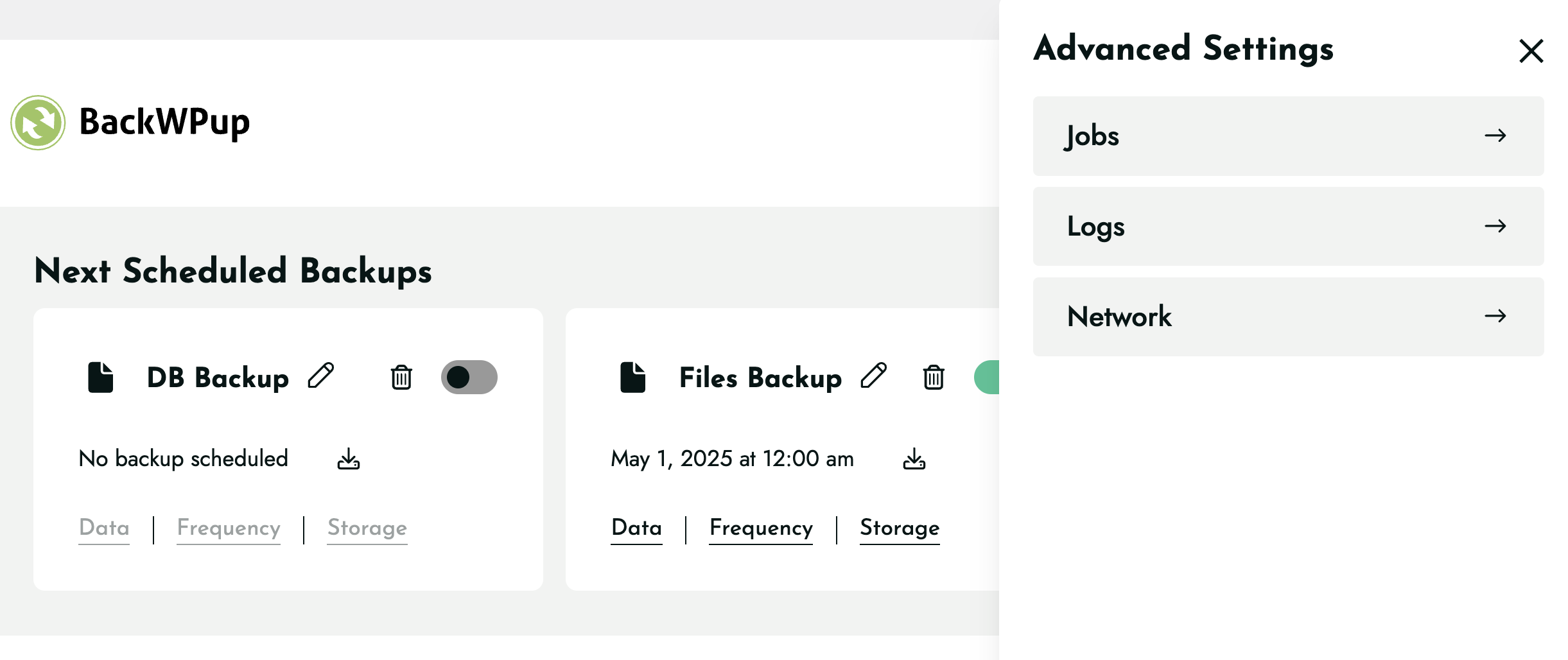
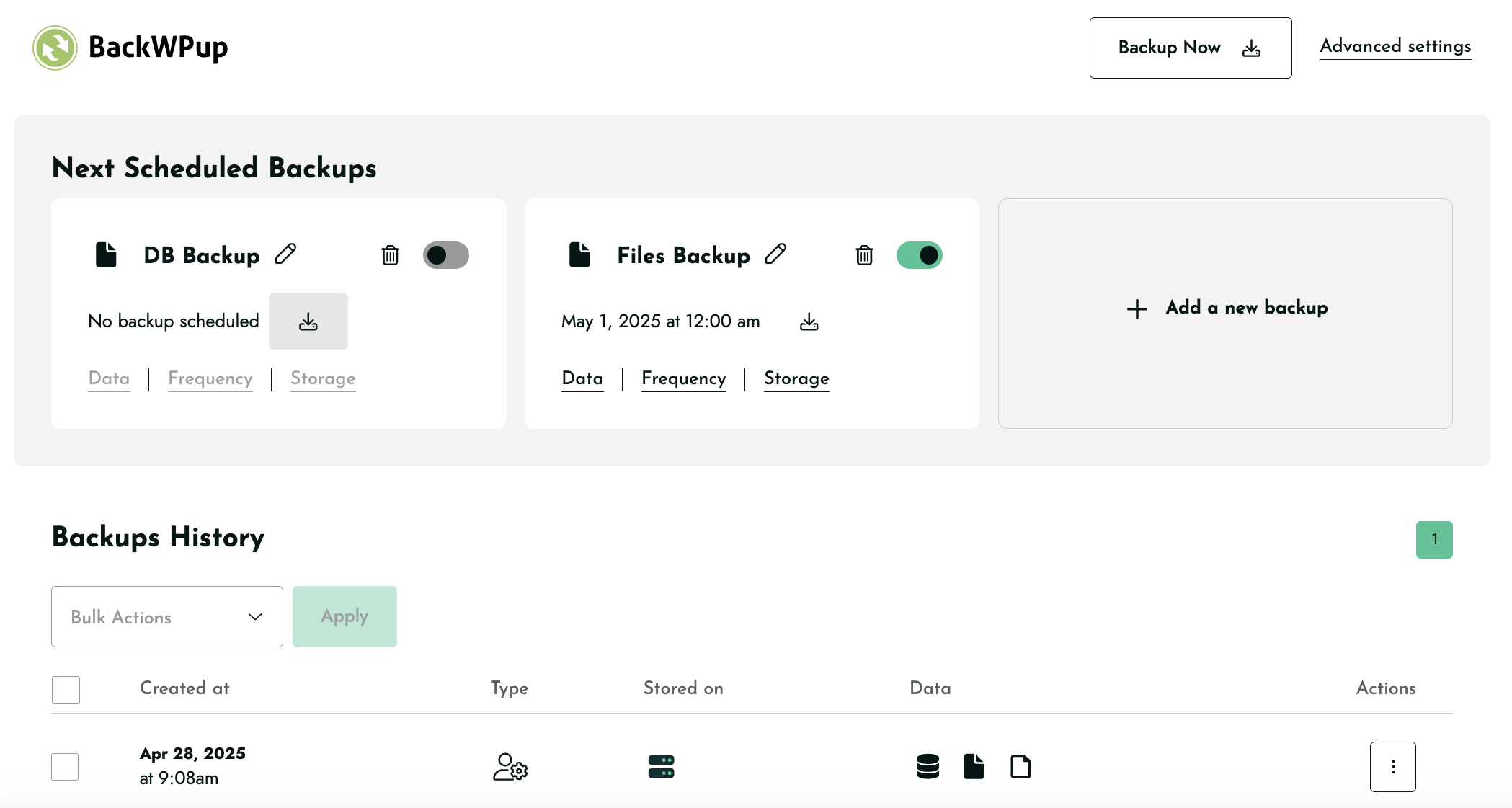
The backup runs as a WordPress cron job by default. On shared hosting where WordPress cron only fires when a page is visited, scheduled backups can be delayed if traffic is irregular. BackWPup supports an external URL trigger that works around this: you ping the URL from a server-side cron job on a fixed schedule, and BackWPup fires on demand. This is the developer-oriented workflow that the plugin’s technical audience will recognize.
Backup features
What the free version backs up
The free version backs up the full content of a WordPress installation. The job type selector lets you choose from:
- WordPress files: all site files including themes, plugins, uploads, and wp-content.
- Database: all database tables (or a custom selection of tables).
- Plugin list export: a list of installed plugins, useful as documentation or for reference after a full restore.
- WordPress settings: exported WordPress configuration.
- Non-WordPress files and folders: any directory on the server outside the default WordPress paths.
You can combine multiple backup types in a single job, or split them across multiple jobs if you want separate schedules for files and database.
The free version includes file exclusion rules: exclude specific folders, file extensions, or files above a certain size. For a site with a large uploads library and a small database, you can run the files backup weekly and the database backup daily, each to the same cloud destination.
Scheduling
The free version schedules backups at hourly, daily, weekly, and monthly intervals. The schedule is configured per job, so a database job can run daily while a full-files job runs weekly without creating conflicts.
Hourly is the highest backup frequency available at any tier. There is no sub-hourly scheduling and no real-time or event-triggered backup mode.
Performance-aware backup execution
One free feature worth calling out explicitly: BackWPup lets you set a CPU execution threshold that controls how aggressively the backup job runs. On a busy shared hosting account, a full backup that consumes all available CPU for five minutes is a problem during peak traffic. BackWPup’s throttle setting lets you reduce the backup pace to protect site performance during the run.
This is not a feature every backup plugin offers, and for developers managing sites on resource-constrained hosting, it matters.
WP-CLI support (free)
WP-CLI integration is included in the free version. From the command line you can:
- List all configured backup jobs.
- Run a specific job immediately.
- Check backup status and logs.
- Manage backup configurations.
WP-CLI backup control is a premium feature in UpdraftPlus. Having it in BackWPup’s free tier is a genuine differentiator for developers who manage WordPress installations from the command line or who want to trigger backups as part of a CI/CD or deployment workflow.
AI-assisted backup management via MCP (free, version 5.7+)
Version 5.7.0, released June 8, 2026, introduced MCP (Model Context Protocol) support. MCP lets AI assistants connect directly to BackWPup and manage backups through natural language rather than the WordPress admin panel.
Supported assistants include Claude Desktop, GitHub Copilot, and OpenAI Codex. Through MCP, you can ask your AI assistant to check whether the last backup ran successfully, start a backup job, review logs, and investigate issues without opening wp-admin.
This is a forward-looking feature with no direct equivalent in the major competing backup plugins. For technical teams already using AI coding assistants in their WordPress workflows, MCP integration removes a context switch and puts backup management where developers are already working.
The MCP feature can be disabled with the backwpup_mcp_server_enabled filter for sites where AI assistant access to backup management is not appropriate.
Cloud storage destinations
Free destinations
The free version connects to seven storage destinations. This is more than most backup plugins offer at no cost:
- Website Server (local): stores the backup in a folder on your own server.
- Dropbox: stores backups in your Dropbox account.
- FTP and SFTP: connects to any FTP or SFTP server.
- Microsoft Azure Blob Storage: stores backups in your Azure account.
- Amazon S3 and compatible storage: connects to S3, and to any S3-compatible service (Cloudflare R2, Wasabi, Backblaze B2, DigitalOcean Spaces, and others).
- Rackspace Cloud Files: connects to Rackspace’s object storage.
- SugarSync: connects to the SugarSync cloud storage service.
The inclusion of Microsoft Azure and Amazon S3 in the free tier is notable. In UpdraftPlus, Azure Blob Storage is a premium-only destination. In BackWPup, it is available at no cost. For a developer or agency already using Azure or AWS infrastructure, that is a meaningful cost difference.
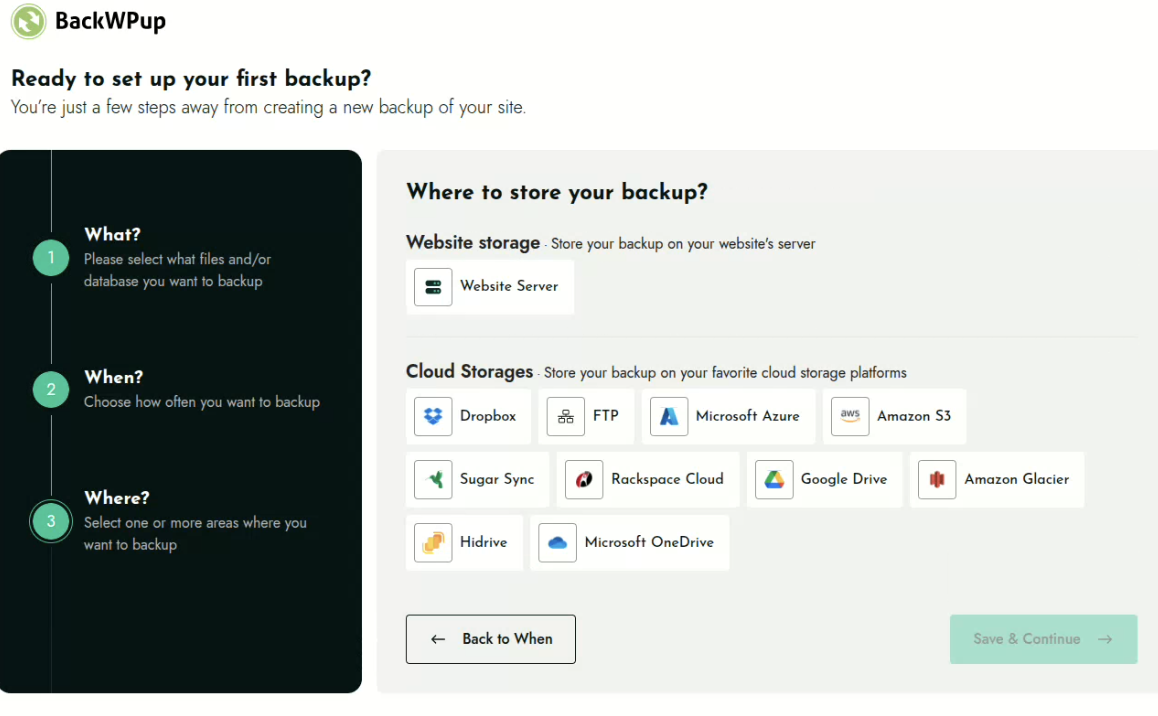
Each destination can be configured with its own retention count, so you control independently how many backup copies to keep in each location. A job can write to multiple destinations simultaneously: one copy to your local server and one to Amazon S3, for example, with different retention settings for each.
Pro-only destinations
BackWPup Pro adds four additional destinations:
- Google Drive: the most widely used personal cloud storage destination.
- Microsoft OneDrive: for Microsoft 365 users and organizations standardized on the Microsoft ecosystem.
- Amazon Glacier: low-cost archive storage for long-term backup retention. Glacier retrieval is slower and not suitable for same-day restore scenarios, but it is the most cost-effective option for keeping 90-day or longer backup archives.
- HiDrive: a European cloud storage service with data centers in Germany, relevant for organizations with EU data residency requirements.
The most significant gap between free and Pro for most users is Google Drive. Google Drive is the most popular personal cloud storage destination in the backup plugin category, and it is behind the Pro paywall in BackWPup. UpdraftPlus includes Google Drive free.
Restore features
One-click restore (free)
The free version restores from within the WordPress admin. Navigate to BackWPup, go to the backup you want to restore, and initiate the restore from the backup history screen. The restore process unpacks the backup archive and replaces the selected components.
The free version can restore from locally stored backups and from backups stored in the free cloud destinations. Direct restore from Google Drive or OneDrive (Pro destinations) requires a Pro license.
Standalone restore application (Pro)
This is the most important Pro feature to understand if you are evaluating BackWPup for serious site protection.
The standalone restore app is a separate application that runs independently of WordPress. If your WordPress installation is completely offline, corrupted, or inaccessible (the “white screen of death” scenario), you can recover using the standalone restore app without needing to log in to wp-admin.
The restore app requires server access and the backup files, but it does not require a working WordPress install to run. For sites where the disaster scenario might involve a fully crashed WordPress environment, this is the recovery path that works when standard plugin restore methods do not.
UpdraftPlus’s restore requires a working WordPress admin. Duplicator's restore requires uploading the installer.php and archive manually. BackWPup Pro’s standalone restore app is a meaningfully different approach.
Direct restore from cloud (Pro)
In the free version, restoring from a cloud destination (S3, Azure, Dropbox) requires downloading the backup archive first, then uploading it back to the restore interface. Pro removes the intermediate download step: you restore directly from the cloud destination without touching the file locally.
For large sites with backup archives measured in gigabytes, eliminating the download-and-reupload step saves meaningful time and avoids file size limits at the upload step.
Backup encryption (Pro)
BackWPup Pro adds AES-256 archive encryption. Backup archives are encrypted before they are sent to the storage destination, so a stolen or leaked backup file cannot be read without the decryption key.
Encrypted restores are included with the same Pro license: when you restore from an encrypted archive, the decryption happens automatically during the restore process.
This is a Pro-only feature. The free version creates unencrypted archives. For sites backing up to personal cloud accounts (Dropbox, Azure), unencrypted archives are common practice and acceptable for most use cases. For sites handling sensitive personal data, health information, or payment-adjacent data, encryption provides meaningful additional security for the backup storage layer.
Website migration (Pro)
BackWPup Pro includes a website migration feature that handles moving a WordPress site to a new domain or hosting provider. The migration process exports the full site files and database, then runs a URL and database update pass during restore so the migrated site works at the new address without manual search-and-replace operations.
Migration is not BackWPup’s primary use case, and this feature does not have the same depth of control as dedicated migration plugins like Duplicator. For a straightforward host-to-host or domain change migration, it covers the job. For complex migrations with serialized data, Multisite networks, or custom database table structures, a dedicated migration plugin is the more reliable tool.
Multisite support
The free version includes basic WordPress Multisite support: BackWPup can back up and restore a Multisite network in the same way it handles a single site. The WP.org documentation describes BackWPup as “fully supporting” WordPress Multisite for backup and restore.
BackWPup Pro adds “advanced multisite support” as a listed Pro feature, though the specific capabilities beyond the free-tier basic Multisite backup are not detailed on the public features page at the time of this review. Multisite operators should verify the specific Pro Multisite capabilities in the documentation or contact the BackWPup team before purchasing if advanced Multisite management is a core requirement.
Pricing and license value
BackWPup Pro is sold as an annual subscription from backwpup.com/pricing. Three plans are available, differentiated by domain count. All plans include the same feature set; the only difference is how many WordPress installations you can activate the license on.
Prices observed on backwpup.com/pricing on August 14, 2026:
| Plan | Sites | Price per year (USD) |
|---|---|---|
| Starter | Up to 2 sites | $49 |
| Advanced | Up to 5 sites | $99 |
| Pro | Up to 20 sites | $199 |
All plans include priority product updates, premium ticket-based support, premium storage options (all Pro cloud destinations), AES-256 data encryption, the migration feature, and the standalone restore app. A 14-day money-back guarantee applies to all plans. There is no free trial for Pro; the free version on WordPress.org is effectively the trial.
The pricing logic for most buyers:
- Single site, basic needs: the free version handles everything for a site with an existing S3, Azure, or Dropbox account. Do not pay for Pro unless you specifically need encryption, the standalone restore app, Google Drive, OneDrive, or migration.
- One or two business sites needing encryption and the standalone restore app: Starter at $49 per year is reasonable. At two domains, that is $24.50 per domain per year, which is competitive for a fully featured backup plugin.
- Small agencies managing up to five sites: Advanced at $99 per year ($19.80 per domain) is the practical value tier.
- Freelancers and mid-size agencies covering up to 20 sites: Pro at $199 per year ($9.95 per domain) offers strong per-site economics for a full-featured solution.
BackWPup is more expensive than UpdraftPlus for comparable single-site coverage (UpdraftPlus Personal covers two sites at roughly $70 per year ex-VAT and includes incremental backups; BackWPup Starter covers two sites at $49 per year but does not include incremental backups). The value case for BackWPup Pro rests on the standalone restore app and direct cloud restore, which UpdraftPlus does not offer.
Pros and cons
Pros
- Generous free cloud storage list: Microsoft Azure, Amazon S3 and all S3-compatible services (Cloudflare R2, Wasabi, Backblaze B2, DigitalOcean Spaces), Dropbox, Rackspace, FTP/SFTP, and SugarSync at no cost. Azure and S3 are premium-only in UpdraftPlus.
- WP-CLI included free. Run backups, check status, and manage jobs from the command line without a Pro license. A meaningful differentiator for developer workflows.
- Multiple destinations per job. A single backup job can write to your local server and an S3 bucket simultaneously, with independent retention settings per destination. Free.
- Job-based architecture gives precise control over multiple backup types with different schedules, exclusions, and destinations on the same site.
- Standalone restore app (Pro). Recover a site without a working WordPress install. This is a capability gap between BackWPup Pro and most competing self-hosted plugins.
- MCP/AI integration (version 5.7+). Check backup status, trigger backups, and review logs through Claude Desktop, GitHub Copilot, or OpenAI Codex using natural language. No equivalent exists in the main competing plugins.
- Performance-aware backup throttling. Control how much CPU the backup job uses during execution, protecting site performance on shared hosting.
- Active development under WP Media. Seven public releases between May and July 2026, including a security patch, UX improvements, MCP launch, and compatibility fixes.
- 14-day money-back guarantee on all Pro plans.
- 24+ million total downloads, a body of real-world deployment experience no new plugin can match.
Cons
- Google Drive and OneDrive are Pro-only. These are the two most commonly used personal cloud destinations, and they sit behind the paywall. UpdraftPlus includes Google Drive and Dropbox in the free tier.
- No backup encryption in the free version. AES-256 archive encryption is Pro-only. Duplicator includes encryption free.
- No incremental backups at any tier. Every backup is a full backup. For large sites with growing media libraries, this means each backup run transfers the full uploads folder every time. UpdraftPlus Premium offers incremental backups.
- No automatic backup before updates. BackWPup does not trigger a backup automatically when WordPress runs a core, plugin, or theme update. This is a Pro feature in UpdraftPlus and a significant safety net that BackWPup does not replicate.
- Configuration is more involved than simple backup plugins. The job-based tab interface is flexible but requires more initial decisions than UpdraftPlus’s unified settings panel or Duplicator’s three-step wizard.
- WordPress.org rating shows a bimodal distribution: 918 five-star reviews and 296 one-star reviews out of 1,321 total. The one-star cluster reflects real user frustration during the plugin’s transition period. The recovery under WP Media is visible in recent reviews, but the historical rating drag is real and will take time to resolve.
- Active installs at 400,000 are significantly below UpdraftPlus (3+ million) and represent the fallout from the development gap years. The plugin is rebuilding adoption, not at its historical peak.
- Website migration (Pro) is basic compared to dedicated migration plugins. For complex migrations, a specialized tool provides better control.
- No real-time backup or WooCommerce continuous order capture. Hourly is the maximum frequency.
Alternatives to BackWPup
- UpdraftPlus. The most-installed WordPress backup plugin. A stronger choice if Google Drive or Dropbox in the free tier is a priority, if you want incremental backups on Pro, or if you want a simpler single-panel setup. Choose BackWPup if Azure, WP-CLI, or the standalone restore app matter; choose UpdraftPlus if Google Drive and the incremental backup engine matter more.
- BlogVault. A managed backup service where the engine and storage run on BlogVault’s cloud, not your server. Choose BlogVault if you need a restore that works when the hosting account itself is compromised (not just WordPress), real-time WooCommerce order capture, integrated staging, or a fully managed backup service with offsite cloud storage included in the plan price. BlogVault is paid only.
- Duplicator. Primarily a migration tool that also functions as a backup plugin. The free version creates unlimited manual backups with AES-256 encryption at no cost. Choose Duplicator if site migration is the primary use case, if you want encryption without a paid license, or if the archive-and-installer model fits your deployment workflow. Duplicator Pro adds scheduled cloud backups.
- WPvivid. A free backup and migration plugin with a direct site-to-site migration token in the free tier and growing cloud storage support. A lighter, simpler alternative if BackWPup’s job-based configuration is more than you need.
- Jetpack VaultPress Backups. Real-time and daily backup options from Automattic. Choose it if you are already in the Jetpack ecosystem and want real-time backup with activity log and one-click restore, and you accept a subscription model with Automattic’s cloud as storage.
For most WordPress operators, the practical comparison is BackWPup free (Azure, S3, WP-CLI, job control) versus UpdraftPlus free (Google Drive, Dropbox, simpler setup, scheduled backups). Both are zero cost; the decision is about which cloud destination and workflow you prefer. When a paid upgrade is in play, BackWPup Pro’s standalone restore app is the unique advantage to weigh against UpdraftPlus Premium’s incremental backups and pre-update snapshots.
Final verdict
BackWPup is a competent free WordPress backup plugin with two clear strengths: a wider free cloud storage list than most of the competition (including Microsoft Azure and Amazon S3 at no cost), and WP-CLI support that competing plugins charge for. For developers and technical users who already work in the S3 or Azure ecosystem, those two things together make the free version genuinely appealing.
The Pro upgrade earns its price for one specific scenario above all others: restoring a site when WordPress itself is offline. The standalone restore app is the clearest differentiator in the Pro tier, and it is a capability gap that matters in real disaster scenarios. If you need to recover a site that the hosting company has partially corrupted, or that the white screen of death has made inaccessible, BackWPup Pro’s restore path works where others stop.
The honest caveat in 2026 is that BackWPup is still earning back trust. The bimodal review distribution on WordPress.org is a real signal, not noise. WP Media’s track record with WP Rocket and Imagify is strong, and the 2025-2026 development record shows genuine investment: security patches, UX improvements, MCP integration, and regular compatibility updates. But 296 one-star reviews across 1,321 total ratings is a signal worth reading before committing.
The new MCP feature deserves a separate mention: connecting backup management to Claude Desktop or GitHub Copilot via natural language is a genuinely novel capability. Developers who live in AI assistants will find it useful. It is not a reason on its own to choose BackWPup over alternatives, but it points to where the plugin’s development focus is headed.
For a personal site or a low-traffic blog, BackWPup free and an existing Azure or S3 account is a solid, zero-cost backup solution. For a business site where recovery time matters and a working WordPress install cannot be assumed, BackWPup Pro at $49/year for two sites deserves a serious look alongside UpdraftPlus Premium, with the standalone restore app as the deciding factor.