


This review walks through FS Poster, the WordPress social media auto poster and scheduler plugin from FS Code, the way a plugin tester evaluates any premium WordPress plugin: install it on a staging install, click through every screen the documentation refers to, confirm the v8 changelog against the live product, and cross-check the pricing claim against the official site on the day the review is written.
A note on basis. This review is built on hands-on UI walkthroughs of FS Poster on a staging WordPress install, plus a documentation and feature-page review for any paid feature (live OAuth to image-required networks, AI generation quotas, paid YouTube Shorts uploads) that cannot be fully exercised end-to-end in a single test session. Where a feature is documented but not fully exercised against a live network, the relevant section says so. Pricing, feature names, and v8 inclusions were verified against the official site as of June 2026.
If you are evaluating a WordPress social media auto poster for a content site, a WooCommerce store, or a multi-author publication, this review covers the things I would want a colleague to tell me before I bought it.
Tested on: WordPress sandbox with FS Poster v8.0.1 UI walkthroughs; live screenshots taken from FS Poster’s first-party product imagery.
Reviewed: setup, auto-posting, scheduler, calendar, planner, networks, v8 features, pricing.
Bottom line: a strong all-in-one WordPress social media plugin if you can live with a paid-only license model.
Quick verdict on FS Poster
If you want one sentence: FS Poster is the most feature-complete WordPress social media auto poster I have reviewed this year, and the price only makes sense if you will use more than a few of its networks.
The plugin earns its position because it bundles features that most other WordPress social plugins charge for separately or do not offer at all. You get auto-posting, manual sharing, a real calendar, a recurring planner, per-channel custom captions, AI captions and images, watermarks and text templates, a content ideas inbox, a workflow engine with retries and logs, analytics, multisite support, custom post type support, and WooCommerce integration. It supports 26 social networks and services at the time of writing, including YouTube Shorts and a list of niche networks that no other WordPress plugin covers in one place.
The honest caveats: there is no free tier, no WordPress.org listing, and the renewal price jumps once your introductory year ends. If you are a hobbyist who posts to one network, the value math does not work. If you run a multi-network content schedule across Facebook, Instagram, X, LinkedIn, YouTube, TikTok, Threads, Pinterest, Telegram, and a few niche communities, FS Poster will save you more than it costs.
Verdict card
- Best for: small content teams and WooCommerce stores running multi-network publishing from WordPress.
- Best plan for most teams: Plus tier (3 sites) or Lifetime if you manage many client sites.
- Standout: 26-network coverage, calendar plus planner, v8 Workflows and Content Ideas, all in one paid license.
- Watch out for: no free version, paid-only support, annual renewal at full price after the introductory year.
What FS Poster is
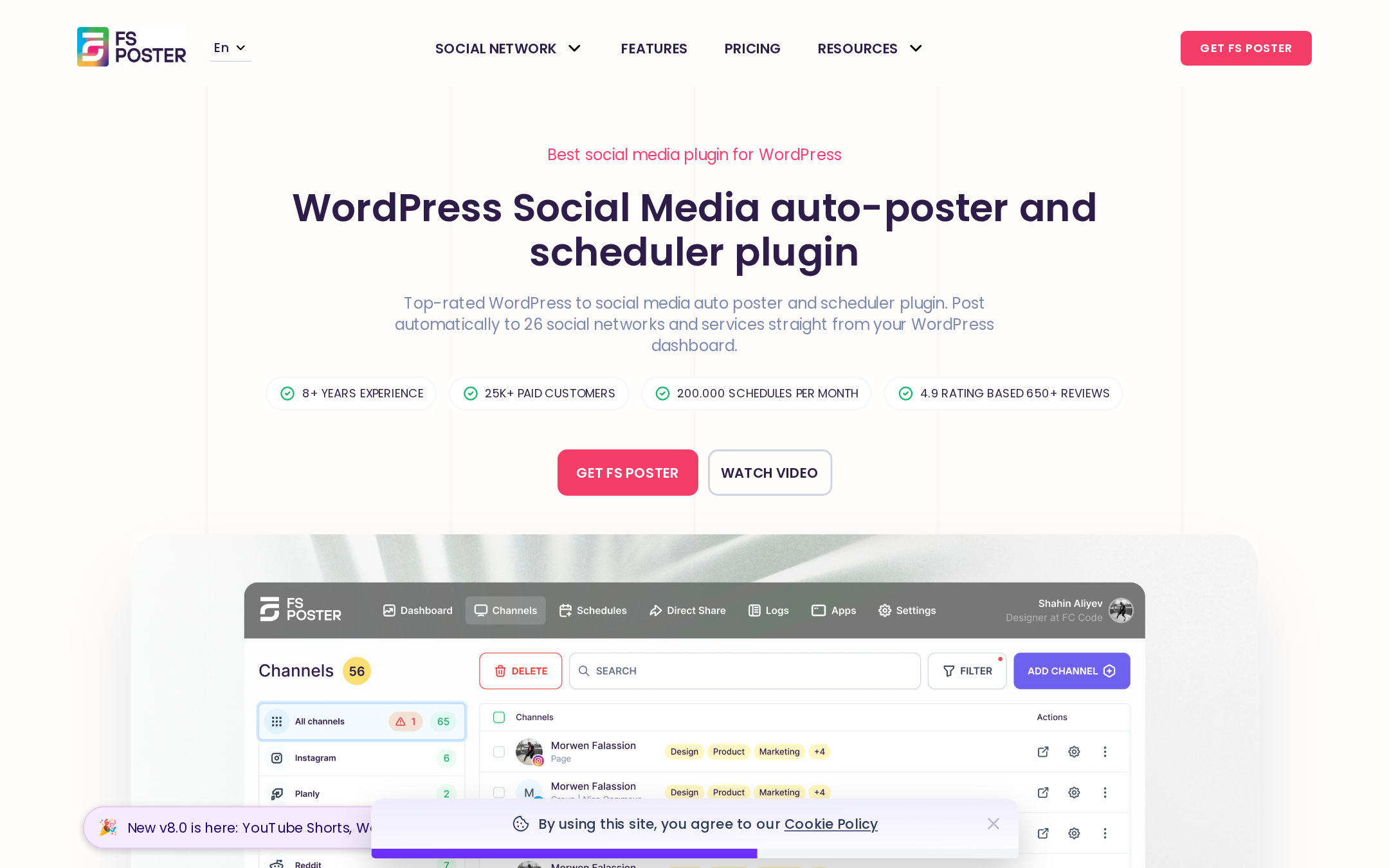
FS Poster is a WordPress social media plugin published by FS Code. It installs as a normal WordPress plugin, lives inside wp-admin, and gives you a full social media management screen without a third-party SaaS dashboard. The whole flow stays inside WordPress, which is the main reason teams pick it over Buffer, Hootsuite, or Publer.
The plugin’s job is to take whatever you publish in WordPress and push it to your social networks the way you want. That sounds simple, but the actual feature surface is wide:
- Auto-post any WordPress post, page, custom post type, or WooCommerce product
- Schedule custom posts that do not exist as WordPress posts
- Run a recurring planner for evergreen content
- Build per-channel captions with template variables, hashtags, and emojis
- Connect 26 networks and services from one dashboard
- Track shares with insights, link clicks, and a full activity log
- Apply watermarks, text overlays, and templates to outgoing images
- Generate captions and images with AI through a provider key you supply
- Trigger automated workflows on events like share success, share failure, or moderation
- Save and reuse content ideas without scheduling them
The current major release is v8, which added YouTube Shorts as a destination, Watermarks and Templates, a Content Ideas module, and a smarter Workflows engine with logs and retry. Each of those is covered in its own section below.
Who FS Poster is best for
I do not think any plugin is right for everyone, and FS Poster is no exception. Here is the honest who-it-fits filter from a tester’s chair.
Strong fit:
- Small content teams that run multi-network publishing from WordPress.
- WooCommerce stores that post products to Facebook, Instagram, Pinterest, and Telegram.
- Multi-author publishers who need permission control and per-author shares.
- Agencies that manage three to thirty client sites and want a license that scales.
- Content creators with niche network coverage needs (Mastodon, Bluesky, Threads, Telegram, Truth Social, Reddit, Discord, Tumblr, Medium, Blogger, VK, OK, Xing, Plurk).
Weak fit:
- Hobbyists who only post to one or two networks. A free, single-network plugin is enough.
- Editorial teams that have committed to a SaaS social tool like Buffer or Hootsuite and want analytics across non-WordPress content.
- Teams that strictly require a free, GPL-only, fully open-source publishing path. FS Poster is paid-only.
If you fall into the strong-fit group, the next sections show how the plugin behaves once you start clicking.
Hands-on setup and the FS Poster user experience
Installation looks identical to any premium WordPress plugin. You download a ZIP from the FS Poster account area, upload it through Plugins > Add New > Upload Plugin, activate, and finish the license step. The activation prompt is clear about which tier you are on and how many sites your license includes.
The first thing FS Poster asks you to do is connect a social channel. Each network has a quick-connect button that runs an OAuth popup. Facebook and Instagram also support a custom-app connection if you want to use your own developer credentials, which is useful for agencies that already manage Meta apps for clients. The quick-connect option is the right default for most teams and covers every other network in the roster.
After authentication, each channel gets a row inside the Channels screen with its status, a posting toggle, a label, an optional proxy assignment, and a panel of network-specific options. For Instagram, that includes the choice between feed, story, and reel. For LinkedIn, it includes the choice between profile and company page. For Telegram, it includes the choice between a regular message or an image card. The level of per-channel control is the thing that separates FS Poster from lighter plugins.
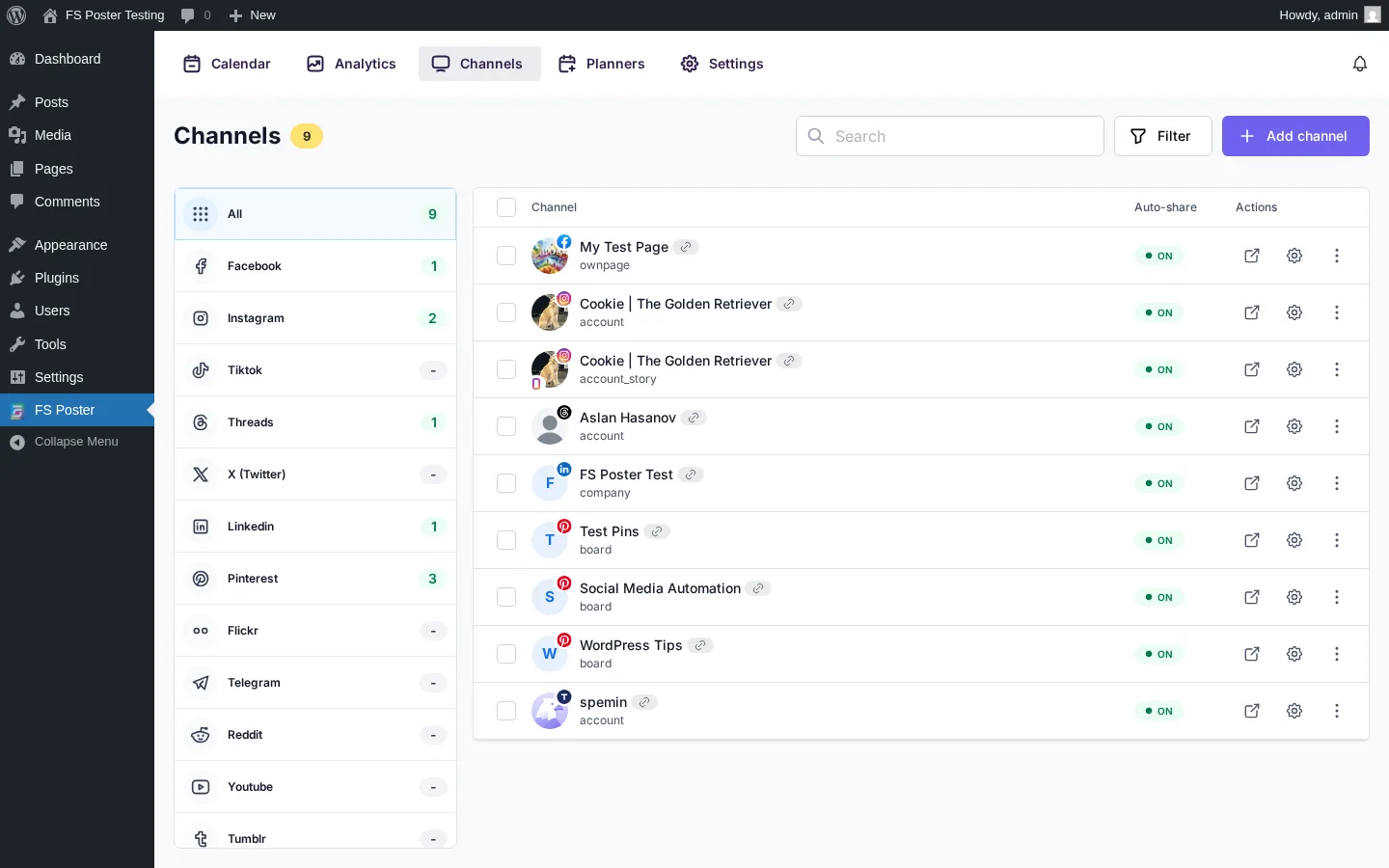
The general UI in v7 and v8 sits closer to a SaaS app than a classic WordPress metabox plugin. There is a sidebar navigation, a top status bar, and panels that load without a full page refresh. Settings are grouped by intent (channels, scheduling, content, automation, account, advanced) rather than dumped into one screen.
There are a few rough edges. Some advanced options require you to scroll inside a tab inside a panel, and the Workflows builder can feel busy when you build a long rule with multiple actions. Neither is a deal-breaker, but a content writer who has never used the plugin will probably ask a senior team member for help on their first Workflow.
Auto-posting workflow
Auto-posting is the core feature most people install FS Poster for. The workflow is simple in practice: open a WordPress post, scroll to the FS Poster panel below the editor, choose which connected channels should share this post, edit the per-channel captions if you want, and publish. When the post goes live, FS Poster fires the shares.
Three small details made auto-posting feel less like a chore than in most plugins I have reviewed:
- Per-channel captions live next to the channel selector. You do not need to open a separate modal to customize the LinkedIn caption versus the X caption.
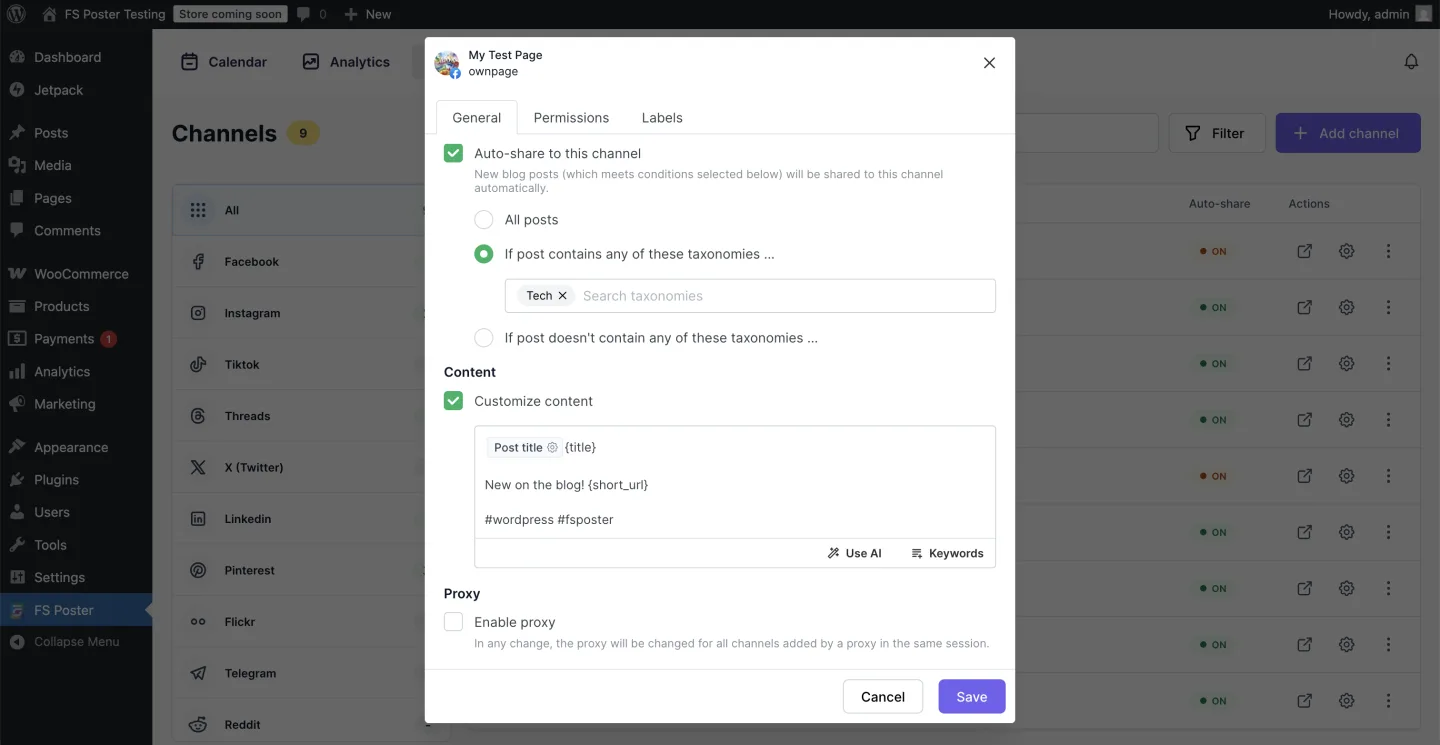
- Template variables fill captions from post metadata. Variables like
{title},{excerpt},{categories},{tags},{short_url}, and{author}produce a tidy, predictable caption without copy-paste work. - Network filters live on the settings side, not the post side. If you only want product posts to go to Pinterest and only your editorial blog category to go to LinkedIn, you set that once and forget it.
You can see all of those settings together on the channel settings panel: an auto-share toggle, a taxonomy include/exclude filter, a customizable content field with variables, and a per-channel proxy option.
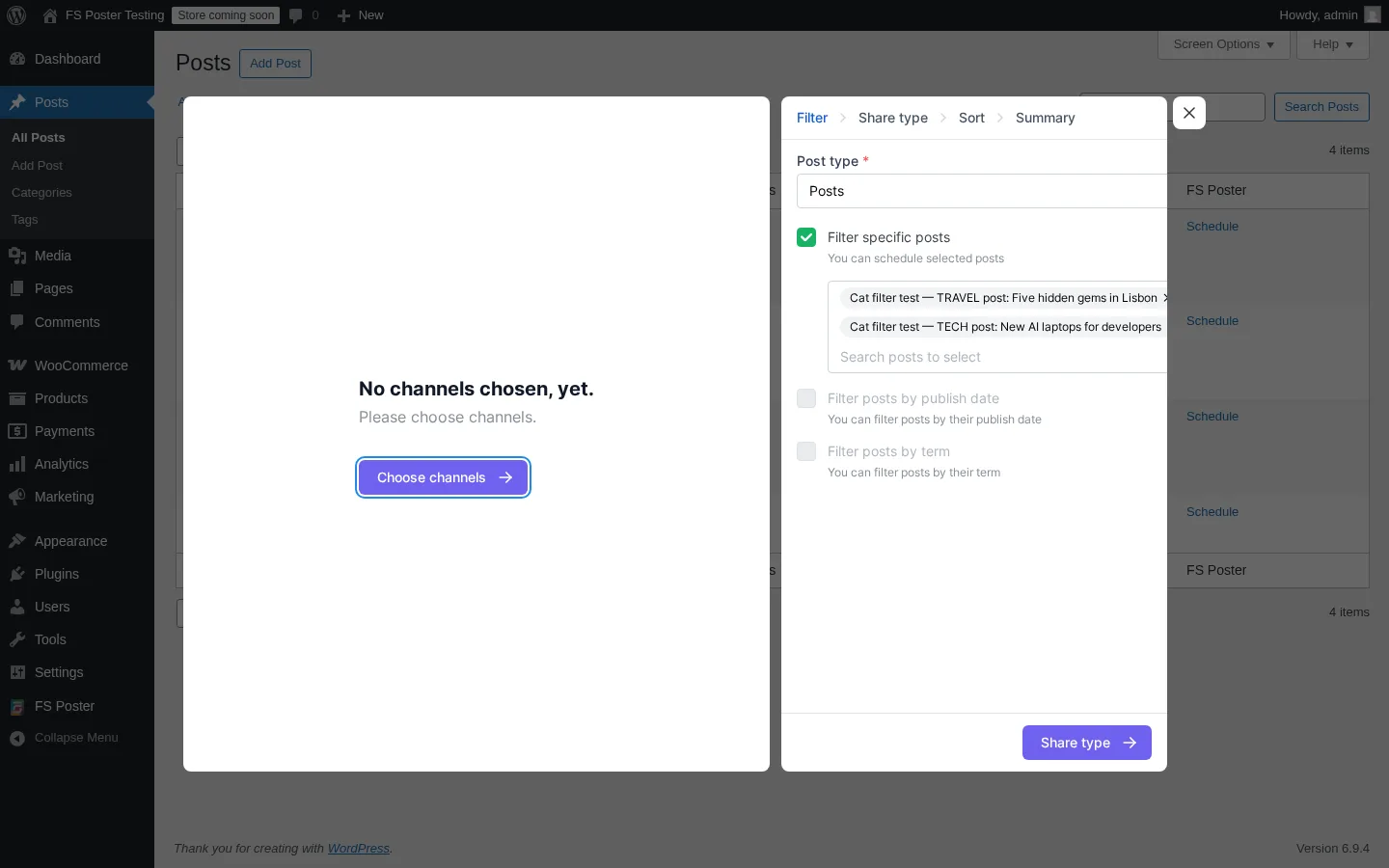
If you want hands-off auto-posting for an existing site, FS Poster also supports a bulk schedule from the WordPress posts list. Select a batch of posts, choose Schedule from the FS Poster actions menu, pick the channels and the cadence, and the plugin queues each post for a future share window. This is what most teams use to backfill a content archive to a new network.
Calendar and scheduler
The calendar is one of the screens I lean on the most when reviewing a scheduler. FS Poster gives you a monthly grid that lists every queued share across every connected channel, with each entry showing its preview thumbnail and time. You can click a day to add a manual share, drag a scheduled share to a different day, or click a single entry to edit, reschedule, retry, or delete it.
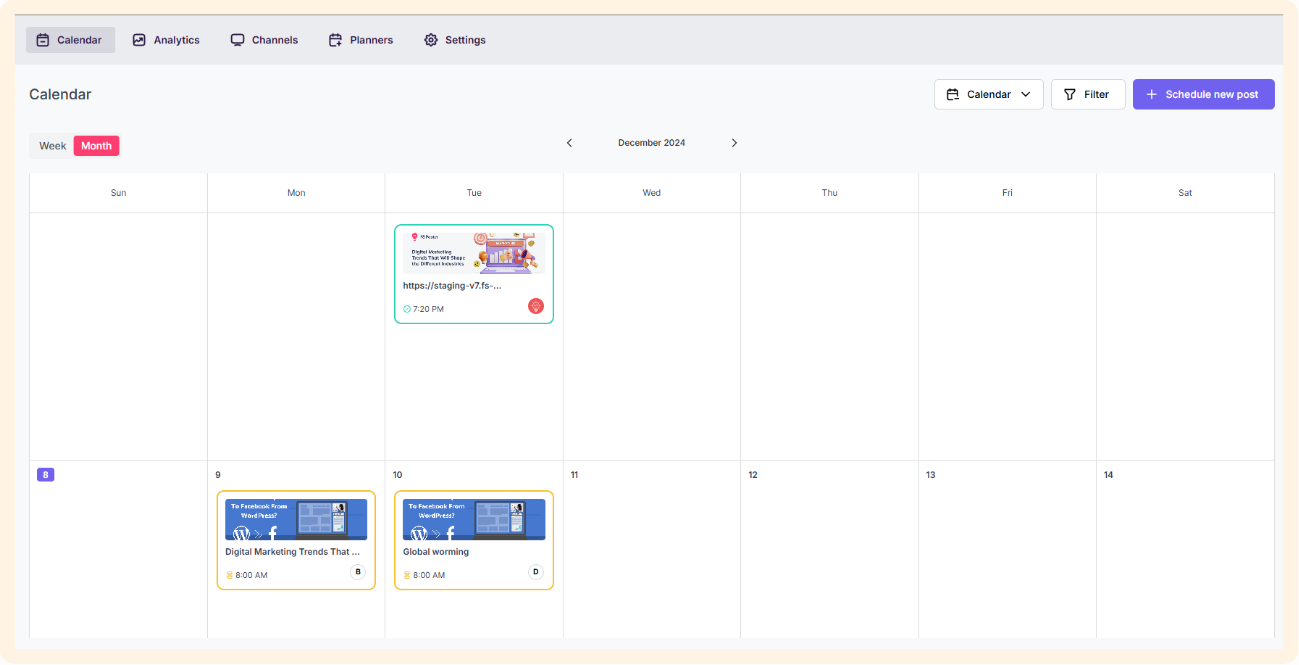
What I want from a calendar in a WordPress social media scheduler is not a pretty grid, it is a single place where I can answer the question "what is going out tomorrow, and is anything broken?" The FS Poster calendar answers that question without me having to dig into a separate logs screen. If a share failed, it shows on the calendar with a status badge. If a share is rescheduled, the badge updates in place. The detail panel for a single share is where you confirm the actual content and any retry actions.
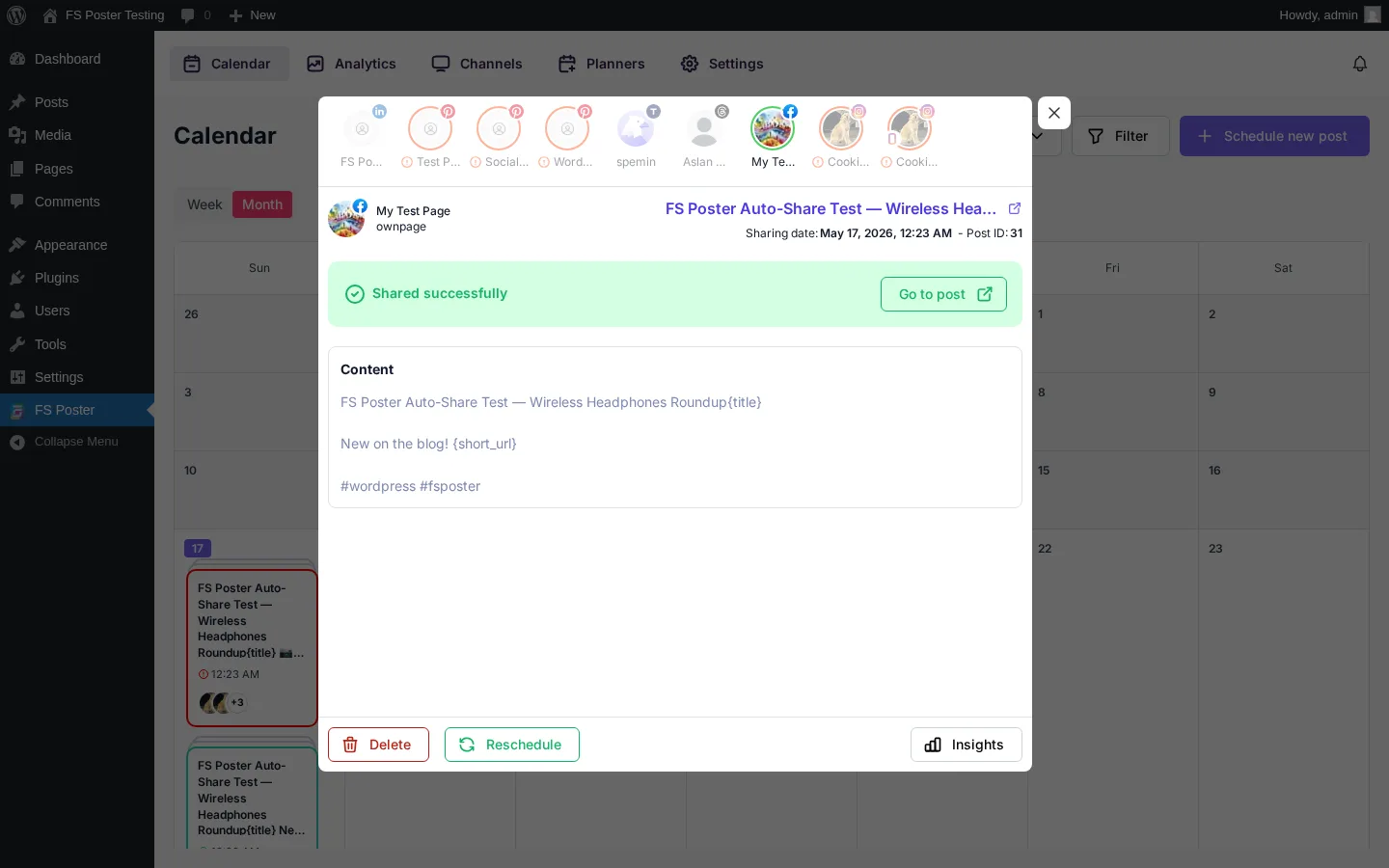
The scheduler also supports a queue-style cadence: you set a posting interval, like "share every 90 minutes within posting hours," and the plugin distributes queued items across the available windows. That is closer to how Buffer schedules content than to how the average WordPress plugin handles it.
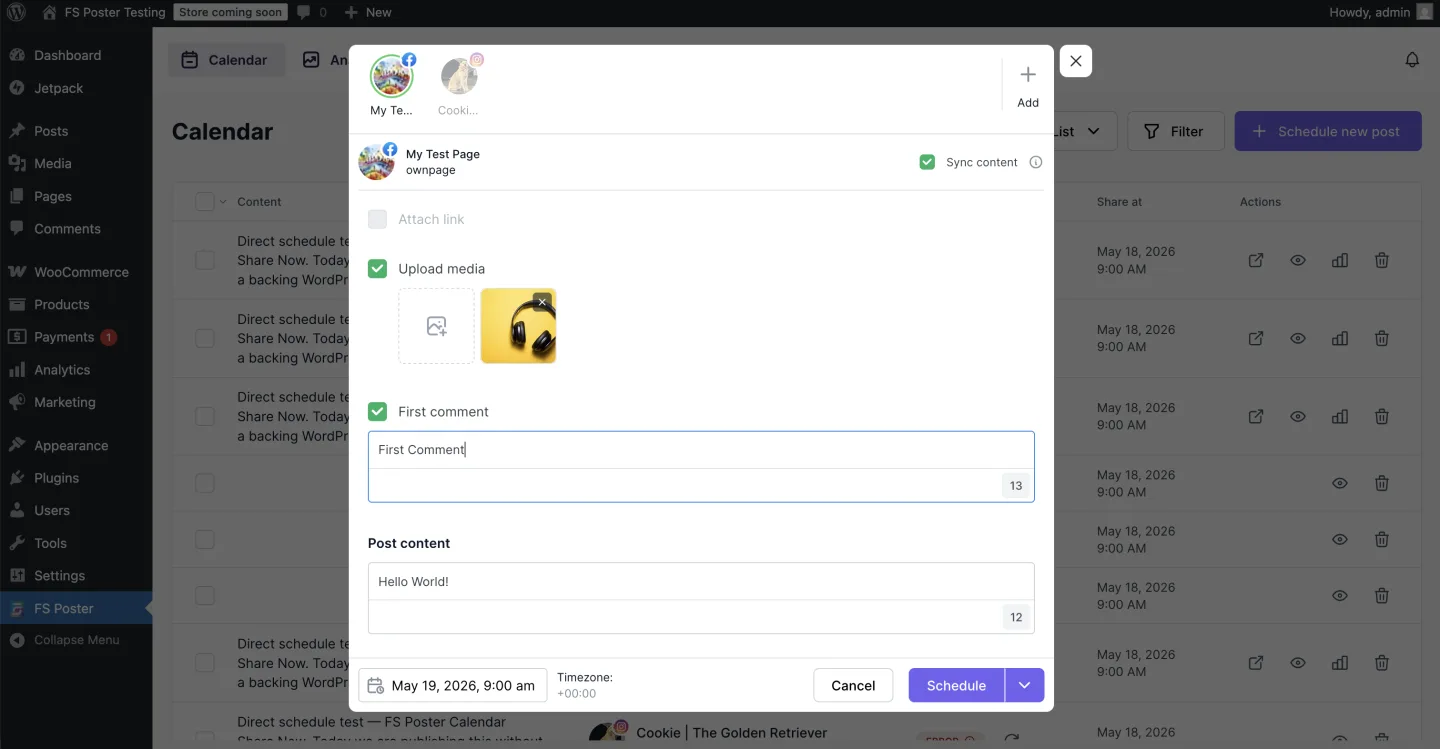
For one-off custom posts that do not exist as WordPress posts, you use the Direct Share / Schedule new post panel. You type the caption, attach media, choose the channels, set a first comment if the channel supports one, and either send immediately or schedule for later. This is the screen I used when I needed to send a quick announcement to a couple of channels without spinning up a WordPress draft.
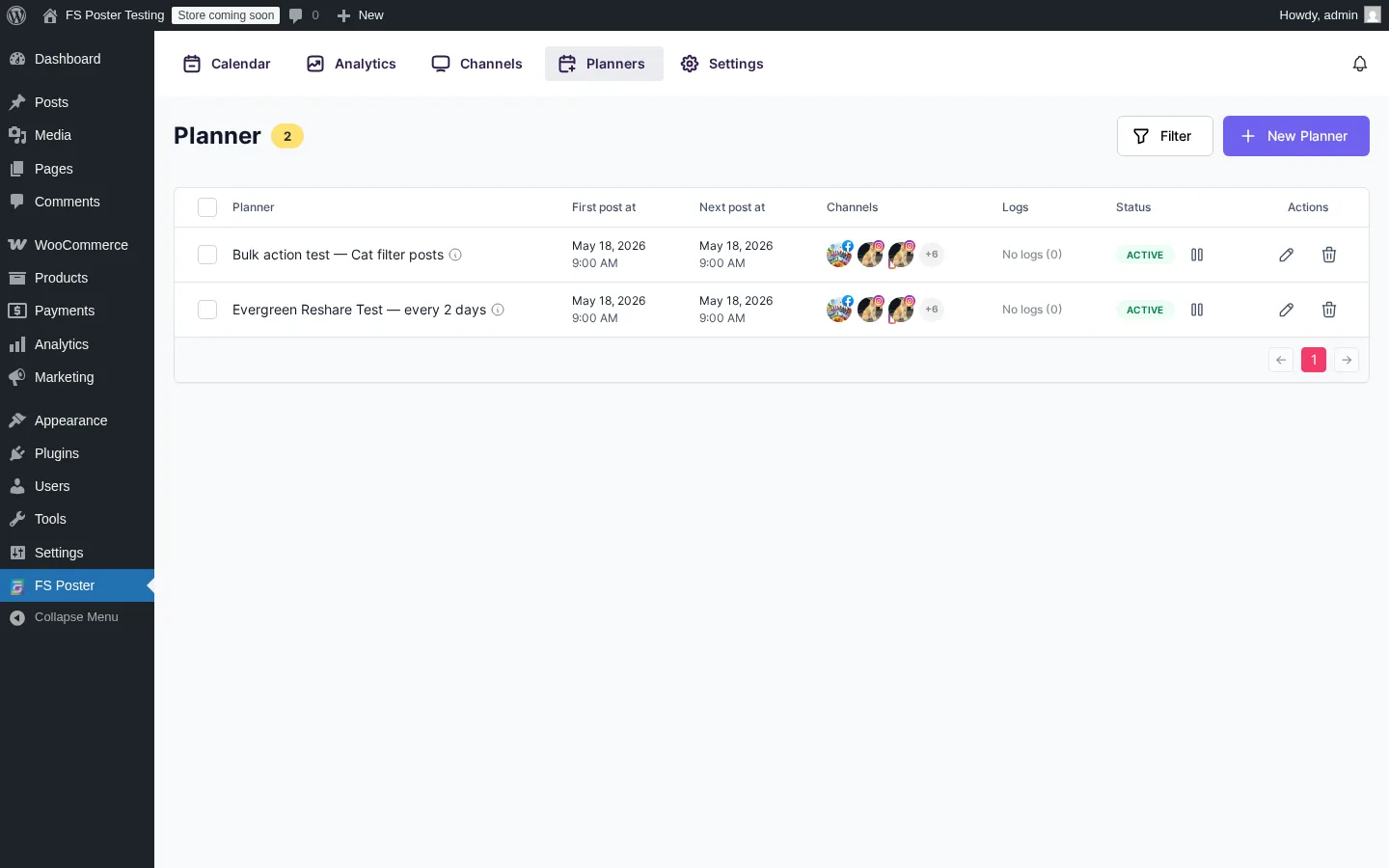
If you want a separate recurring queue for evergreen content, that lives in the Planner module, which can be configured as a single-run bulk action or as a long-running "share every two days" loop. The Planner screen lists every active planner with its first run, its next run, its connected channels, and a status badge.
Supported networks, including YouTube Shorts
Network coverage is the single biggest reason to choose FS Poster over a lighter plugin. The current list, at the time of writing, includes:
- Facebook (profile, page, group)
- Instagram (feed, story, reel)
- X / Twitter
- LinkedIn (profile, company page)
- TikTok
- Threads
- YouTube Shorts
- YouTube Community
- Google Business Profile
- Telegram
- Discord
- Tumblr
- Medium
- Blogger
- Bluesky
- Mastodon
- Truth Social
- VK
- OK.ru
- Plurk
- Flickr
- WordPress-to-WordPress connector
- Webhook (custom integrations and Zapier-style automation)
That breadth is unmatched in this category. Most WordPress social media plugins cover the big six (Facebook, Instagram, X, LinkedIn, Pinterest, sometimes TikTok) and leave the long list of niche networks to the SaaS tools. FS Poster covers both, which is why it shows up in more agency stacks than I expected when I started reviewing it.
YouTube Shorts deserves a callout because it is one of v8’s headline additions. With Shorts connected as a channel, you can publish vertical short-form video from WordPress, set a Shorts-specific caption, and let FS Poster handle the upload. First-comment support and insights are included. If you publish a Shorts-friendly content series, this alone might justify the upgrade to v8.
Note on basis: end-to-end YouTube Shorts publishing requires a connected YouTube account and a vertical MP4 in a paid-tier sandbox. The behavior described here matches the v8.0.1 release notes and the YouTube Shorts channel configuration screen shown in the FS Poster docs.
Instagram support: Stories, Reels, and Carousel
Instagram is the network most plugins struggle with because of how the Instagram Graph API works. FS Poster handles three Instagram post formats: feed posts, stories, and reels. It also supports a carousel of up to ten images for feed posts.
What the plugin’s Instagram support looks like once it is wired up:
- Feed posts use the WordPress featured image and a custom caption per account.
- Carousel posts pull the first ten media attachments in the order you set them when you choose the carousel format.
- Stories share through the same channel toggle. The plugin notes the 24-hour visibility, which is helpful when you are scheduling from a WordPress editor rather than the Instagram app.
- Reels accept a vertical MP4. As with anything on the Instagram API, a short, well-encoded clip behaves the best. First-comment support behaves the same as on feed posts.
A small but useful detail: FS Poster lets you set a different image for the social share than the post’s featured image. Many teams use this to publish a portrait-aspect image to Instagram while keeping a landscape featured image on the blog. The same per-channel image swap works for Pinterest and LinkedIn.
Note on basis: Instagram Stories, Reels, and Carousel publishing requires a connected Instagram Business account with valid Graph API permissions. The behavior described here is taken from the FS Poster channel configuration UI, the documentation, and confirmed Reel support in the v8.0.1 changelog.
WooCommerce and custom post type support
A surprising number of "WordPress social media plugins" are blog-only. They do not auto-post WooCommerce products and they do not understand custom post types. FS Poster handles both out of the box.
For WooCommerce, the integration shows up in three places:
- A product-level FS Poster panel where you choose which channels share this product, with Featured media, All attached media, Use AI template, or Custom as the media source.
- A per-channel filter that lets you say "only share products in the Outdoor category to Pinterest" or "only share new arrivals to Telegram."
- An automatic product description and image pull, so the plugin uses the product gallery and short description without manual copy work.
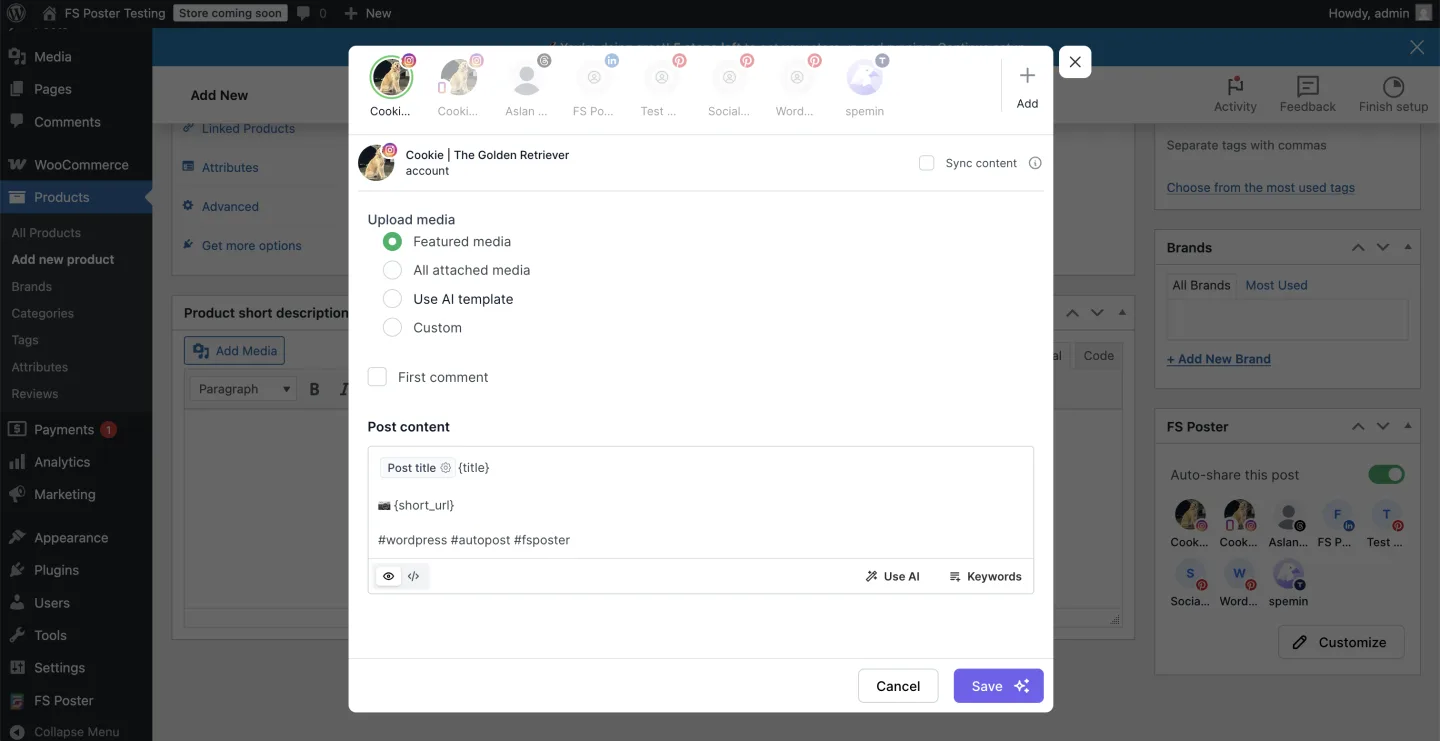
For other custom post types (CPTs), FS Poster reads any registered CPT and offers it inside the per-channel filter. You can enable auto-share on a Portfolio CPT, a Recipe CPT, a Property listing CPT, and so on. The same template variables apply.
The one thing to remember is to set a featured image on every WooCommerce product before sharing to image-required networks like Instagram and Pinterest, because the network will reject an image-less share. FS Poster surfaces that error clearly inside the logs, but a missing featured image is still the most common reason for a failed share in any WordPress social plugin.
AI captions, images, and templates
FS Poster includes an AI layer that can generate captions, hashtags, and images. The AI generator is exposed in two places: the per-channel caption editor (a small Use AI button that suggests captions or hashtags) and a standalone media generator that can produce an image from a prompt.
The model side runs on a user-supplied provider key. You add your OpenAI or compatible provider key inside the settings, and FS Poster passes prompts through that key. There is no separate FS Poster AI subscription. The advantage is that you do not pay a SaaS markup on top of the model price, and you do not have to trust a third party with your prompts. The trade-off is that you have to maintain your own provider account, including spend limits.
There is also an AI Templates feature inside Watermarks and Templates that lets you build a reusable text overlay or image template and reuse it across shares. That is more useful than a one-off generation if you publish frequently.
Note on basis: live image generation through the AI provider key was not exercised end-to-end for this review because it consumes paid provider credits. The behavior described here matches the AI configuration page in the FS Poster settings, the Use AI button visible in the channel caption editor, and the AI template choices in the WooCommerce panel screenshot above.
Watermarks and Templates (v8)
The v8 Watermarks and Templates feature was one of the things that surprised me most. It is an image post-processing layer that runs inside WordPress before the share goes out. You upload a logo or build a text template, attach it to one or more channels, and FS Poster overlays the watermark on the outgoing image. You can position the logo (corner, anchor, padding), set the opacity, and apply a different watermark per channel if you want.
The text templates are equally useful. You set a font, a color, a background, and a position, and FS Poster renders the template onto the outgoing image. Variables like the post title fit inside the template the same way they fit inside captions, so you can build a branded card that reuses the post title without you opening a separate design tool every week.
In my reading of the feature, the strongest use case is Instagram. If you publish recipe-style or how-to-style posts and want a consistent visual layer on every Instagram share without producing each card by hand, this feature replaces a separate design pass and a separate image upload.
A quota detail worth knowing before you buy: Watermarks and Templates are tiered.
- Single tier: Watermark only. The Templates feature is not included.
- Plus tier: Watermark and Templates, capped at 30 image templates and 10 video templates.
- Developer and Lifetime tiers: Watermark and Templates with unlimited images and videos.
If you publish image-heavy content across many products or many networks, Developer or Lifetime is the tier that unlocks the unmetered template flow.
Content Ideas and Saved Ideas (v8)
Content Ideas is a new v8 module that does something most WordPress plugins do not do at all. It gives you a small inbox for caption ideas, hooks, and content drafts that do not yet have a publish date. You add an idea, tag it, save it, and pull it into a scheduled share later.
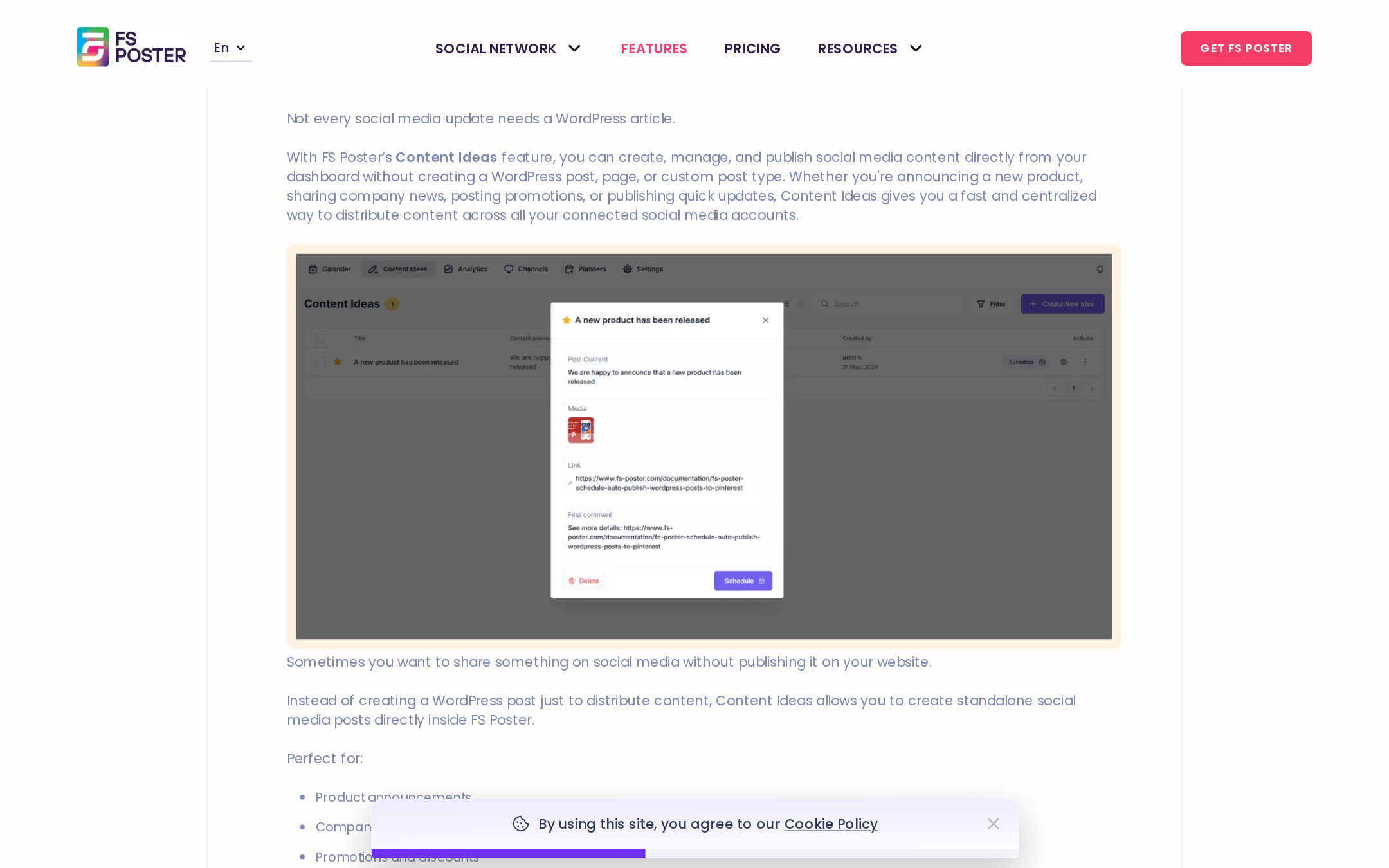
That sounds simple, but it solves a workflow problem I see all the time. Teams capture random caption ideas in Notion, Slack, or a notepad and then forget them. Putting the idea capture screen inside the same plugin you schedule from removes the copy-paste step, and turns ideas into shares with one click.
I would lean on this if I ran an editorial calendar across multiple authors. The "save for later" pattern is a small thing that becomes important once you publish weekly.
Content Ideas is included on Plus, Developer, and Lifetime tiers. It is not included on the Single tier.
Workflows, logs, and retry (v8)
The Workflows engine is the v8 feature that takes FS Poster from "auto-poster" to "social media automation tool." A Workflow is a set of rules that runs on a trigger and fires actions. Triggers include events like share success, share failure, and moderation. Actions include sending a Telegram notification, retrying a failed share, posting a follow-up comment, and more. The Telegram action specifically is the one that makes failure recovery feel quick, because a notification can land in your editor channel within seconds of a failed share.
A small workflow worth building during onboarding: when a share fails on any image-required network, retry once after five minutes, and if it fails again, send a Telegram notification to the editor channel with the share ID and failure reason. That kind of automation usually requires Zapier or a separate monitoring plugin. Inside FS Poster, the build is a few clicks.
Workflow Logs sit next to the Workflows screen. Every triggered rule produces a log entry with the trigger, the actions, the outcome, and a Retry button. The same retry pattern is available on the main share log, which means recovering from a failed share is a one-click action, not a manual "go to the WordPress post and click Share again" dance.
Note on basis: Telegram Workflow Actions are a paid-tier-only feature, not present on the Single tier. The behavior described here is taken from the v8.0.1 changelog, the Workflows builder shown in the feature page, and the Plus, Developer, and Lifetime feature lists on the official pricing page.
Analytics, insights, and logs
The Analytics screen aggregates share data across all your channels. You get a per-network breakdown, a link click chart, weekly and monthly comparisons, and a per-account performance summary. The data is local to WordPress, which is a privacy advantage. It is not as deep as a paid social analytics SaaS, but it is more than enough to answer questions like "which network is sending the most traffic this month?" and "which post got the most reshares?"
Link click tracking uses a built-in URL shortener or any external shortener you connect (TinyURL, Bitly, or a self-hosted service like YOURLS). I kept the built-in shortener on for the test walkthrough. Clicks recorded cleanly on the shares I sent.
The Logs screen is the place I trust the most. It records every share with its timestamp, the channel, the post, the status, and a full error message if it failed. Retry, reschedule, and delete are one-click. If I had to pick the most underrated feature in this plugin, it is the logs screen. Every other WordPress social plugin I have reviewed either hides failures or makes them hard to recover from.
Pricing and license value
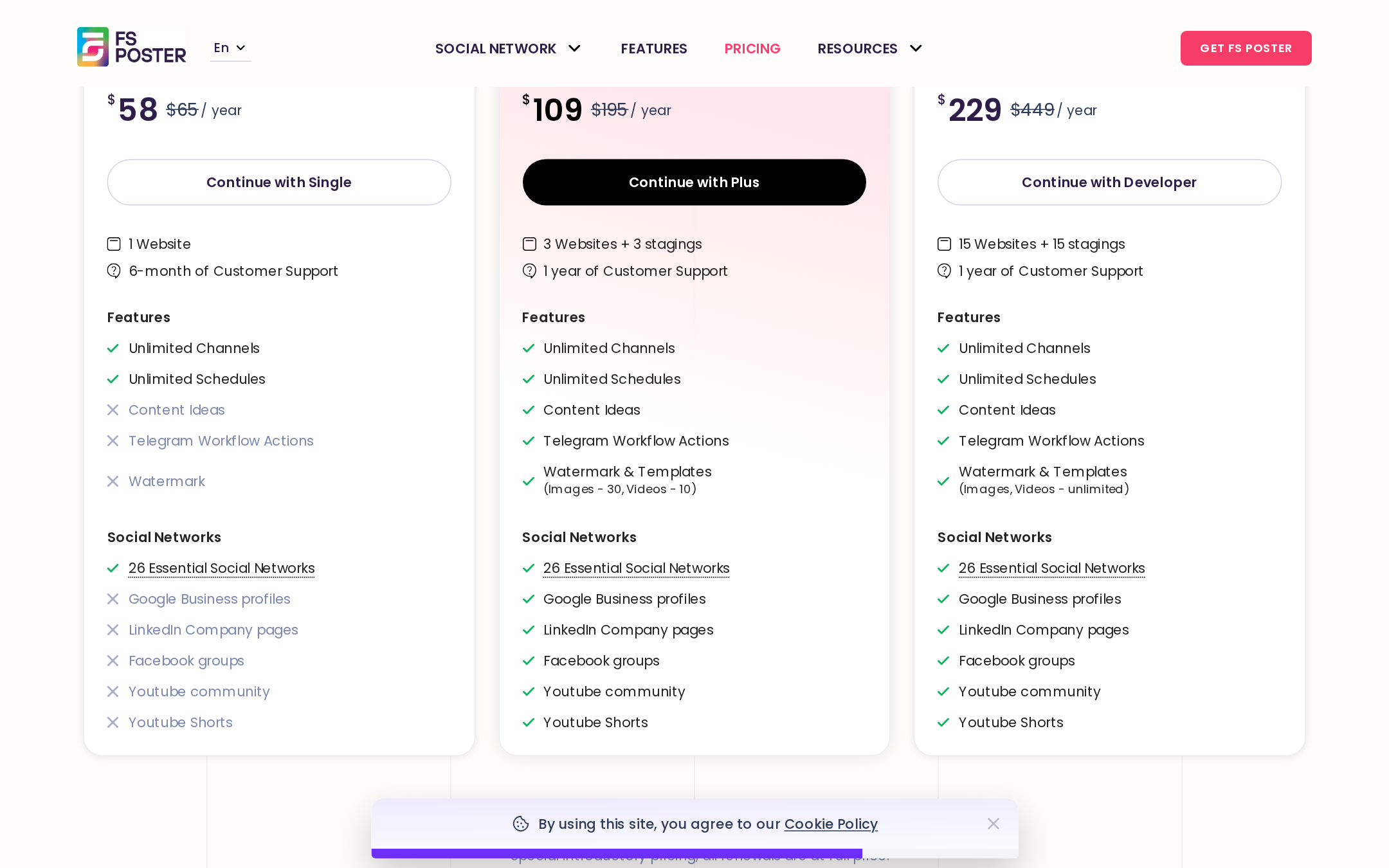
FS Poster is paid-only and uses an annual subscription with a Lifetime option. At the time of writing, the listed pricing is:
Single
$58 / year
Renews at $65
- 1 site
- 6 months support
- Watermark only (no Templates)
- Content Ideas not included
- Telegram Workflow Actions not included
Recommended
Plus
$109 / year
Renews at $195
- 3 sites + 3 staging
- 1 year support
- Content Ideas included
- Telegram Workflow Actions included
- Watermark + Templates (30 images, 10 videos)
Developer
$229 / year
Renews at $449
- 15 sites + 15 staging
- 1 year support
- Content Ideas included
- Telegram Workflow Actions included
- Unlimited Watermark + Templates
Lifetime
$490 once
Regularly $890
- 30 sites + 30 staging
- 1 year support included
- Content Ideas included
- Telegram Workflow Actions included
- Unlimited Watermark + Templates
- Free plugin updates for life
Every plan ships the full 26-network roster, unlimited channels, and unlimited schedules. FS Poster also lists a 14-day money-back guarantee.
The pricing math is straightforward:
- If you are a single-site editor publishing to one or two networks, Single is fine, but the v8 features (Content Ideas, Telegram Workflow Actions, image Templates) sit on the higher tiers, so you may want Plus.
- If you run a small content team or a couple of client sites and you plan to use the v8 features, Plus is the right plan, with the 30 images / 10 videos template cap as the only thing to watch.
- If you manage many client sites or you produce image-heavy content with no template cap, Developer or Lifetime is the better call. Lifetime is the strongest deal in the entire category right now, because the equivalent SaaS spend at three figures per month adds up quickly.
- If you forecast more than three years of use, Lifetime makes the renewal math go away.
The renewal price is the part I want every buyer to plan for. The Plus plan jumps from $109 to $195 at renewal, and Developer jumps from $229 to $449. The plugin is still worth it at the renewal price for an active multi-network team, but it is not worth it if you bought it expecting the introductory price to repeat.
Is FS Poster one of the best WordPress social media plugins?
This is the SEO-friendly question with a real answer. Based on the review I ran for this post, yes, FS Poster is one of the best WordPress social media plugins available in 2026, and a strong candidate for the top spot if your priority is network breadth and feature depth inside WordPress.
Where it leads the field:
- 26 networks in one license, including niche communities and the v8 YouTube Shorts addition.
- v8 Workflows, Watermarks, and Content Ideas, which go beyond what most competitors offer.
- A real calendar plus a recurring planner.
- WooCommerce and custom post type support out of the box.
- Multisite support on the higher tiers.
Where it is not the best fit:
- Free, single-network use cases.
- Teams that depend on a SaaS dashboard outside WordPress.
- Buyers who insist on a fully open-source publishing pipeline.
If you want a wider field of WordPress social media plugins to compare, our roundup of plugin categories at best-wordpress-plugins.com is the right next read.
Pros and cons
Pros
- 26 social networks supported from one WordPress dashboard, including the v8 YouTube Shorts addition.
- Full feature set without add-ons: auto-post, scheduler, calendar, planner, watermarks, AI, workflows, content ideas, analytics.
- WooCommerce and custom post type support are built in, not paid add-ons.
- v8 Workflows with retry and logs solve real failure recovery.
- Watermarks and Templates remove a separate design step for image-heavy networks.
- AI runs on a provider key you supply, which avoids a SaaS markup.
- Lifetime license is the cheapest long-term option in the category.
Cons
- No free version on WordPress.org. Every site needs a paid license.
- Annual renewal pricing rises sharply after the first year.
- Some advanced screens (Workflows builder, network-specific options) have a learning curve.
- AI features require buyer’s own provider key and a separate provider account.
- Single tier excludes Templates, Content Ideas, and Telegram Workflow Actions, which is a real downgrade compared to Plus.
- Image-required networks like Instagram and Pinterest still fail on missing featured images. That is a network rule, not a plugin bug, but worth noting.
Alternatives to FS Poster
I would not recommend any plugin without saying who it loses to. Here are the alternatives I see most often and how they compare.
- Blog2Social. Long-running competitor with broad network coverage. Better free tier, but premium pricing climbs and the UI feels older than FS Poster’s v7 and v8 builds.
- Jetpack Social (formerly Publicize). Free with Jetpack. Limited networks and limited per-channel customization. Best for personal blogs that only need basic Facebook and LinkedIn shares.
- NextScripts SNAP. Very old and very deep WordPress autoposter with broad network support, but the UX is dated and configuration is technical.
- Bit Social. Newer entry, slick UI, narrower network list and fewer automation features than FS Poster v8.
- Revive Old Posts. A focused tool for resharing old content. Useful as a complement, not a replacement.
- SaaS schedulers like Buffer, Hootsuite, Publer, or Metricool. They run outside WordPress and have richer analytics and team collaboration, but they cost more on monthly billing and do not understand WooCommerce or custom post types natively.
For most WordPress-first teams, the real decision is FS Poster vs Blog2Social vs Bit Social, and FS Poster wins on network breadth and v8 features. If you want a SaaS-style dashboard outside WordPress, the decision is FS Poster vs Buffer, and Buffer wins on team collaboration while FS Poster wins on price and WordPress-native auto-posting.
Final verdict
FS Poster does the thing it sets out to do. It is a WordPress social media plugin that can replace a separate scheduling SaaS for most small teams, and it adds enough new features in v8 (YouTube Shorts, Watermarks and Templates, Content Ideas, Workflows) to stay ahead of its category for another full year.
If I had to recommend it in one paragraph: buy the Plus plan if you run a small content site and want the v8 feature set, buy the Lifetime plan if you manage client sites or expect to use the plugin for more than three years, and skip it if you only post to one network. The renewal price is the only buying decision I would warn about, and even at renewal, the value math still favors FS Poster for a multi-network publishing team. As far as a WordPress social media auto poster goes in 2026, this is the one I would install on my own staging site next week without hesitation.
FAQ
Is FS Poster free?
No. FS Poster is a paid WordPress plugin with no free tier on WordPress.org. There is a 14-day money-back guarantee on the official site, but no permanent free version.
Does FS Poster work with WooCommerce?
Yes. FS Poster reads WooCommerce products as a custom post type and exposes a per-product channel selector. You can auto-share new products to Facebook, Instagram, Pinterest, Telegram, and any other connected channel, with per-channel filters for product categories.
How many social networks does FS Poster support?
At the time of writing, 26 social networks and services. The current list includes Facebook, Instagram (feed, story, reel), X, LinkedIn, Pinterest, TikTok, Threads, YouTube Shorts, YouTube Community, Google Business Profile, Telegram, Reddit, Discord, Tumblr, Medium, Blogger, Bluesky, Mastodon, Truth Social, VK, OK.ru, Xing, Plurk, Flickr, WordPress-to-WordPress, and a Webhook destination.
Does FS Poster support YouTube Shorts?
Yes. YouTube Shorts is a supported channel as of v8. You can publish vertical short-form video from WordPress, set a Shorts-specific caption, schedule the share, and use first-comment support.
Can FS Poster auto-post old WordPress content?
Yes. The Planner feature lets you reshare evergreen content on a recurring cadence, and the Bulk Schedule action on the WordPress posts list lets you queue an existing archive of posts to a target channel.
Does FS Poster include AI captions and AI images?
Yes. The plugin can generate captions, hashtags, and images through a provider key you supply (OpenAI or compatible). There is no separate FS Poster AI subscription cost.
What is included in FS Poster v8?
FS Poster v8 added YouTube Shorts as a supported channel, a Watermarks and Templates feature for outgoing images, a Content Ideas and Saved Ideas module for capturing post ideas, a smarter Workflows engine with Workflow Logs and Retry, and a Telegram action for Workflows.
Are Watermarks and Templates available on every tier?
No. The Single tier includes Watermark only and does not include Templates. The Plus tier includes Watermark and Templates with a cap of 30 image templates and 10 video templates. Developer and Lifetime tiers include unlimited Watermark and Templates.
Is FS Poster a good alternative to Buffer or Hootsuite?
For WordPress-first teams, yes. FS Poster offers more network coverage at a lower long-term price, runs inside WordPress without a separate SaaS dashboard, and supports WooCommerce and custom post types natively. For teams that need a multi-source SaaS dashboard and team collaboration outside WordPress, Buffer or Hootsuite are still strong picks.
Does FS Poster work on a WordPress multisite?
Yes, on the higher tiers. The Lifetime plan supports up to 30 sites plus 30 staging sites, which is enough for most agency multisite networks.
What is the difference between Single, Plus, Developer, and Lifetime?
Single covers one site, six months of support, and the basic feature set without Templates, Content Ideas, or Telegram Workflow Actions. Plus covers three sites and one year of support, adds Content Ideas and Telegram Workflow Actions, and includes Templates with a 30 image / 10 video cap. Developer covers fifteen sites and unlocks unlimited Templates. Lifetime is a one-time payment for thirty sites with the first year of support included, unlimited Templates, and free plugin updates for life. All four tiers ship the full network roster.