


Quick verdict
Robo Gallery earns a 4.2 out of 5 in this 2026 review. The free version on WordPress.org is genuinely capable, covering grid, masonry, mosaic, justified, polaroid, and slider layouts alongside a solid lightbox, video gallery support, and responsive behavior. The one-time Pro pricing starting at $30 for a single site is among the most affordable in the gallery plugin category. The main friction points are a somewhat dated admin UI and the fact that advanced layout controls and unlimited albums are gated behind the paid tier. Still, for most WordPress site owners who want flexible, mobile-ready galleries without a subscription, Robo Gallery is easy to recommend.
At a glance
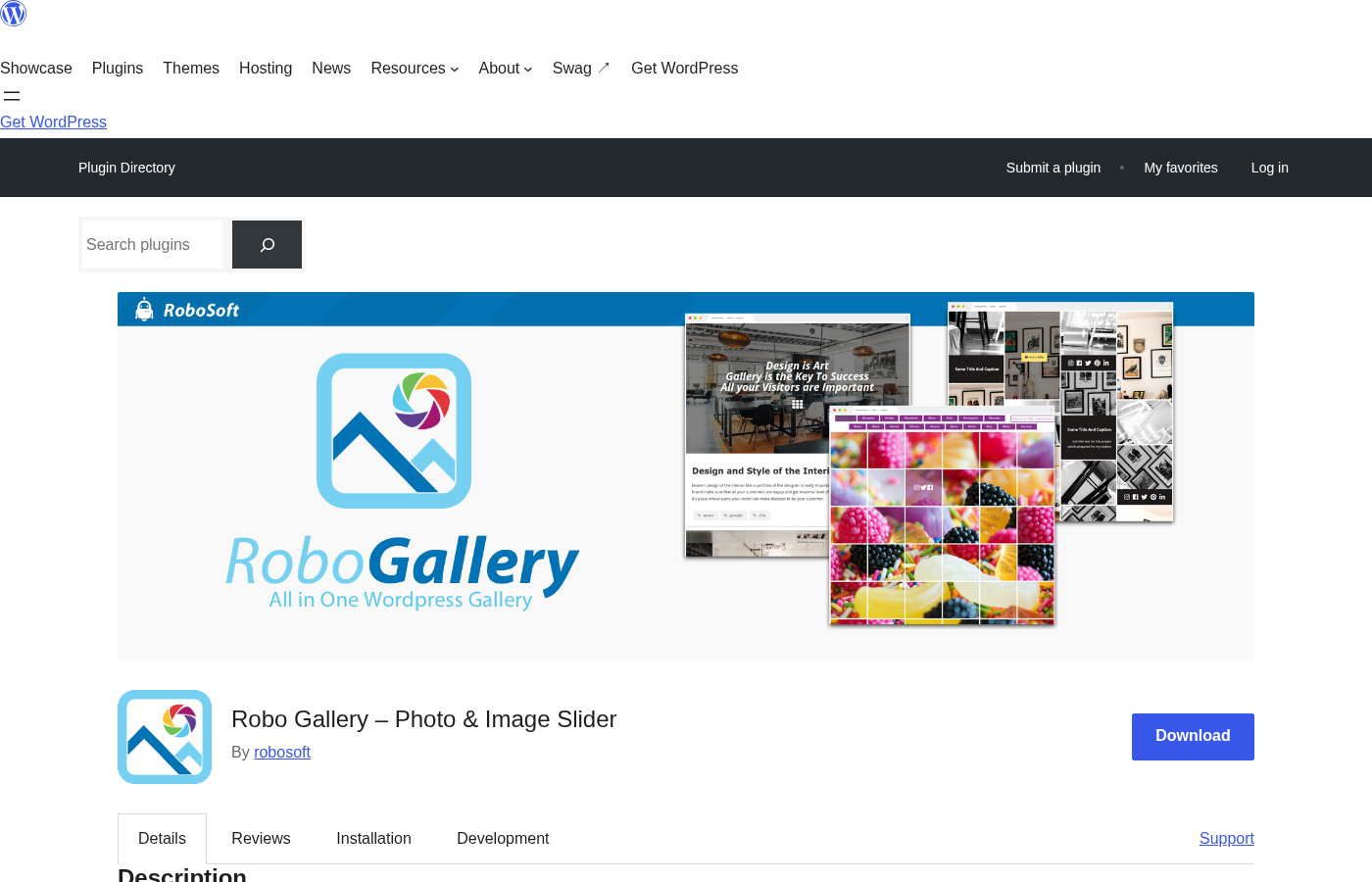
Plugin: Robo Gallery – Photo & Image Slider
Developer: Robosoft (robosoft.co / robogallery.co)
Current version: 5.1.5 (tested up to WordPress 7.0)
Free version: Yes, on WordPress.org
Downloads: 2,100,000+
Rating: 4.3 out of 5 (403 reviews on WordPress.org)
Pro pricing: From $30 one-time (single site); $65 for 3 sites; $95 unlimited
Best fit: WordPress site owners who want multiple layout styles, video support, and a capable lightbox without paying a recurring subscription
Main alternatives: Envira Gallery, FooGallery, NextGEN Gallery, Modula
Gallery plugins are one of those WordPress categories where the free options are often good enough, but the differences between them can matter significantly depending on what you actually need. Robo Gallery has been a staple in this space for years, and version 5 is a meaningful step forward. This review covers what the plugin does in real use, where the free tier limits you, and whether the Pro upgrade is worth the one-time price.
If you are comparing options across the gallery category, see our full reviews section for more hands-on plugin comparisons.
Installation and first impressions
Installing Robo Gallery from WordPress.org takes about a minute. Search for “Robo Gallery” in the Plugins area, install, and activate. The plugin adds a “Robo Gallery” menu item in the WordPress admin sidebar. No initial wizard or permission screens appear, which is a clean start.
The admin interface uses a custom panel layout rather than the Gutenberg editor for gallery management. This is common for gallery plugins, since most of the configuration involves image selection and layout settings that do not map naturally to blocks. The visual style of the admin feels somewhat functional rather than polished, but it is organized and navigable once you understand the tab structure.
The free version does not impose a setup paywall. You can create galleries, configure layouts, and publish them immediately after installation. The limitations of the free tier become visible gradually as you explore options, rather than through an upfront lock screen.
Creating your first gallery
Creating a gallery in Robo Gallery starts from the main dashboard, where you click “Add New.” A new gallery record appears with a name field and the main settings panel. From here, the Images Manager button opens a media uploader where you can select images from the WordPress Media Library or upload new files via drag and drop.
Each image in the gallery supports its own title, description, and link target. You can also set individual images as video links by entering a URL in the video link field. This per-image configuration is available directly in the image settings panel within the gallery editor, which reduces the number of steps needed to set up a mixed photo-and-video gallery.
Once images are selected, publishing the gallery to a page or post is handled via a shortcode. The shortcode is displayed at the top of the gallery editor and looks like [robogallery id="1"]. You paste it into any page, post, or widget area that accepts shortcodes. Robo Gallery also provides a Gutenberg block to insert galleries without copying shortcode manually.
Layout options tested
Layout flexibility is one of Robo Gallery’s stronger areas. The free version includes multiple distinct layout modes that cover the range of what most site owners actually need.
Grid
The standard grid layout produces a column-based uniform grid. You can control the number of columns and set different column counts for desktop, tablet, and mobile viewports. The aspect ratio of thumbnails is configurable, so you can use square thumbnails, portrait orientation, or custom ratios depending on your image content.
Masonry
Robo Gallery supports both horizontal masonry and vertical masonry. Horizontal masonry arranges images in rows while preserving their original aspect ratios, producing a justified row layout. Vertical masonry uses a Pinterest-style column arrangement where images are placed at their natural height without cropping. Both modes handle mixed-size images well and respond cleanly to different screen widths.
Mosaic and Justified
The mosaic layout allows for a structured but irregular arrangement of thumbnails, with some images occupying wider grid cells for visual variety. The justify layout produces consistent-height rows where images fill the full width, similar to Google Photos or Flickr’s row layout. Both are available in the free version and produce professional results without custom configuration.
Polaroid
The polaroid mode is one of the more distinctive presentation styles in Robo Gallery. Thumbnails appear with a white border and slight rotation, styled after physical photo prints. The enhanced polaroid mode in v5 extends this with an optional content panel below each thumbnail that can include image titles, descriptions, action buttons, and social sharing links. This makes it useful for portfolio or product gallery scenarios where per-image context matters.
Slider and Carousel
Robo Gallery includes a built-in image slider mode, which displays one image at a time with navigation arrows and optional autoplay. The slider is lightweight and mobile-friendly, with touch swipe support and responsive scaling. A carousel variation shows multiple images in a scrollable horizontal strip. Both modes include caption support and are practical for hero sections, featured image displays, or product image sequences.
Lightbox experience
The built-in lightbox is functional and covers the standard features expected in 2026. Clicking a gallery thumbnail opens a full-viewport overlay displaying the image at a larger size. Navigation between images uses arrow buttons or keyboard arrow keys. On mobile, swipe gestures handle image-to-image navigation.
Lightbox options include fullscreen mode, slideshow playback with configurable delay, zoom controls, and a download button. Social sharing is also available directly in the lightbox, supporting more than 18 platforms including Facebook, Twitter, Pinterest, WhatsApp, LinkedIn, and Telegram. Image titles and descriptions set in the gallery can be displayed below the lightbox image.
The lightbox handles video sources alongside images. Clicking a thumbnail set as a video link opens the video in the lightbox viewer rather than redirecting to an external page. Supported video platforms include YouTube, Vimeo, Facebook, Twitch, Streamable, Wistia, Mixcloud, and DailyMotion. This mixed-media lightbox behavior works well for portfolios or marketing galleries that combine photos and video content.
Media sources and video support
The free version of Robo Gallery uses the WordPress Media Library as its primary image source. Images are uploaded through the standard WordPress uploader or selected from existing media. There is no native Instagram feed integration in the free tier, though video from external platforms is supported via individual image link fields as described above.
Video gallery support is a genuine strength. Rather than requiring images and videos to be in separate galleries, Robo Gallery allows you to mix both in the same gallery. Each image slot can optionally link to a video URL. When clicked, the video plays in the lightbox. This approach keeps gallery management unified and avoids needing a separate video plugin for straightforward photo-and-video galleries.
YouTube playlist and channel support means you can point a gallery at a YouTube channel ID or playlist ID, and Robo Gallery will populate thumbnails from that source. This is useful for content creators who want to display their video library in a gallery format without manually adding each video as a separate entry.
Navigation and album structure
Navigation options in Robo Gallery go beyond the basic load-more button. You can choose from Load More pagination, numbered multi-page pagination, or infinite scroll that loads images progressively as users scroll. Breadcrumb navigation is available for albums, and tag-based filtering lets visitors narrow a gallery by assigned image tags.
Album support allows you to nest galleries inside albums and build hierarchical content structures. A cover gallery can contain only albums, while nested albums can contain a mix of images and further sub-albums. In the free version, albums are limited to three, which covers simple structures but constrains photographers or agencies with large content libraries. The Pro tier removes this limit entirely.
Admin interface and settings
The gallery editor uses a tabbed settings panel with sections for general settings, size and layout, hover effects, lightbox, navigation, and more. The tabs are clearly labeled, and most options have inline descriptions. There is no live preview inside the editor, which means you need to preview the gallery on a page to see how layout changes look. This is a minor friction point compared to plugins that offer in-editor previews.

Size settings allow you to control thumbnail dimensions, padding between thumbnails, and aspect ratio. The column configuration lets you set different column counts per breakpoint, which provides genuine responsive control rather than relying on auto-scaling alone.
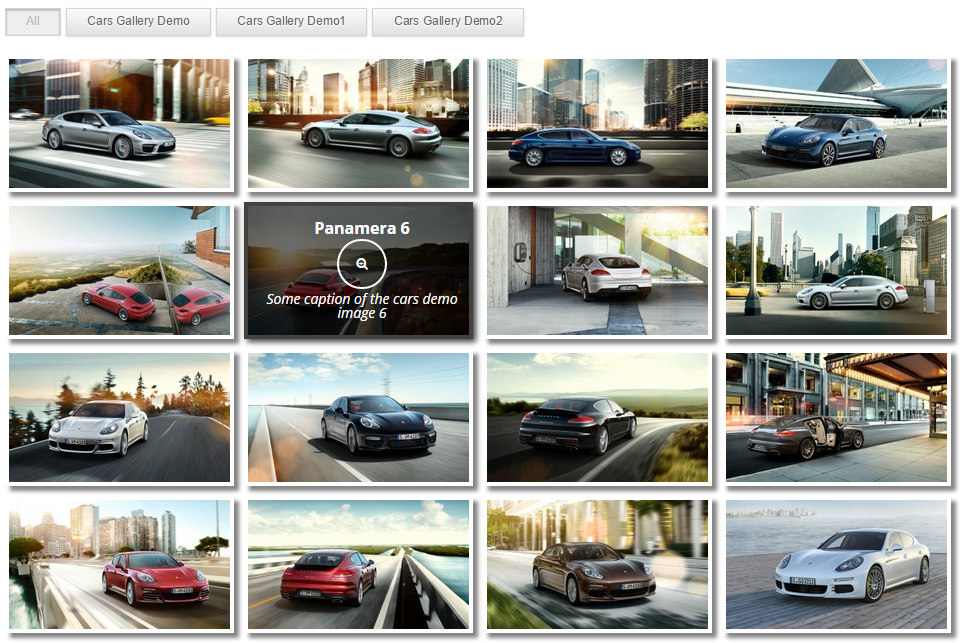
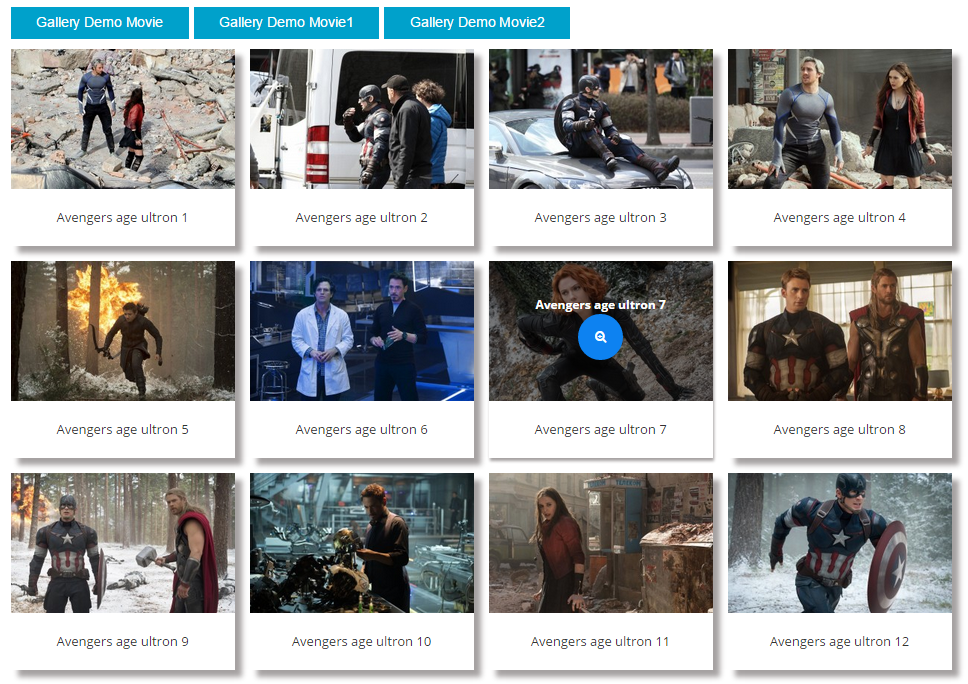
Hover settings cover animation style, overlay color, icon type (zoom, link, custom), and text display. A static hover effect and an inverted hover mode were added in v5, expanding the visual options available without upgrading. The highlight option for hover titles and descriptions adds additional presentation control for content-rich galleries.

Responsive design and performance
Robo Gallery handles responsive behavior through its column configuration system. You set column counts for desktop, tablet, and mobile independently, and the gallery adjusts its layout at the corresponding breakpoints. Hover animations are also adjusted at smaller viewports, so the gallery does not break on touchscreen devices where hover does not exist in the same way.
Image loading uses lazy loading by default, which delays the download of off-screen images until they approach the viewport. The “Load More” and infinite scroll options extend this by only loading a subset of images on initial page load. Together, these reduce the initial page weight for galleries with large image counts.
Performance in testing was reasonable for a free gallery plugin. Page load time with a 12-image grid gallery was not noticeably different from a comparable Envira Gallery or FooGallery setup. Robo Gallery adds one JavaScript file and one CSS file for the gallery, plus lightbox assets that load conditionally. The plugin does not load unnecessary scripts on pages without a gallery shortcode.
Retina and Ultra HD support is listed as available up to 16K resolution. The gallery uses responsive image markup to serve appropriately sized images based on device pixel ratio, which keeps the gallery sharp on high-DPI displays without forcing all visitors to download unnecessarily large files.
Free vs Pro: what do you actually need?
Robo Gallery uses a one-time pricing model rather than an annual subscription, which is a meaningful differentiator in a category where most competitors charge yearly fees. Pricing breaks down as follows:
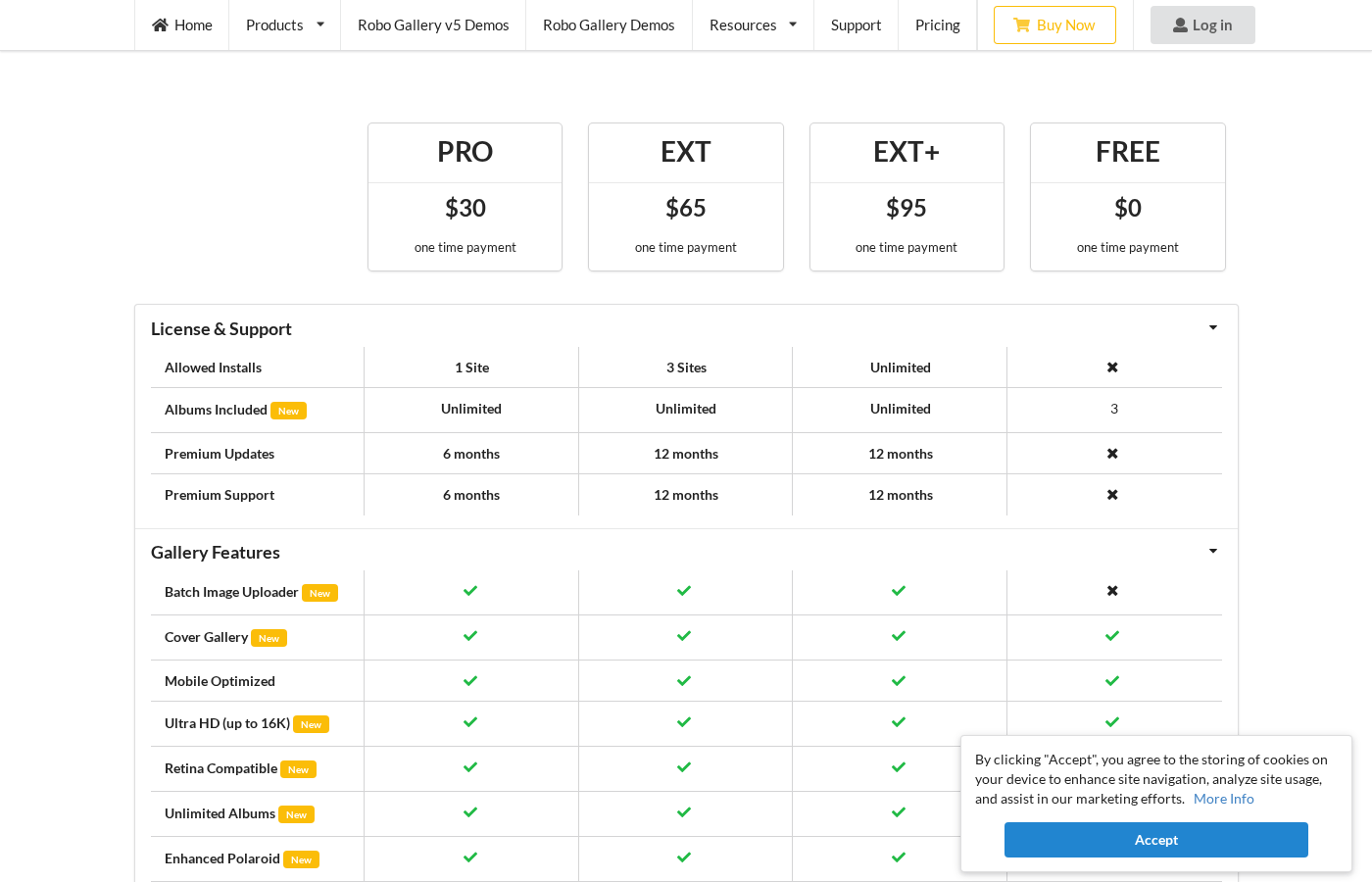
- Free ($0): Available on WordPress.org. Includes core layout modes (grid, masonry, mosaic, justified, polaroid, slider), lightbox, lazy loading, and video gallery support. Albums limited to 3. Basic hover effects and navigation options included.
- PRO ($30 one-time, 1 site): Adds unlimited albums, the Fusion Grid layout, advanced polaroid content panels, password protection for galleries, the share-via-link feature with access key management, and priority support for 6 months. Updates included for 6 months.
- EXT ($65 one-time, 3 sites): All Pro features. Extends to 3 sites and upgrades support and updates to 12 months.
- EXT+ ($95 one-time, unlimited sites): All EXT features with no install limit and 12 months of support and updates.
The free version is the right starting point for most users. If your site needs more than three albums, or you want the Fusion Grid layout system and the enhanced polaroid presentation, the $30 Pro upgrade is competitive. Compared to gallery plugins that charge $39 to $99 per year for equivalent features, a one-time $30 payment has a clear long-term advantage for sites that do not require ongoing support beyond the included period.
The main limitation of the one-time model is that updates beyond the included period require a new purchase. This is standard for one-time license plugins and not unique to Robo Gallery, but it is worth noting if you want to ensure compatibility with future WordPress versions indefinitely.
Pros and cons
Pros
- Multiple layout modes in the free version, including masonry, mosaic, polaroid, justified, and slider.
- One-time Pro pricing starting at $30 is among the lowest in the gallery category.
- Built-in lightbox with fullscreen, slideshow, zoom, download, and social sharing.
- Mixed photo and video galleries work without a separate plugin.
- YouTube playlist and channel support for video-heavy sites.
- Responsive with per-breakpoint column controls.
- Lazy loading and conditional script loading keep page weight manageable.
- Over 2.1 million downloads and active development through 2026.
Cons
- Admin interface feels functional rather than modern compared to newer gallery plugins.
- No live in-editor preview; you need to visit a frontend page to see layout changes.
- Albums are limited to 3 in the free version, which constrains larger sites.
- Fusion Grid layout is Pro-only, so the most advanced grid controls require an upgrade.
- No native Instagram feed integration.
- Post-purchase support and updates require renewal after 6-12 months depending on plan.
Verdict
Robo Gallery is a solid, well-maintained gallery plugin for WordPress sites that need layout variety without committing to a subscription. The free version is one of the more generous free tiers in the gallery plugin category, covering multiple layout modes, a capable lightbox, video support, and responsive behavior out of the box. The Pro tier at $30 one-time is an easy recommendation for anyone who hits the three-album limit or wants the Fusion Grid layout system.
Where Robo Gallery loses points is on the admin experience and the lack of a live preview. Competing plugins have invested more in editor polish in recent years, and the gallery management UI in Robo Gallery shows its age. For a new user coming from a newer plugin, there is an adjustment period. That said, the actual gallery output is clean, responsive, and visually competitive with pricier alternatives.
My final rating is 4.2 out of 5. Robo Gallery is the right choice for WordPress users who want a proven, actively maintained gallery plugin with broad layout support, a practical one-time pricing model, and no subscription lock-in. If modern admin UX and Instagram feed integration are priorities, look at Envira Gallery or FooGallery instead.