


At a Glance
- Developer: Melograno Venture Studio
- Version: 6.5.1.6 (updated August 31, 2026)
- Active installs: 70,000+
- WordPress.org rating: 4.5/5 (449 reviews)
- Free version: Yes (Lite, on WordPress.org)
- Paid plans: Starter, Standard, Pro, and Developer (annual and lifetime options available)
- Best for: Large datasets, live database connections, data visualization
Quick Verdict
wpDataTables is the most capable data table plugin in the WordPress ecosystem. If you need to pull data from a MySQL database, Google Sheets, or a CSV file and display it with interactive filters, sorting, and synchronized charts, no competing plugin matches what it delivers. The free Lite version is a fair starting point for simple tables. Paid tiers (Starter, Standard, Pro, Developer) unlock progressively more features: database connections and front-end editing are available from Standard upward, while WooCommerce integration and Highcharts Stock are reserved for Pro and Developer. Visit the official pricing page for current rates. The interface has a learning curve for complex data sources, but the results are hard to replicate with any other WordPress table tool.
What Is wpDataTables?
wpDataTables is a WordPress plugin built for displaying, managing, and visualizing data in tables and charts. It was originally developed by TMS Plugins and is now maintained by Melograno Venture Studio, with over ten years of active development behind it.
The plugin occupies a specific position in the WordPress ecosystem: it is designed for users who need to present real, structured data rather than manually typed layout tables. That means connecting to live data sources, handling large row counts efficiently, and giving front-end visitors tools to filter, sort, and explore the data themselves.
Version 6.5.1.6, released at the end of August 2026, sits on 70,000+ active installations and holds a 4.5-star rating from 449 reviews on WordPress.org.
Who Is wpDataTables Best For?
wpDataTables is a good fit in these situations:
- Data publishers and analysts who maintain live spreadsheets or database tables and need an auto-syncing display on a WordPress site.
- Developers and agencies building custom client dashboards where data comes from a MySQL or PostgreSQL backend.
- eCommerce stores using WooCommerce that want searchable, filterable product catalogs with inline add-to-cart buttons.
- Research and academic sites presenting study data, statistics, or tabular findings with export options.
- Public-sector organizations that need WCAG-accessible tables compliant with accessibility standards.
If you need a simple static table with a handful of rows and no live data connection, the native WordPress table block or a lightweight plugin like TablePress will serve you adequately. wpDataTables becomes the right choice when the data is dynamic, large, or sourced from outside WordPress.
Hands-On Setup and User Experience
I reviewed the free Lite version available on WordPress.org and tested the interface through its official documentation and in-plugin screens. Features that require a paid license are noted explicitly.
Installation and First Look
Installation follows the standard WordPress plugin process. After activating, a “wpDataTables” item appears in the admin sidebar with submenu entries for tables, charts, and settings. There is no setup wizard: the plugin opens directly to its table list, which is empty on a fresh install.
The interface received a significant redesign in recent major versions. The current dashboard is cleaner and more organized than older releases, though first-time users still face a number of options before a table is on screen.
Creating a Simple Table
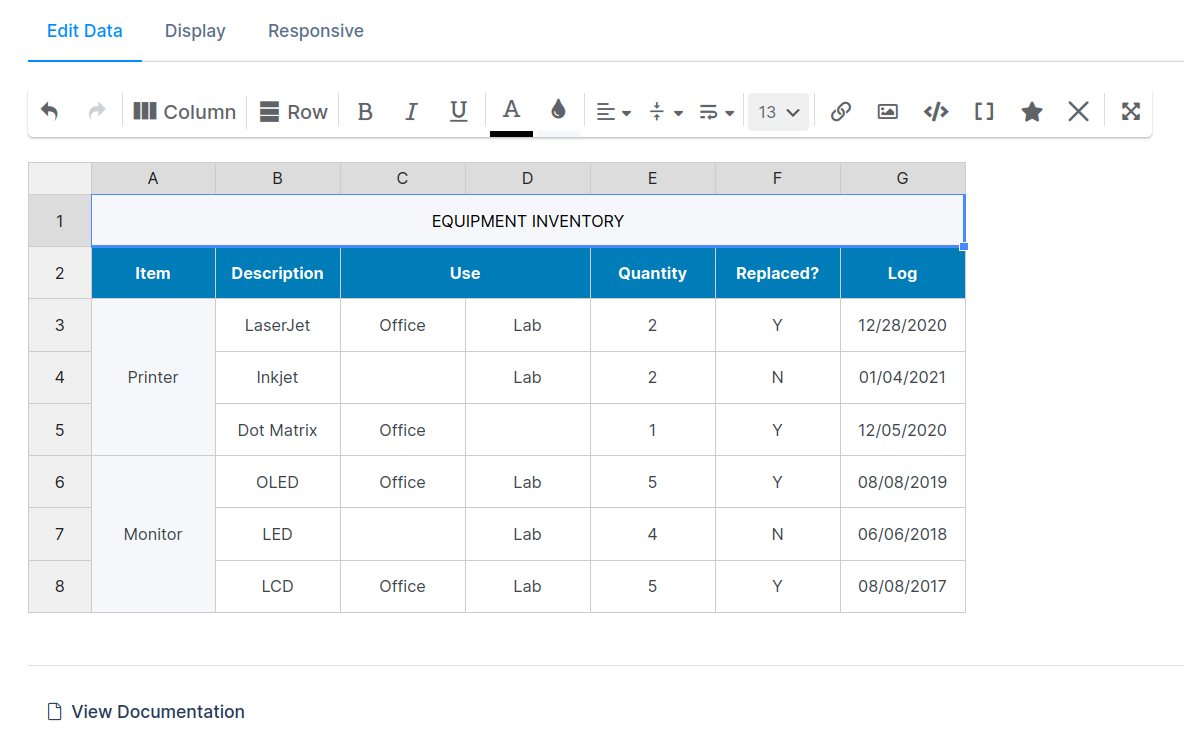
For manual data entry, the simple table editor works like a lightweight spreadsheet. You define columns, add rows, type in values, and configure basic display options. Once saved, wpDataTables generates a shortcode you can paste into any page or post. The plugin also provides dedicated Gutenberg blocks for inserting tables and charts directly from the block editor without using a shortcode.
The Lite version limits you to this mode plus basic file-linked tables. For most editorial use cases such as feature comparisons, schedules, or team directories, it is functional.
Connecting a Data Source
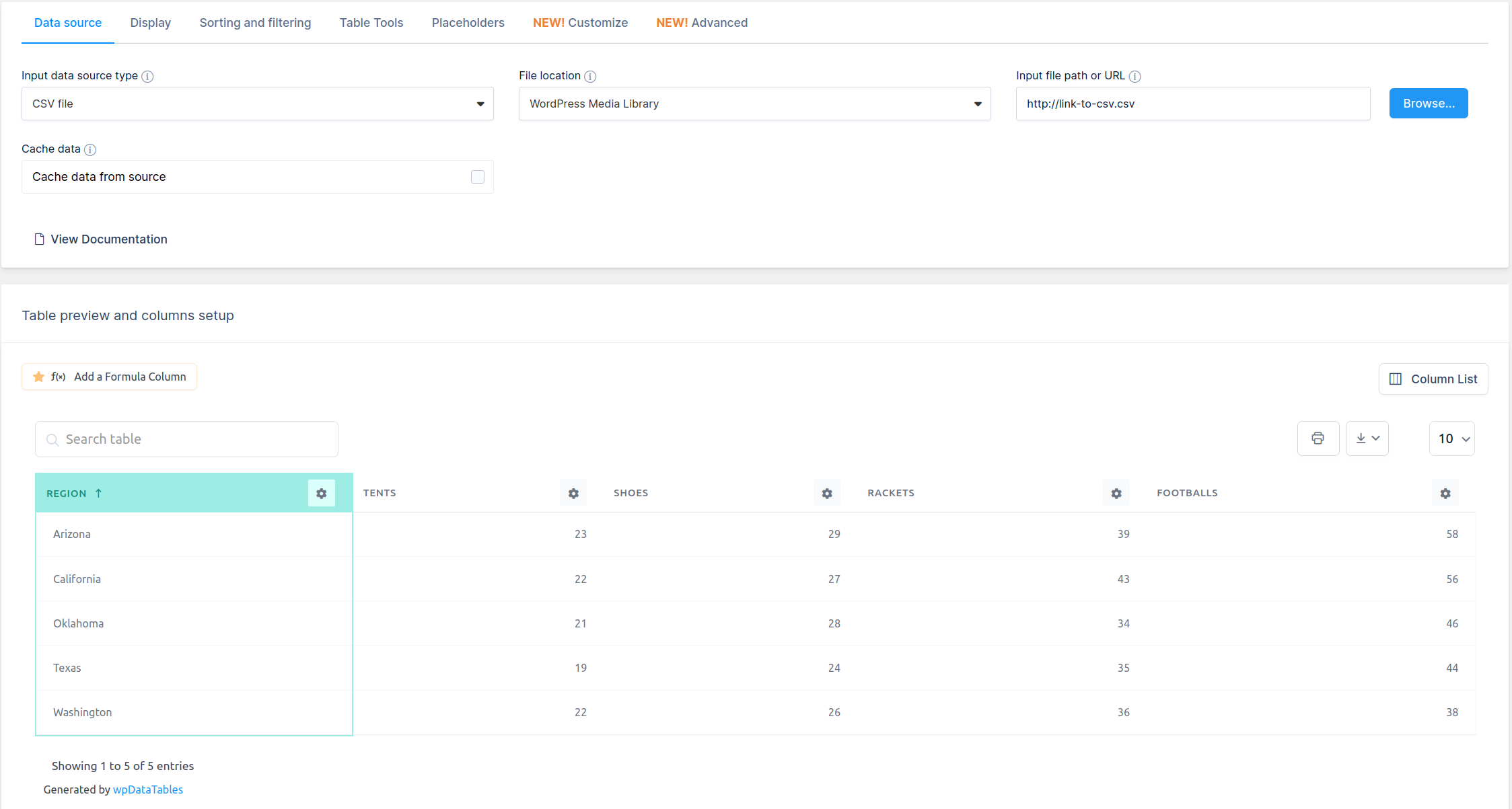
Paid plans unlock the full range of data sources. From the table creation screen you choose your input: Excel file, CSV upload, Google Sheets URL, MySQL query, MS SQL query, PostgreSQL query, XML feed, JSON endpoint, PHP array, or WooCommerce products.
For a Google Sheets connection, you paste the spreadsheet URL and configure API credentials once in the plugin settings. From that point, the table fetches current data on each page load (with optional caching). Updates to the spreadsheet appear on the site automatically without any manual re-import step.
For a MySQL query, you write a SELECT statement and define which columns to expose. Server-side processing handles pagination, meaning only the rows for the current page are fetched, so even a table with hundreds of thousands of rows loads quickly.
The Back-End Editor
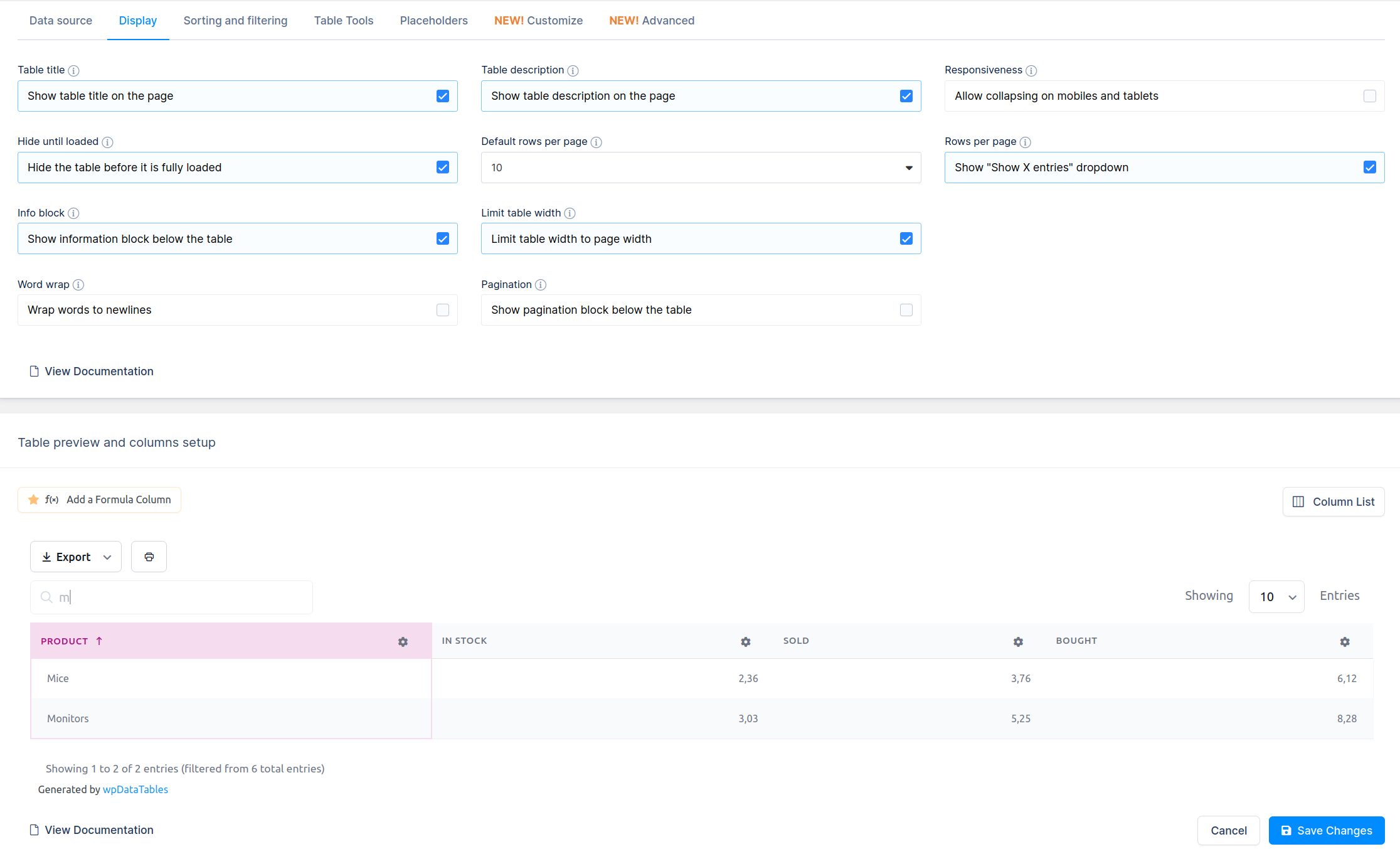
After a table is created and its source connected, the back-end editor shows a live preview of the data alongside column controls, filter configuration, and styling options. This is where most of the table configuration happens. The editor is functional rather than flashy: power users will appreciate the level of control, while beginners may find the number of tabs and options disorienting at first.
Column Configuration
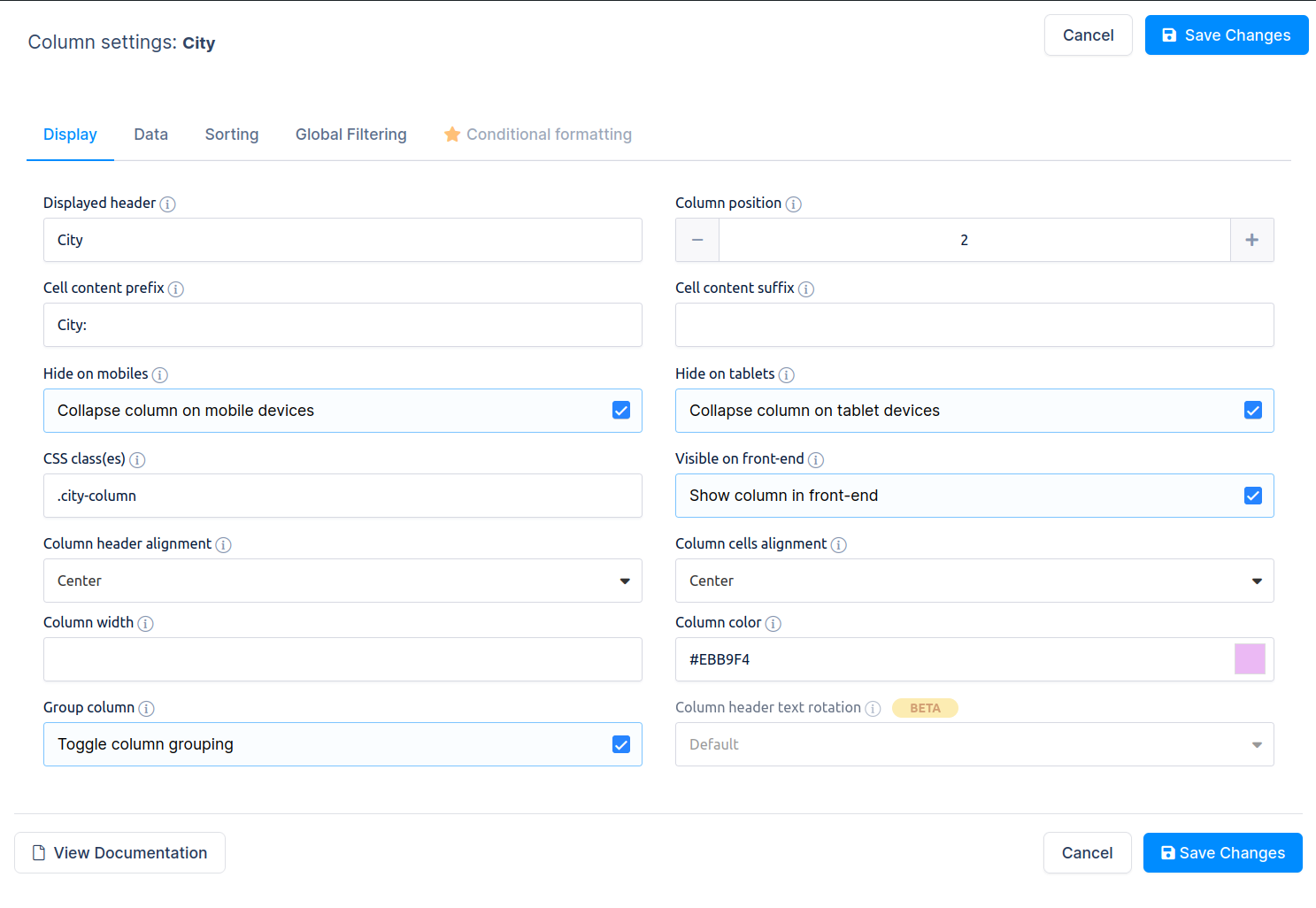
Column settings are the most detailed part of the plugin. For each column you can configure:
- Data type: String, Integer, Float, Date, DateTime, Image URL, Link, Email, Attachment, Time
- Display name and width
- Filter type: text search, dropdown, date range picker, checkbox list
- Conditional formatting: highlight cells based on rules such as value comparisons or text matching
- Totals row: sum, average, min, max per column
- Hidden columns: exclude from front-end display while keeping available for filtering or export
This granularity is a genuine strength. You can show a human-readable label while keeping the underlying data type intact for correct sorting and filtering behavior.
Front-End Table Rendering
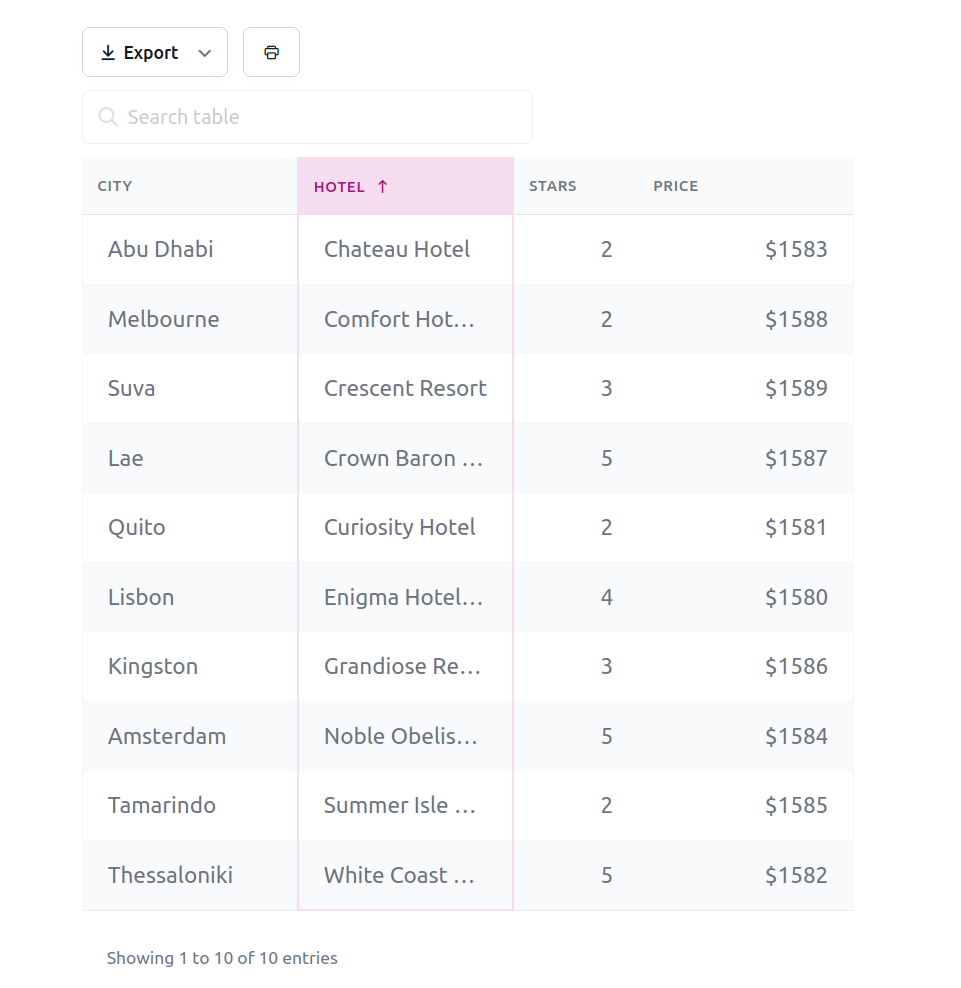
On the front end, visitors see a responsive table with a global search field, per-column filter controls, sortable headers, and pagination. The table adapts to mobile through multiple responsive modes: horizontal scroll, collapsed rows (where hidden columns appear in an expandable sub-row), or simplified display based on screen width. Visitors can also export table data to CSV, Excel, or PDF if that option is enabled.
Main Features
Data Source Variety
wpDataTables supports more external data inputs than any other table plugin in the WordPress ecosystem:
- Manual data entry (simple tables)
- CSV and Excel (XLSX) file upload
- Google Sheets via API (live sync)
- XML and JSON feed endpoints
- MySQL, MS SQL, and PostgreSQL database queries
- PHP arrays
- WooCommerce product catalog
For most sites, Google Sheets sync and CSV import handle the majority of use cases. Database connectivity targets developers building more complex reporting applications.
Chart Integration
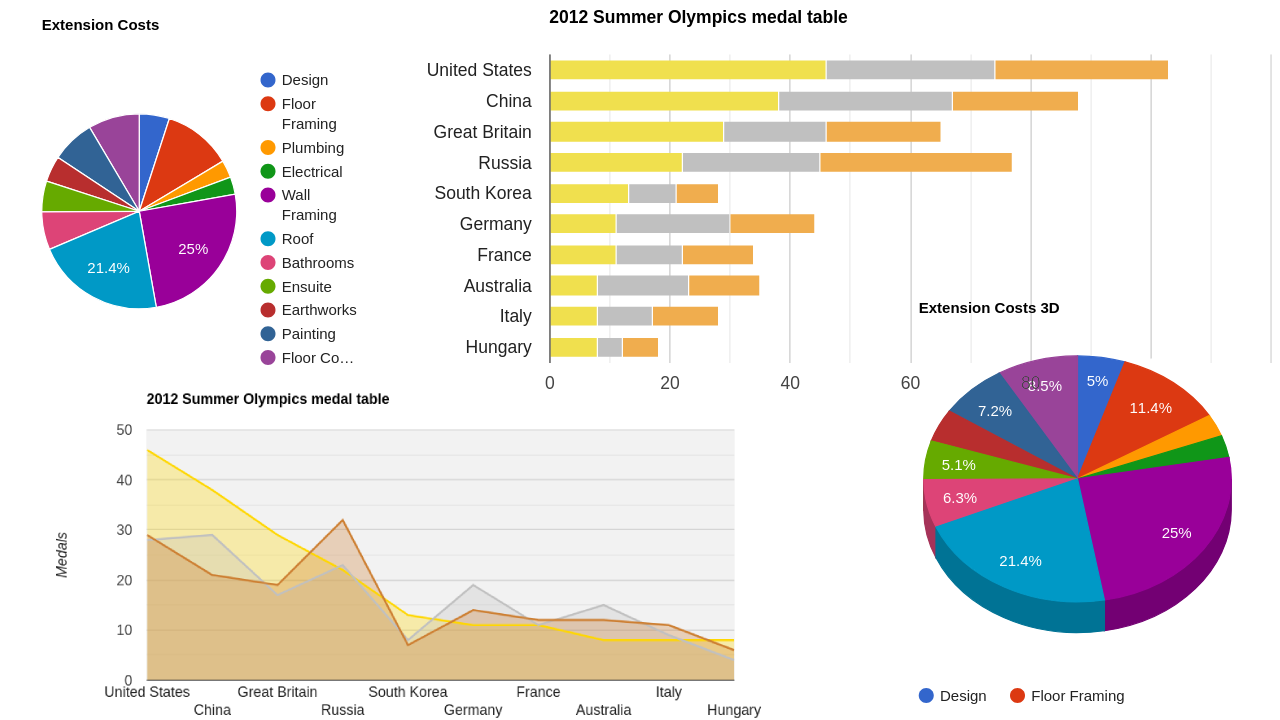
Tables can be paired with charts that reflect the current filtered state. Apply a filter to the table and any linked chart updates automatically. wpDataTables supports five chart rendering engines:
- Google Charts (free): bar, line, pie, area, scatter, geo charts, and more
- Chart.js (free): modern canvas-based charts with a different visual style
- Highcharts (separately licensed): polished interactive charts, widely used in enterprise dashboards
- ApexCharts: modern SVG-based charts suited to real-time and dashboard displays
- Highcharts Stock: time-series and financial chart types
This synchronized filtering behavior is one of the plugin’s most distinctive capabilities. It turns a data table into an exploratory visualization tool without requiring a separate charting plugin.
Conditional Formatting
Rules-based cell and row highlighting updates automatically when data changes. You can flag inventory cells below a threshold with a red background, highlight rows where a status column contains a specific value, or apply gradient coloring across a numeric column. Rules stack and support multiple conditions.
Front-End and Back-End Editing
Standard, Pro, and Developer plans enable table editing from both the WordPress admin and the front-end page (the Starter plan does not include front-end editing). Front-end editing options include inline cell updates, popover edit forms, and spreadsheet-style editing with row addition and deletion. Access can be restricted to logged-in users or specific roles, making this useful for client-facing portals.
Server-Side Processing
For tables with large row counts, server-side processing loads only the rows for the current page view from the database or file source. This keeps initial load times manageable and prevents browser memory issues that occur when rendering thousands of rows on the client side.
Page Builder Compatibility
Tables can be inserted into Gutenberg using dedicated wpDataTables blocks, via the classic Shortcode block, or by pasting shortcodes into any widget-compatible area. The plugin also works with Elementor, Divi, Avada, WPBakery, and most other builders through shortcodes or their respective embed mechanisms. The core workflow still involves building and configuring tables in the wpDataTables dashboard first, then inserting them into pages via blocks or shortcodes.
WooCommerce Integration
A dedicated WooCommerce mode pulls product data into a filterable table with add-to-cart buttons, pricing columns, attribute filters, and custom field support. Shoppers can narrow a product catalog by category, price range, or any custom attribute without leaving the table view. WooCommerce integration is available on Pro and Developer plans; it is not included in Starter or Standard.
Accessibility
wpDataTables maintains WCAG 2.1 compliance: tables use correct semantic HTML, column headers are properly scoped, keyboard navigation works throughout, and screen reader labels are set. This matters for any site with public accessibility requirements.
Pricing and License Value
wpDataTables offers a free Lite version on WordPress.org and four paid tiers: Starter, Standard, Pro, and Developer. All plans are available as annual subscriptions or one-time lifetime purchases. Pricing varies by region and active promotions; visit the official pricing page for current amounts.
| Plan | Sites | Notable exclusions |
|---|---|---|
| Starter | 1 domain | No Google Sheets API, no database connections, no front-end editing, no Highcharts/ApexCharts |
| Standard | 1 domain | No WooCommerce integration, no Highcharts Stock, no Folders/Categories |
| Pro | 3 domains | All features included |
| Developer | Unlimited | All features included |
Feature availability differs meaningfully across paid tiers. The Starter plan covers basic table creation but excludes Google Sheets API sync, private Google Sheets connections, database-driven tables (MySQL, PostgreSQL, MSSQL), front-end editing, Highcharts, and ApexCharts. The Standard plan adds database connections, Google Sheets integration, front-end editing, and most chart engines for a single site, but does not include WooCommerce integration, WP Post Builder, Highcharts Stock, or the Folders/Categories organizer. The Pro plan includes every wpDataTables feature across up to three domains. The Developer plan covers the same full feature set with no domain limit.
All paid plans include one year of premium support and monthly updates, and the site offers a 15-day money-back guarantee on new subscriptions.
Pros and Cons
Pros
- Ten or more data sources including live MySQL, Google Sheets, and JSON endpoints
- Five chart engines with synchronized table-filter-to-chart updates
- Server-side processing keeps large datasets responsive
- Front-end editing allows clients to update data without admin access
- WCAG 2.1 accessibility compliance out of the box
- Free Lite version allows genuine interface evaluation
- Responsive support team
- Compatible with Gutenberg, Elementor, Divi, Avada, and most builders
- WooCommerce product table integration included in Pro and Developer plans
Cons
- Workflow friction: tables must be built in the wpDataTables dashboard before embedding via blocks or shortcodes; no inline block editor for table creation
- Free version is limited: database connections and most premium features require a paid plan
- Learning curve for database-connected tables and complex filter setups
- Date filtering has some quirks in specific configurations
- Interface can feel dense for users who only need simple static tables
Alternatives to wpDataTables
TablePress (free core, extensions from $89/year): The most popular free WordPress table plugin. Simple, fast, and familiar to beginners. Supports CSV and Excel import and basic sorting. Lacks live database connectivity, server-side processing, and built-in charts. Best for simple, infrequently updated tables.
Ninja Tables (free plus plans from $49/year): A modern alternative with a cleaner setup flow and good import options including CSV and Google Sheets. Fewer data source options than wpDataTables but easier to learn. A reasonable choice if database connections are not needed.
DataTables.net (manual implementation): The JavaScript library that underpins wpDataTables can be integrated manually by developers. More flexible for custom projects but requires development time and WordPress integration work that wpDataTables handles automatically.
For sites with dynamic data, multiple source types, or visualization requirements, wpDataTables holds a clear advantage in capability depth over these alternatives.
Final Verdict
wpDataTables is the right choice when your WordPress site needs to display, filter, and visualize real data from real sources. The combination of broad data source support, five chart engines, synchronized filtering, server-side performance, and front-end editing is not matched by any other plugin in its category.
The free Lite version is an honest preview of what the plugin can do. For anything beyond basic static tables, a paid plan is necessary. The entry-level paid plan is competitively priced and justified for any project where manual table maintenance would otherwise be a recurring time investment.
The core workflow of building tables in the wpDataTables dashboard before embedding them via blocks or shortcodes adds a step compared to fully inline block-editor tools. The interface rewards users who take time to explore the column configuration options, and that upfront investment does not diminish what the plugin delivers once configured.
If your use case involves live data, large datasets, or data visualization, wpDataTables is the strongest WordPress tool available for the job.
Frequently Asked Questions
Is wpDataTables free?
A free Lite version is available on WordPress.org. It includes simple manual tables, basic CSV and Excel file import, and Google Charts and Chart.js rendering. Database connections, front-end editing, Highcharts, conditional formatting, and advanced filters require a paid plan.
What is the difference between the Starter, Standard, Pro, and Developer plans?
The four paid tiers differ in feature scope and domain count. Starter (1 domain) excludes database connections, Google Sheets API, and front-end editing. Standard (1 domain) adds those features but excludes WooCommerce integration, Highcharts Stock, and Folders/Categories. Pro (3 domains) and Developer (unlimited domains) include all features. Visit the official wpDataTables pricing page for current prices.
Does wpDataTables work with Elementor?
Yes. Tables are created in the wpDataTables dashboard and inserted into Elementor layouts using a Shortcode widget or HTML widget. They render correctly in both the editor preview and on the published front end.
Can visitors edit table data on the front end?
Yes, with Standard, Pro, and Developer plans. Front-end editing supports inline cell updates, popover forms, and spreadsheet-style row editing. You can restrict editing to logged-in users or specific user roles. The Starter plan does not include front-end editing.
How does Google Sheets sync work?
You connect your Google account once in the plugin settings, paste your spreadsheet URL, and the plugin fetches data on each page load (with optional caching). When the sheet is updated, the table reflects the changes without any manual re-import.
What databases does wpDataTables support?
MySQL (including the WordPress site database), Microsoft SQL Server (MSSQL), and PostgreSQL. Custom connection credentials are configured in the plugin settings, separate from the WordPress database if needed.
Is wpDataTables responsive on mobile?
Yes. Multiple responsive modes are available: horizontal scroll, collapsed sub-rows for extra columns, or a simplified view. Responsive behavior is configured per table.
Can I export table data?
Yes. Visitors can export to CSV, Excel (XLSX), or PDF if that option is enabled for the table. Export buttons appear in the table toolbar on the front end.
Does wpDataTables integrate with WooCommerce?
Yes, on Pro and Developer plans. WooCommerce integration displays product catalog data as a filterable table with add-to-cart buttons, price columns, and attribute-based filters. It is not included in the Starter or Standard plans.
Is there a money-back guarantee?
Yes. New subscriptions include a 15-day money-back guarantee.