

Broken links are quiet SEO killers. A 404 error buried in a post from two years ago does not announce itself. It just sits there, hurting user experience, draining crawl budget, and potentially costing referral traffic every time someone follows the link and lands on a dead page. Broken Link Checker, the free WordPress plugin from WPMU DEV, has been the default answer to this problem for over a decade, with more than 17 million total downloads and 500,000-plus active installations as of August 2026.
But the plugin has changed significantly from its original form. The current version (2.4.13, August 2026) offers two distinct engines: a cloud option that offloads all scanning to WPMU DEV servers, and the original local engine that processes everything on your own hosting. That distinction matters more than it might seem. Choosing the wrong engine for your setup is one of the most common reasons the plugin collects negative reviews.
I connected the cloud engine to a free WPMU DEV Hub account, reviewed the local engine settings and documentation, and worked through 603 community reviews to separate the real complaints from edge cases. Here is what I found.
At a glance
| Plugin | Broken Link Checker |
| Developer | WPMU DEV |
| Price | Free (cloud engine requires free WPMU DEV Hub account) |
| Active installs | 500,000+ |
| Rating | 3.8 / 5 (603 reviews) |
| Current version | 2.4.13 (August 2026) |
| Tested up to | WordPress 7.0.4 |
| Requires | WordPress 6.2+, PHP 7.4+ |
| Languages | 31 |
| Total downloads | 17 million+ |
Quick verdict
Broken Link Checker is the most widely installed free broken link scanner for WordPress, and the cloud engine addresses its biggest historical weakness. Scanning from WPMU DEV servers rather than your own hosting means zero server load during scans, and the free WPMU DEV Hub account that unlocks it does not require a paid subscription.
The plugin’s honest weak spots are a false-positive rate on 403 Forbidden errors that requires manual review, a community rating (3.8 out of 5) that is below average for a plugin of this scale, and some reported database stability issues after recent updates. For most content sites with a moderate link volume, the cloud engine is reliable and the dashboard workflow is straightforward.
Quick verdict summary
- Best for: WordPress site owners and agencies who want automated broken link detection without paying for a premium tool or touching server configuration.
- Price: Free. Cloud engine requires a free WPMU DEV Hub account. No paid plan required for Broken Link Checker.
- Standout features: Cloud engine scans 20x faster than local with zero server load; Wayback Machine integration for recovering archived content; supports posts, pages, comments, blogroll, and custom fields; multisite compatible.
- Watch out for: High false-positive rate on 403 Forbidden errors; local engine is resource-heavy on shared hosting; some users report database issues after plugin updates; 3.8 out of 5 rating reflects a meaningful share of frustrating experiences; no video link checking.
What is Broken Link Checker?
Broken Link Checker is a WordPress plugin published by WPMU DEV, a company that maintains a suite of WordPress plugins, hosting services, and a management hub for agencies. The plugin was first released in 2007 and has accumulated over 17 million downloads, making it one of the longest-running link management tools in the WordPress ecosystem.
The plugin monitors your WordPress site for links that return error codes: typically 404 Not Found, 403 Forbidden, 500 Server Error, or timeout responses. It surfaces those links in a centralized dashboard where you can edit the URL, remove the link, or mark it as intentionally kept. It also detects missing or broken images.
Version 2.4.13 is the current release as of August 2026, tested against WordPress 7.0.4. The plugin requires WordPress 6.2-plus and PHP 7.4-plus.
One naming clarification worth making upfront: there are two separate plugins with similar names in the WordPress ecosystem. This review covers the WPMU DEV plugin at wordpress.org/plugins/broken-link-checker/. A second plugin called “Broken Link Checker by AIOSEO” exists at a different slug (wordpress.org/plugins/broken-link-checker-seo/) and uses an entirely different architecture. Both are compared in detail below.
Who Broken Link Checker is best for
Good fit
- Established blogs and content sites with hundreds of posts. The plugin’s bulk actions and centralized dashboard make it practical to audit large link backlogs without opening each post individually.
- Site owners who have recently migrated or restructured URLs. After a domain change, permalink restructure, or hosting migration, a full link scan is the fastest way to catch what slipped through.
- Agencies managing multiple client sites. The cloud engine connects to WPMU DEV Hub, which provides a unified view across multiple sites from a single interface.
- WooCommerce stores. Broken product page links or expired affiliate product URLs can cost real revenue. Automated detection catches these before customers encounter them.
- Sites on shared hosting where local scans are restricted. The cloud engine offloads all processing to WPMU DEV servers, addressing the hosting-level performance concern directly.
Less ideal for
- Sites already running AIOSEO. If AIOSEO is your SEO plugin, its native Broken Link Checker integrates directly with Redirection Manager and the AIOSEO dashboard, which is more convenient than adding a separate WPMU DEV tool.
- Sites that need video link checking. WPMU DEV BLC does not verify whether embedded YouTube, Vimeo, or other video links are still live. AIOSEO’s BLC does.
- Developers who prefer zero external account dependencies. Both the cloud engine (WPMU DEV Hub) and AIOSEO BLC (AIOSEO account) require account creation. For a fully self-contained audit with no external dependencies, a desktop crawler like Screaming Frog is the right alternative.
- Sites that need deep technical SEO auditing. Broken link detection is this plugin’s entire scope. For full crawl audits covering duplicate content, meta tag gaps, and Core Web Vitals data, a platform like Semrush or Ahrefs is more appropriate.
Setup and first impressions
Installation is standard. Search “Broken Link Checker” in the WordPress plugin directory, look for the WPMU DEV listing with 500,000-plus installs, install, and activate. After activation, the plugin adds a “Link Checker” entry to your WordPress admin sidebar with two sub-items: Cloud (new) and Local (old).
That naming is the first thing to understand about this plugin. When you activate without a WPMU DEV Hub connection, the local engine is the default. First-time users who do not notice the Cloud option, or who do not realize the local engine is resource-intensive on shared hosting, often end up with a poor setup and a poor experience. WPMU DEV has tried to address this by labeling the engines “new” and “old” in the UI, but the navigation still defaults to local on first activation.
Setting up the cloud engine
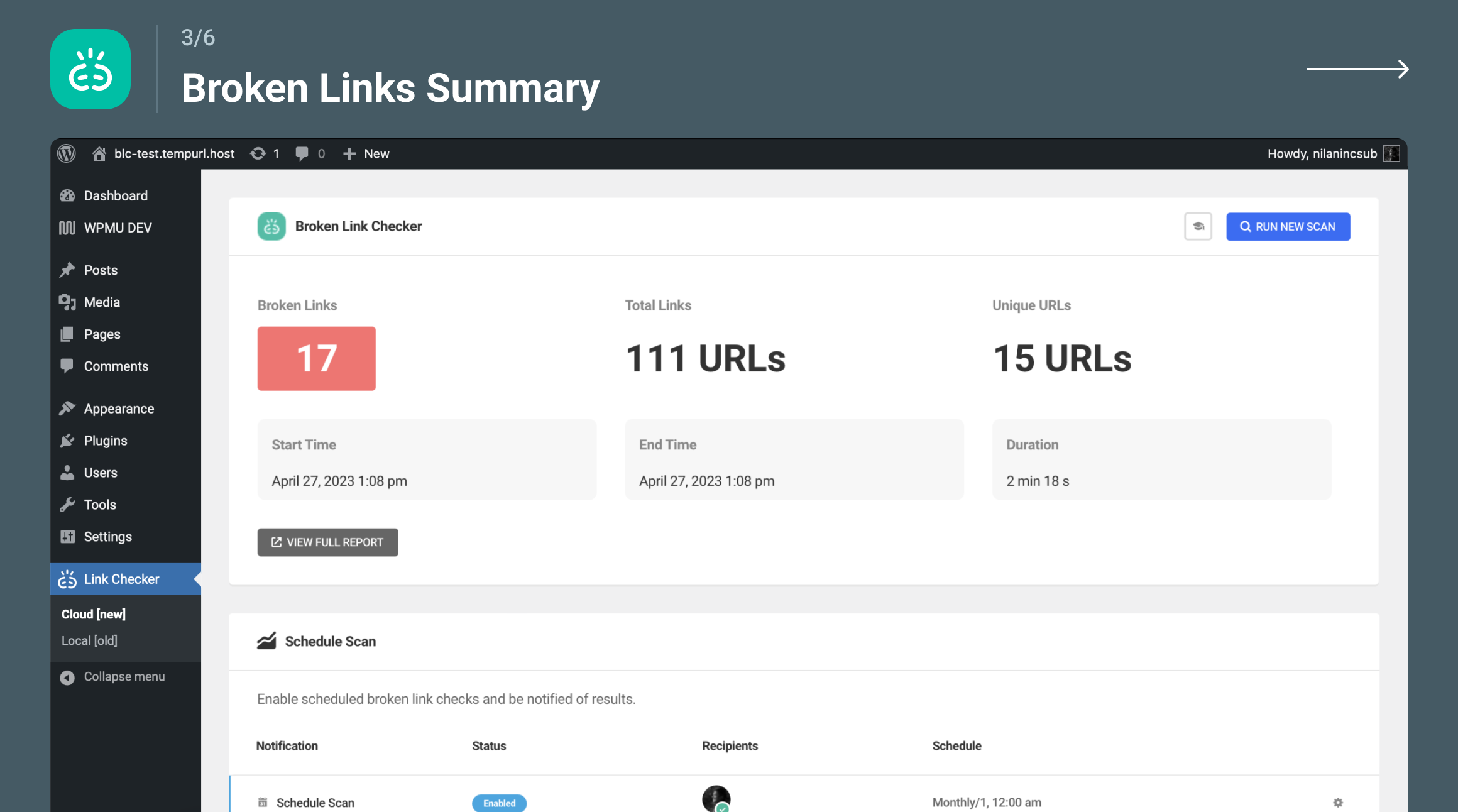
Clicking the “Cloud (new)” sub-menu item shows a “Connect to WPMU DEV” button. Clicking it opens a modal where you can log in to an existing WPMU DEV Hub account or create a new one for free. No credit card is required.
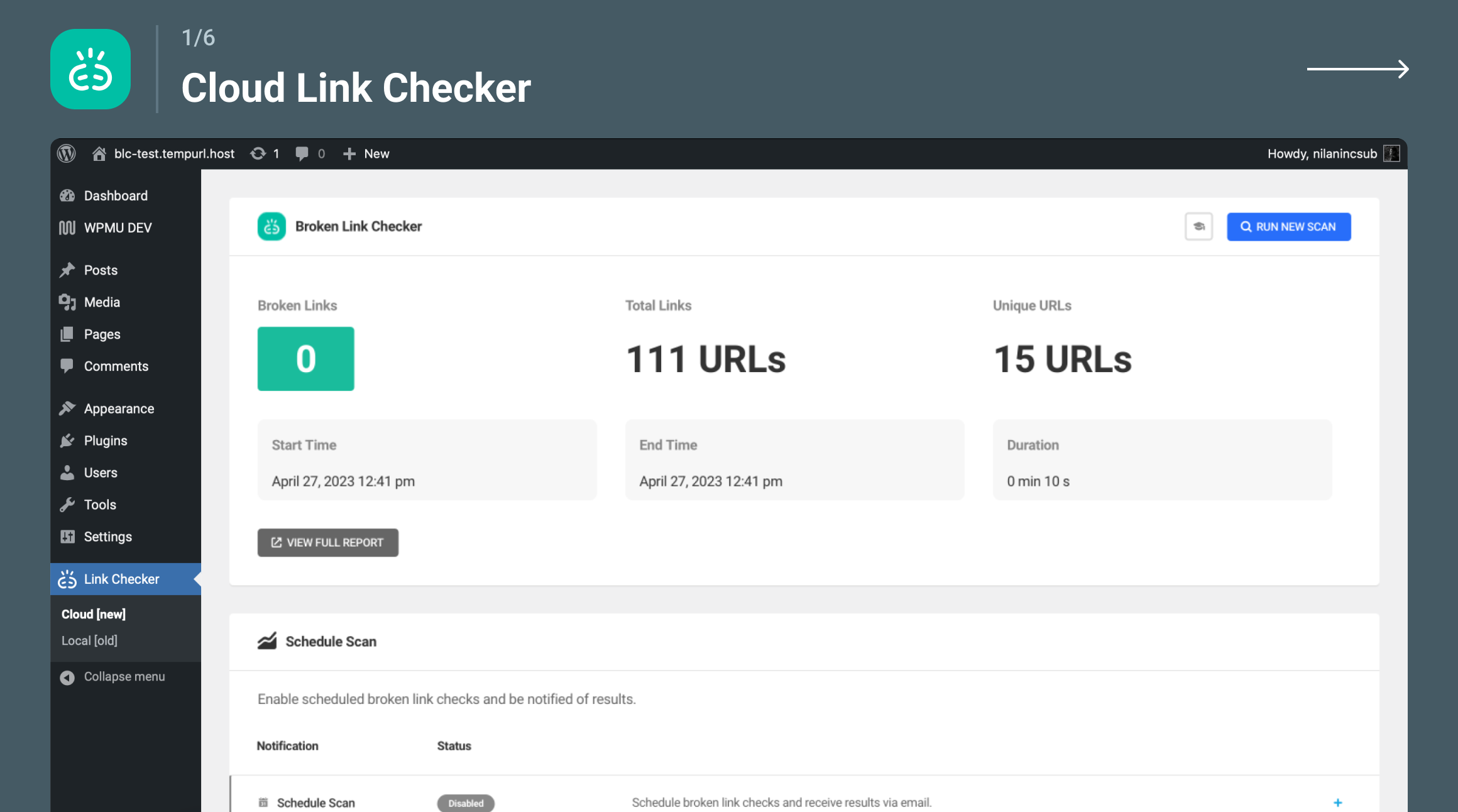
Once connected, the plugin sends scan requests to WPMU DEV’s servers. Those servers crawl your site externally and return results to your WordPress dashboard. Your own hosting receives no additional load during the scan process.
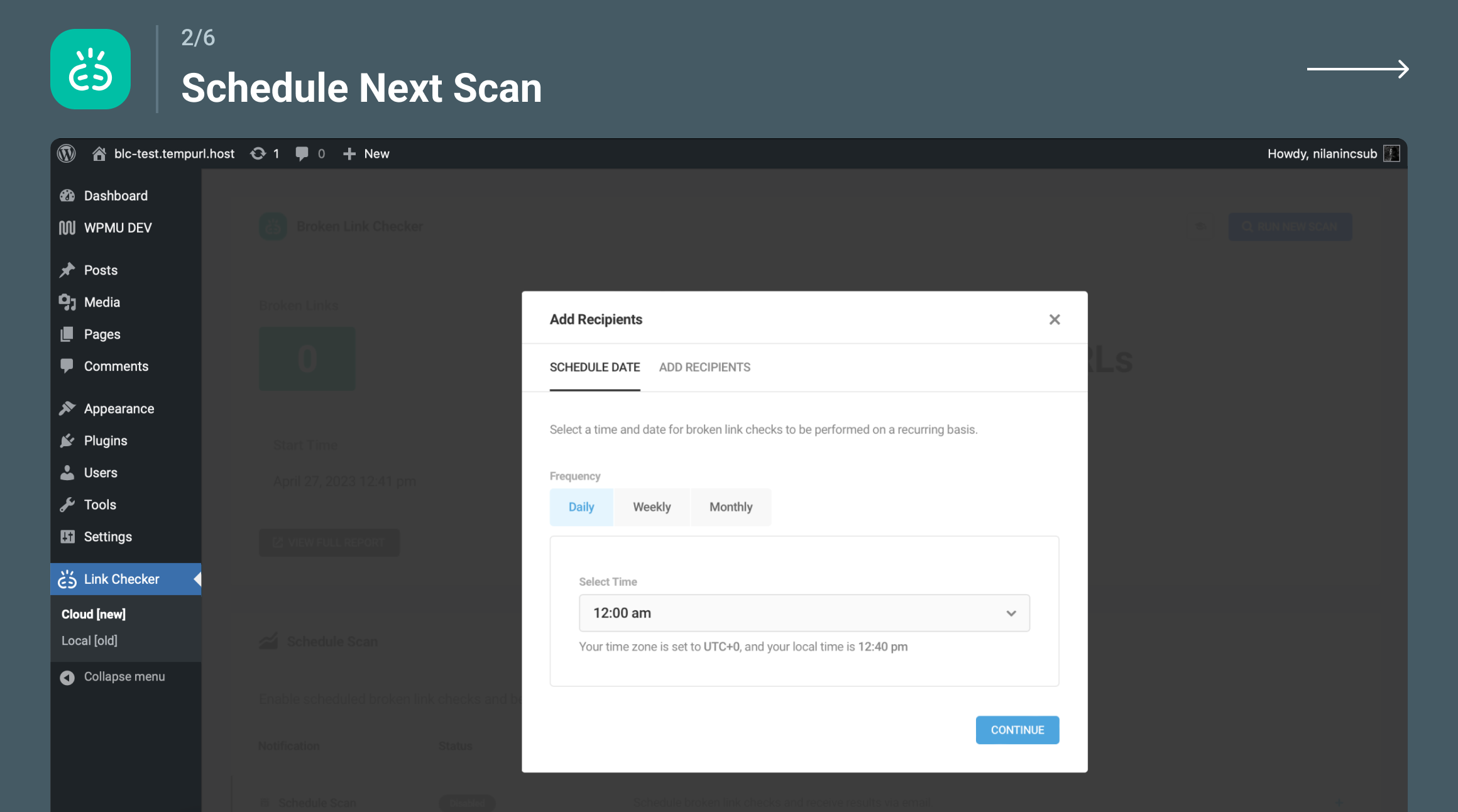
Scan scheduling is configurable after connecting. Options include one-time scans, weekly, or custom intervals. For most sites, a weekly automated scan is a sensible starting point. The scan history is accessible through the WPMU DEV Hub interface, where multiple sites can be monitored from a single screen.
Setting up the local engine
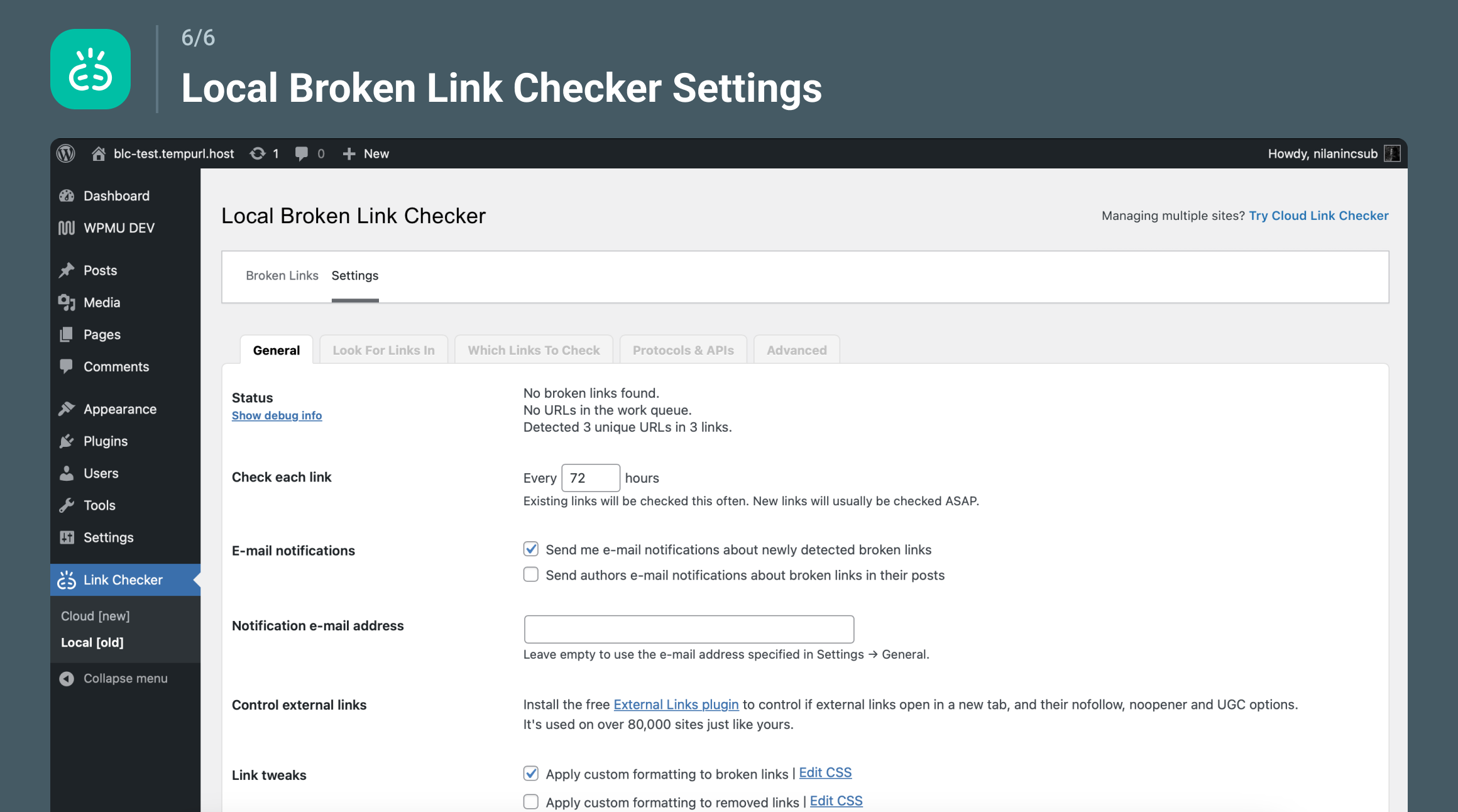
The local engine (labeled “old” in the sidebar) runs scans directly on your web server. It processes links in batches over time to avoid a single large resource spike, but the cumulative load during a full site scan can still be significant on shared hosting. This is the source of most of the plugin’s historical negative reviews.
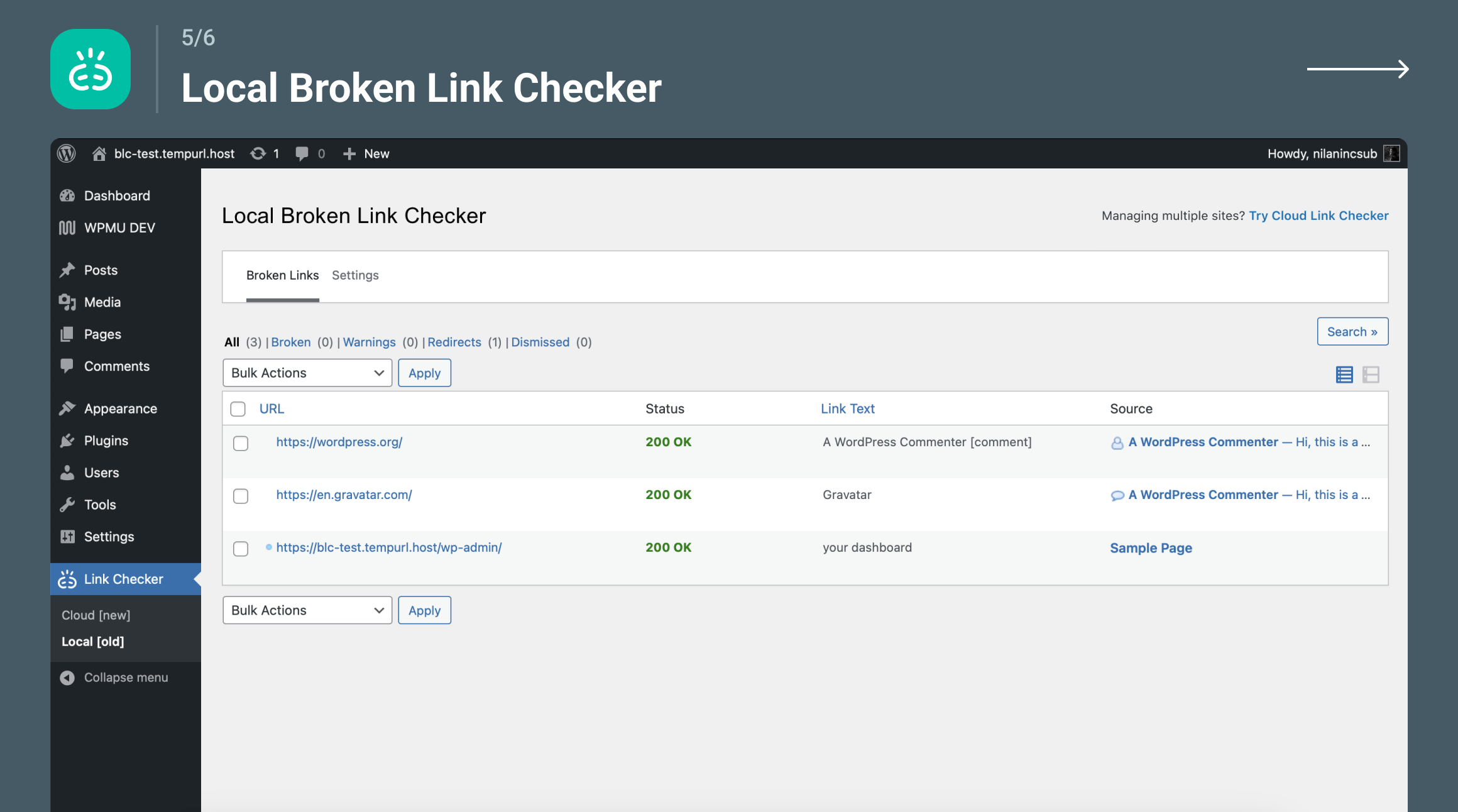
The local engine settings panel offers more granular control than the cloud option:
- Choose which post types to scan (posts, pages, comments, custom post types, custom fields, blogroll)
- Set a maximum number of links checked per server request
- Configure email alerts for new broken links
- Apply custom CSS styling to broken links on the frontend (visible to logged-in admins only)
- Set URL and text exclusions to suppress known false positives
- Configure which HTTP status codes to treat as broken
Core features
Link types detected
The plugin checks several link categories across both engines:
- Internal links. Links pointing to other pages on your own domain.
- External links. Outbound links to third-party sites.
- Images. Missing or broken image source URLs.
- Blogroll links. WordPress links widget entries (a legacy feature still present in some older sites).
- Custom fields. Links stored in post meta fields (configurable in local engine settings).
- Comments. Links posted by visitors in the comment section.
The plugin does not check video embed links. Whether a YouTube video is still live, a Vimeo embed still resolves, or an embedded player URL is valid falls outside what WPMU DEV BLC scans. The AIOSEO competing plugin adds this check; WPMU DEV BLC does not.
The dashboard
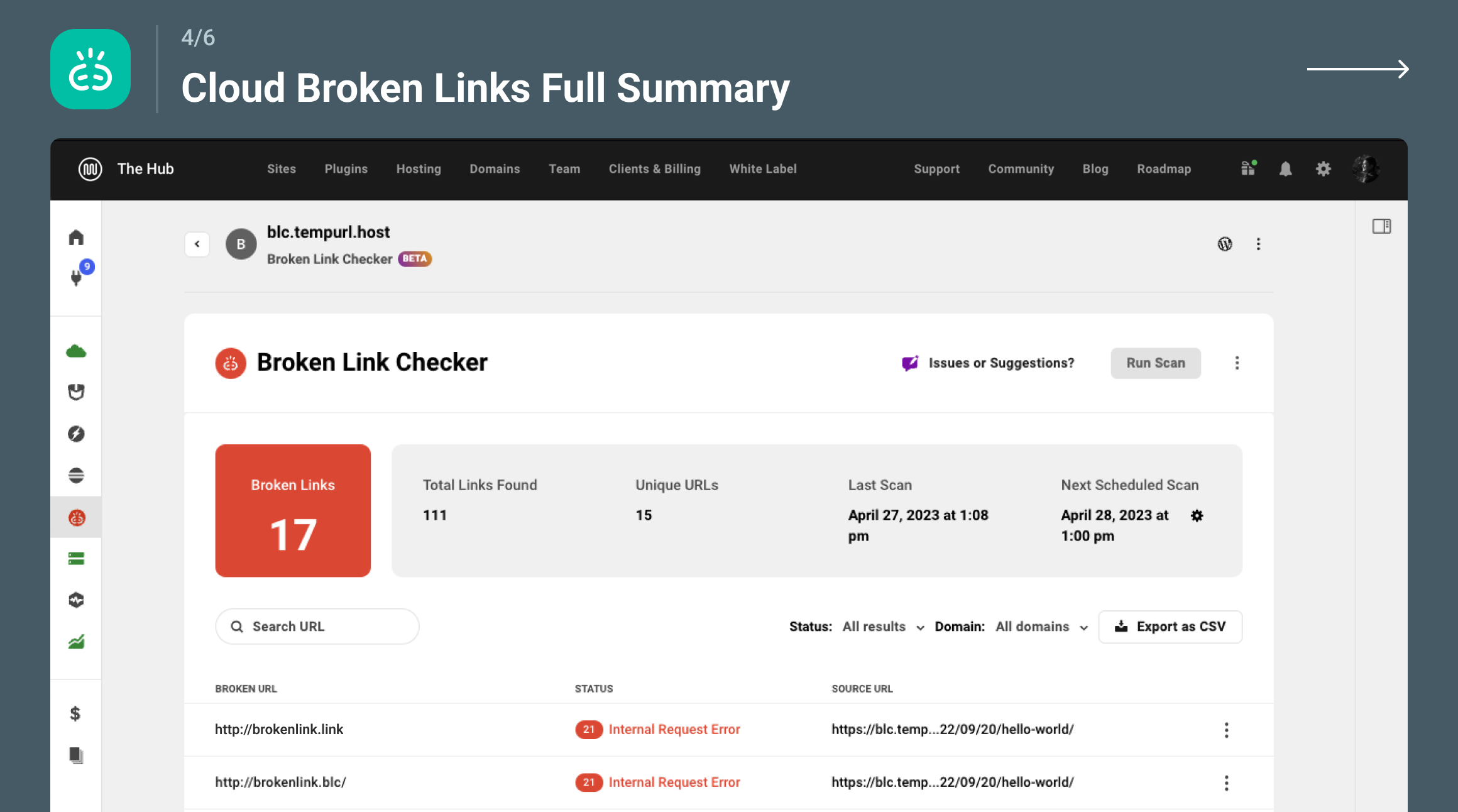
The main broken links dashboard shows a table with columns for the broken URL, HTTP status code, anchor text, and the source post or page where the link appears. You can filter by link status (broken, redirected, unknown) and search by URL or anchor text.
Clicking any link in the table reveals inline action options:
- Edit URL. Replace the broken destination with a working URL directly from the dashboard. The change is written back to the source post content.
- Unlink. Remove the hyperlink while keeping the anchor text in the content.
- Dismiss. Remove the link from the broken list without changing the content.
- Recheck. Force an immediate re-scan of this specific link.
- Not broken. Mark the link as intentionally retained despite the error code, useful for links you know return 403 due to rate limiting.
All URL edits made from the dashboard are applied directly to the source post or page content. You do not need to open the post editor to fix a link.
Bulk actions
The bulk actions dropdown allows applying any of the above actions to multiple selected links simultaneously. For sites with dozens or hundreds of broken links after a migration or domain change, this is the most time-efficient workflow available. Select all links with a particular status code, apply Unlink or Dismiss, and clear the queue without opening each source post individually.
Wayback Machine integration
When a broken link is selected in the dashboard, the plugin offers an option to check whether the target page has been archived on the Wayback Machine (web.archive.org). If an archived version exists, you can update the broken link to point to the archived URL directly from the dashboard, without copy-pasting or opening a separate browser tab.
This is genuinely useful for outbound links to content that has gone permanently offline. Instead of simply removing the reference, you can preserve the citation context by pointing to a working archived version of the original page.
Redirect detection
Links that return 301 or 302 redirect responses appear in the dashboard under a separate “Redirected” filter. This surfaces links that technically work but point to a URL that has since moved, adding an unnecessary redirect hop to user requests. Updating internal redirect-chain links to point directly to the final destination is a small technical SEO improvement that compounds across a large content archive.
Email notifications
Both engines support email alerts when new broken links are discovered. The email lists the broken URLs with their status codes and source pages. For the local engine, notification settings are configured in the WordPress settings panel. For the cloud engine, notifications are managed through the WPMU DEV Hub interface.
Multisite support
The plugin works with WordPress multisite installations. The cloud engine’s Hub integration allows monitoring broken links across multiple sites from a single WPMU DEV Hub dashboard, which is the most relevant feature for agencies managing multiple client sites under one account.
Cloud engine vs local engine: the key differences
The choice between the two engines is the most consequential configuration decision in this plugin.
| Cloud Engine | Local Engine | |
|---|---|---|
| Account required | Free WPMU DEV Hub account | None |
| Scan speed | 20x faster (per WPMU DEV) | Slower, batch-based |
| Server load | Zero (external scan) | Moderate to heavy |
| Frontend link highlighting | Not available | Available (custom CSS) |
| Custom field scanning | Limited | Fully configurable |
| Post type selection | Via Hub settings | Local settings panel |
| Scheduling | Weekly or custom via Hub | Configurable in settings |
| Multi-site management | Yes, via Hub | Per-site only |
Use the cloud engine when
- Your site is on shared hosting where background PHP processes are restricted or limited
- Your site has 500-plus posts and a local scan would significantly impact server performance
- You manage multiple sites and want a unified Hub dashboard
Use the local engine when
- Your site processes content that should not be transmitted to a third-party service
- You want frontend broken link highlighting visible to logged-in admins
- You need advanced custom field scan configuration that the cloud option does not yet expose
- You want to avoid any external account dependency
For most new users, the cloud engine is the better default. The plugin’s own UI signals this by labeling it “new.” The only reasons to stay on the local engine are a specific data privacy constraint or an advanced configuration requirement the cloud option does not support.
Pricing
Broken Link Checker is free. There is no paid plugin tier.
The cloud engine requires a WPMU DEV Hub account. Creating a Hub account is free and requires no credit card. WPMU DEV offers paid membership plans that bundle additional plugins, hosting, and services, but broken link checking via the cloud engine is not restricted to paying members.
There is no published monthly scanning credit limit for either engine. Unlike AIOSEO Broken Link Checker, which caps the free version at 250 internal link credits per month, WPMU DEV BLC does not enforce a credit system. Sites with very large link volumes may still experience slower scan completion on the local engine due to server resource constraints, but there is no hard monthly limit on either engine.
Broken Link Checker vs AIOSEO Broken Link Checker
Because “AIOSEO Broken Link Checker review” is a common companion search to this plugin, a direct comparison is useful.
AIOSEO Broken Link Checker (wordpress.org/plugins/broken-link-checker-seo/) is a separate plugin from a separate developer: the AIOSEO team (Semper Plugins LLC, the company behind All in One SEO). It is at version 1.3.0 with 300,000-plus active installs and a 3.9 out of 5 rating across 83 reviews.
| Feature | WPMU DEV BLC | AIOSEO BLC |
|---|---|---|
| Free tier scanning | Unlimited (no credit cap) | 250 internal links/month |
| External link scanning | Yes | Paid plans only |
| Video link checking | No | Yes (YouTube, Vimeo, 10+ platforms) |
| Cloud-based option | Yes (free Hub account) | Always cloud, no local option |
| Local engine option | Yes | No |
| AIOSEO integration | No | Yes (Redirects, dashboard) |
| Account required | Free WPMU DEV Hub (cloud only) | AIOSEO account |
| Active installs | 500,000+ | 300,000+ |
| Rating | 3.8 / 5 (603 reviews) | 3.9 / 5 (83 reviews) |
| Wayback Machine | Yes | No |
| Bulk actions | Yes | Yes |
When to choose WPMU DEV BLC
- You want unlimited scanning without monthly credit limits
- You are not already running AIOSEO as your SEO plugin
- You want the Wayback Machine integration for recovering dead external links
- You are already in the WPMU DEV ecosystem
When to choose AIOSEO BLC
- AIOSEO is already your SEO plugin and you want broken link management inside the same dashboard
- You need video link checking across YouTube, Vimeo, and other platforms
- You prefer an entirely cloud-based tool with no local engine
Neither plugin is the clear winner across all cases. The right choice depends on which plugin ecosystem you are already working in, and whether unlimited scanning or native video verification is the priority for your site.
Pros and cons
Pros
- Completely free, including the cloud engine (requires only a free WPMU DEV Hub account, no credit card)
- Cloud engine claims 20x faster scanning with zero server load, directly addressing the historical performance complaint about local broken link scanners
- No monthly scanning credit cap on either engine: unlimited links on both cloud and local
- Wayback Machine integration lets you replace dead external links with archived copies directly from the dashboard
- Covers posts, pages, comments, blogroll, and custom fields
- Bulk actions handle large link cleanup jobs efficiently without opening individual posts
- WordPress multisite compatible with multi-site management via WPMU DEV Hub
- 17 million total downloads reflects genuine long-term adoption
- Redirect detection surfaces unnecessary redirect chains alongside outright broken links
- Available in 31 languages
- Frontend broken link highlighting with custom CSS available in the local engine
Cons
- 3.8 out of 5 rating across 603 reviews is below average for a plugin of this scale; 132 one-star reviews (22 percent of total) indicate a meaningful share of negative experiences
- High false-positive rate on 403 Forbidden responses: many 403 errors are server-side rate limiting or bot blocking rather than genuinely broken links, requiring manual review of flagged results
- Some users have reported database stability issues and site crashes after certain plugin updates, particularly on database schema upgrade operations
- Local engine is genuinely resource-heavy on shared hosting; the reputation for slowing down sites reflects this real limitation rather than a software bug
- Cloud engine adds a WPMU DEV Hub account dependency, even though the account is free
- No video link checking: embedded YouTube, Vimeo, and other video URLs are not verified
- Custom CSS broken link highlighting is only available in the local engine, not the cloud engine
- Recent patch versions (2.4.10 through 2.4.13) fixed a series of database schema, permission, scheduling, and template rendering bugs, suggesting gaps in pre-release QA
Alternatives
AIOSEO Broken Link Checker is the most direct WordPress-based alternative. If you are already running AIOSEO for SEO, its native Broken Link Checker integrates directly with Redirection Manager and the broader AIOSEO admin dashboard. The free tier caps at 250 internal link credits per month, which limits it for larger sites, but the video link verification and tight AIOSEO integration are real advantages. For context on the full AIOSEO plugin suite, see our All in One SEO review.
Screaming Frog SEO Spider is the standard desktop crawler used by technical SEO professionals. Its free version crawls up to 500 URLs and identifies broken links, redirect chains, missing meta tags, and a range of on-page technical issues. The paid version (89 GBP per year) removes the URL cap. Screaming Frog is a desktop application rather than a WordPress plugin, but for a thorough one-time site audit it surfaces more issues than any plugin-based scanner.
Rank Math SEO includes basic link status checking in its paid plans and surfaces broken link notifications inside the post editor. For sites already on Rank Math, this may reduce the need for a separate plugin in some workflows. See our Rank Math review for a full breakdown of what the paid plans include.
Semrush Site Audit performs broken link detection as part of a comprehensive technical SEO audit alongside crawl errors, HTTPS issues, duplicate content, and performance data. Paid Semrush plans start at $119.95 per month. For agencies already using Semrush, running a site audit there eliminates the need for a separate WordPress plugin.
Ahrefs Site Audit offers comparable full-site crawl coverage with broken link reporting. Both Screaming Frog and the major SEO platform site audits are more thorough than any WordPress plugin-based scanner, but they require external subscriptions or desktop setup and do not offer the inline editing convenience that a WordPress admin plugin provides.
Final verdict
Broken Link Checker from WPMU DEV has earned its position as the most-installed free broken link scanner in the WordPress ecosystem, and the cloud engine added in recent versions addresses its most significant historical weakness. Offloading scan processing to WPMU DEV servers removes server load concerns for shared hosting entirely, and the free WPMU DEV Hub account that enables this does not require payment.
The plugin’s rating deserves honest acknowledgment. A 3.8 out of 5 average across 603 reviews, with 22 percent one-star ratings, tells you a meaningful share of users have had genuinely frustrating experiences. Most of those experiences trace to the local engine on shared hosting, 403 false positives requiring manual triage, and database issues following some plugin updates. The cloud engine resolves most local-engine problems for typical users, but the pattern of patch releases fixing schema, permission, and template bugs in recent minor versions is worth monitoring.
For most WordPress content sites, the practical conclusion is simple. If you need free automated broken link monitoring, install Broken Link Checker, connect the cloud engine to a free WPMU DEV Hub account, set a weekly scan, and spend 30 minutes reviewing the results. The Wayback Machine integration and bulk editing tools make actual link cleanup efficient. For sites with fewer than a few thousand posts and a normal shared-hosting setup, this covers the essentials without any cost.
If you are already running AIOSEO, use its native Broken Link Checker instead. If you need a full technical site audit rather than ongoing link monitoring, Screaming Frog (free for up to 500 URLs) or a Semrush subscription gives you substantially more depth. For most WordPress sites that just need to find and fix broken links efficiently, Broken Link Checker remains the practical starting point.
Browse more plugin reviews in our reviews category.