


At a Glance
- Plugin: WP Table Builder by DotCamp
- Active installs: 50,000+
- Rating: 4.8/5 (681 reviews on WordPress.org)
- Current version: 2.2.2 (September 2026)
- Free version: Yes, with 7 content elements
- Pro pricing: From $39/year (1 site)
- Money-back guarantee: 30 days
- Best for: Comparison tables, pricing tables, affiliate content creators
Quick Verdict
WP Table Builder is a focused drag-and-drop table plugin that makes building visually polished comparison and pricing tables fast and accessible without writing code. The free version covers basic table creation with seven content element types, and the builder is one of the cleanest I have tested in this category. Where it trades off against heavier competitors is depth: there is no Google Sheets sync, no WooCommerce product table integration, and no SQL data connection. WP Table Builder is a design-forward tool, not a data management platform. At $99/year for unlimited sites, the Agency plan is one of the better deals in the WordPress table plugin space.
What Is WP Table Builder?
WP Table Builder is a drag-and-drop table builder plugin for WordPress, developed by DotCamp and led by Istiak Rayhan. The plugin launched as a lightweight table builder focused on visual usability and has grown to over 50,000 active installations with a 4.8 out of 5 star rating across 681 reviews on WordPress.org.
The plugin’s design philosophy centers on usability over complexity. Instead of offering spreadsheet-style data management, WP Table Builder lets you drop content elements such as star ratings, buttons, badges, and progress bars directly into table cells and style everything visually. The result looks like a product comparison table built by a designer, not a data grid exported from a database.
Who Is WP Table Builder Best For?
- Affiliate content creators who write product comparison posts and need clean, scannable tables with star ratings, buttons, and price labels.
- Bloggers publishing feature comparison grids where visual presentation matters as much as the underlying data.
- Small business owners who need a pricing table on a service page without hiring a developer.
- Agency site builders managing client sites where simple pricing or comparison tables are a recurring deliverable. The unlimited sites license at $99/year makes this cost-effective.
- WordPress users upgrading from HTML tables or TablePress who want more visual control without learning code.
WP Table Builder is a weaker fit if you need to pull live data from external sources, build tables from WooCommerce product catalogs, or manage hundreds of rows with server-side filtering. Those use cases belong to heavier plugins like wpDataTables.
Installation and Setup
I installed the free version of WP Table Builder from WordPress.org on a clean WordPress 7.1 installation. The process is standard: search “WP Table Builder” in the plugin directory, install, and activate. No account creation or license key is required for the free version.
After activation, a “Table Builder” item appears in the WordPress admin sidebar. The landing screen shows your tables list and an “Add New” button. The interface is uncluttered from the start.
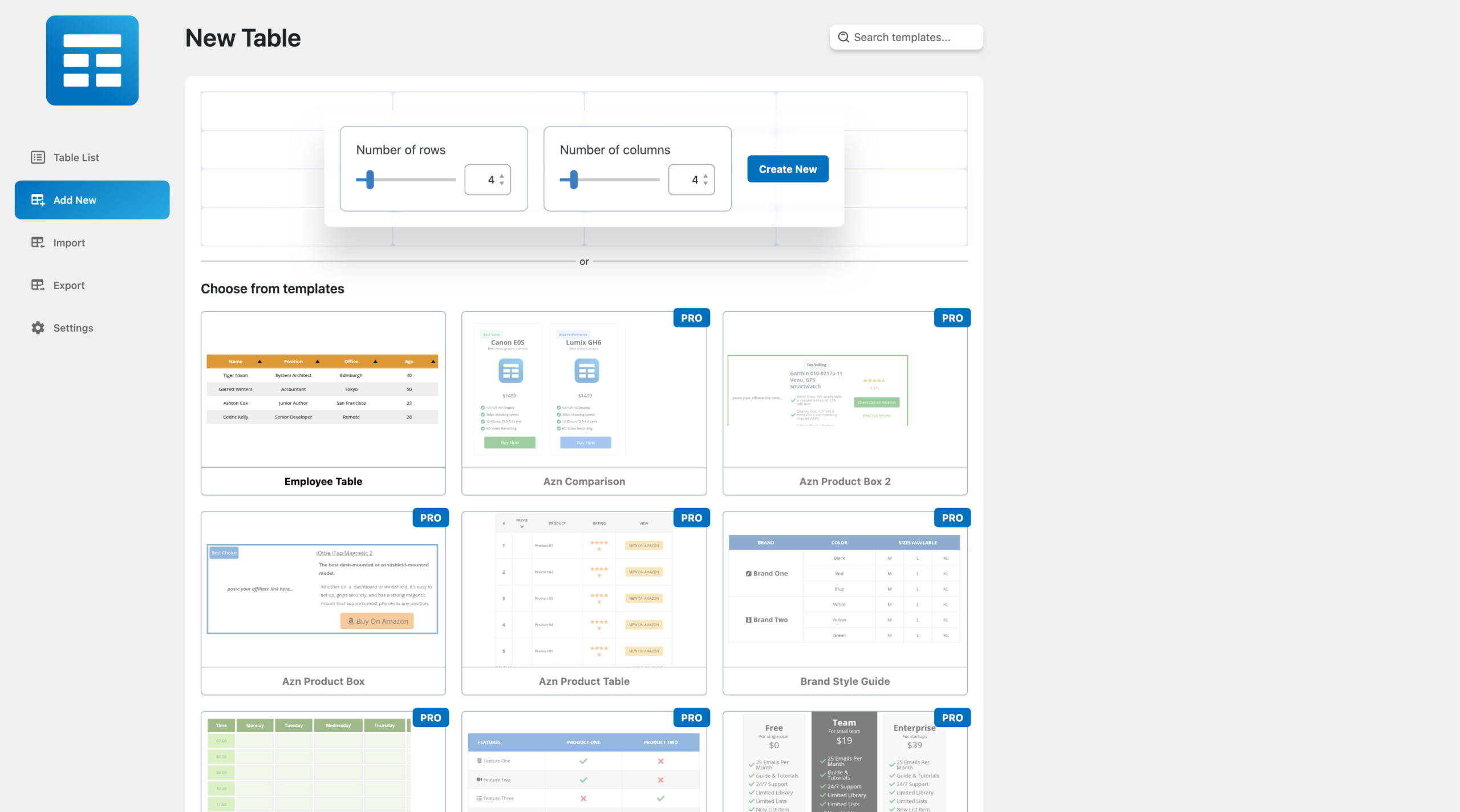
Creating a table is faster than most alternatives. You enter your column count and row count, click Generate, and the visual builder opens immediately. Some competitors ask you to configure each column before generating a grid; WP Table Builder skips that step and gets you into the interface right away.
The left panel shows content element tiles: Text, Image, List, Button, Star Rating, Custom HTML, and Shortcode in the free version. You drag any element into a cell. The cell then shows configuration options specific to that element. Editing a star rating opens a panel where you set the count and color. Text opens a basic rich text editor. The live preview updates immediately as you work.
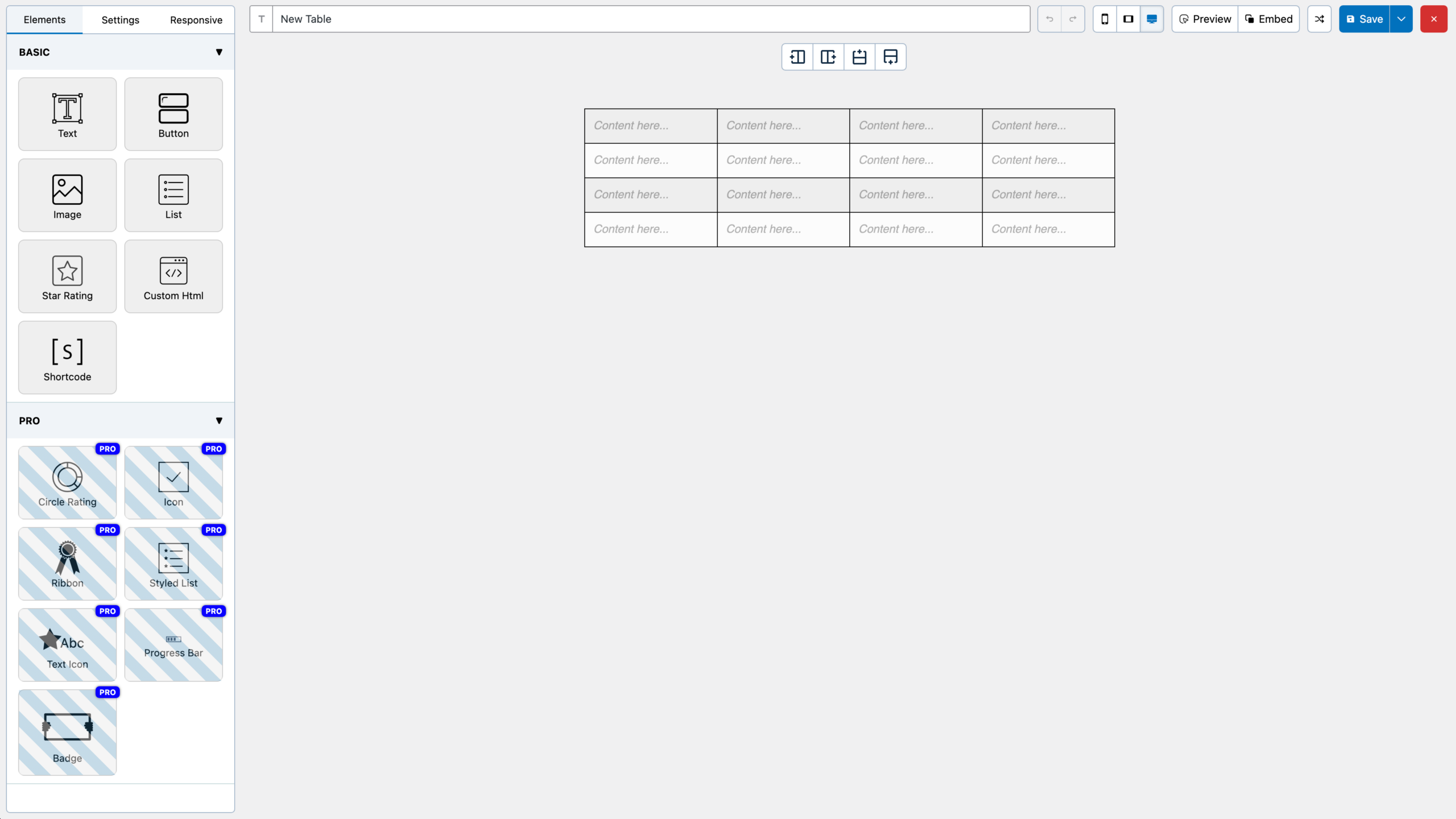
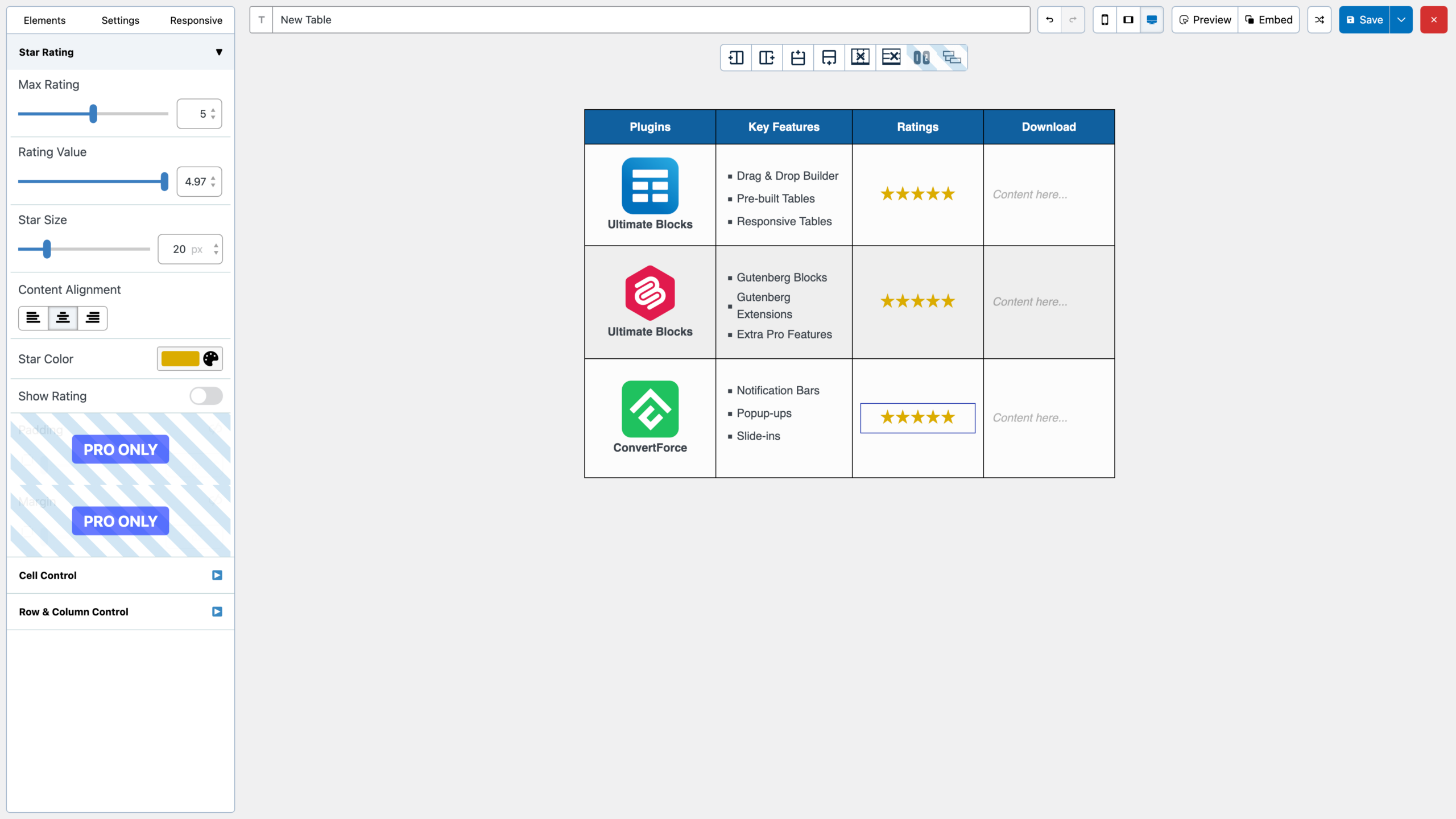
I built a comparison table with product names, feature checkmarks, star ratings, and call-to-action buttons in about eight minutes on a first attempt. That is one of the faster setup experiences I have recorded for a table plugin.
Every table generates a shortcode for embedding in any post, page, or widget area. A Gutenberg block is also available for direct embedding in the block editor. One notable point: the backend admin area has no aggressive upsell overlays. Pro elements are visible in the panel but not pushed as interruptions during editing.
Main Features
Drag-and-Drop Visual Builder
The core builder is where WP Table Builder has invested most. Cells function as containers for specific element types. You choose what kind of content goes in each cell, configure it visually, and the table layout reflects changes immediately.
This makes table building genuinely accessible to non-developers. There is no need to write shortcodes per cell, edit HTML manually, or configure column types through a form. The cell management panel handles structural operations: Add Row, Add Column, Merge Cells, and Split Cells. These cover the most common table editing tasks without any technical knowledge required.
7 Free Content Elements and 14 in Pro
The free version ships with seven content elements:
- Text (rich text with basic formatting)
- Image
- List (ordered and unordered)
- Button (with custom link and label)
- Star Rating (visual star display)
- Custom HTML
- Shortcode
Pro adds seven more elements:
- Badge (status labels and tags such as “Popular” or “Best Value”)
- Circle Rating (circular percentage display)
- Progress Bar (horizontal comparison bars)
- Ribbon (decorative corner labels)
- Styled List (icon-enhanced list items)
- Text Icon (combined text and icon)
- Icon (standalone icon from a library)
The Pro elements are the ones that make comparison tables look polished. Badges and ribbons signal “Popular” or “Best Value” without custom CSS. Progress bars let visitors compare scores at a glance. Circle ratings offer a visual alternative to star ratings that works well in review summary tables.
27 Pre-Built Templates
Pro users can start from 27 professionally designed table templates rather than a blank grid. Template categories include:
- Pricing tables
- Product comparison tables
- Pros and cons tables
- Amazon-style product listings
- Schedule grids
- Sports standings tables
- Feature comparison tables with checkmarks
- Rating summary tables
Starting from a template is noticeably faster for standard use cases. A pricing table template arrives with a header row, feature rows, and a call-to-action row already configured. You replace the placeholder content, adjust colors to match your brand, and publish. This shortcut alone removes significant setup time for common table types.
Styling and Customization
The styling panel covers the most common design needs: background color per cell, row (odd/even), or column; border style, width, and color; font size and weight per element; text and link colors; padding and alignment.
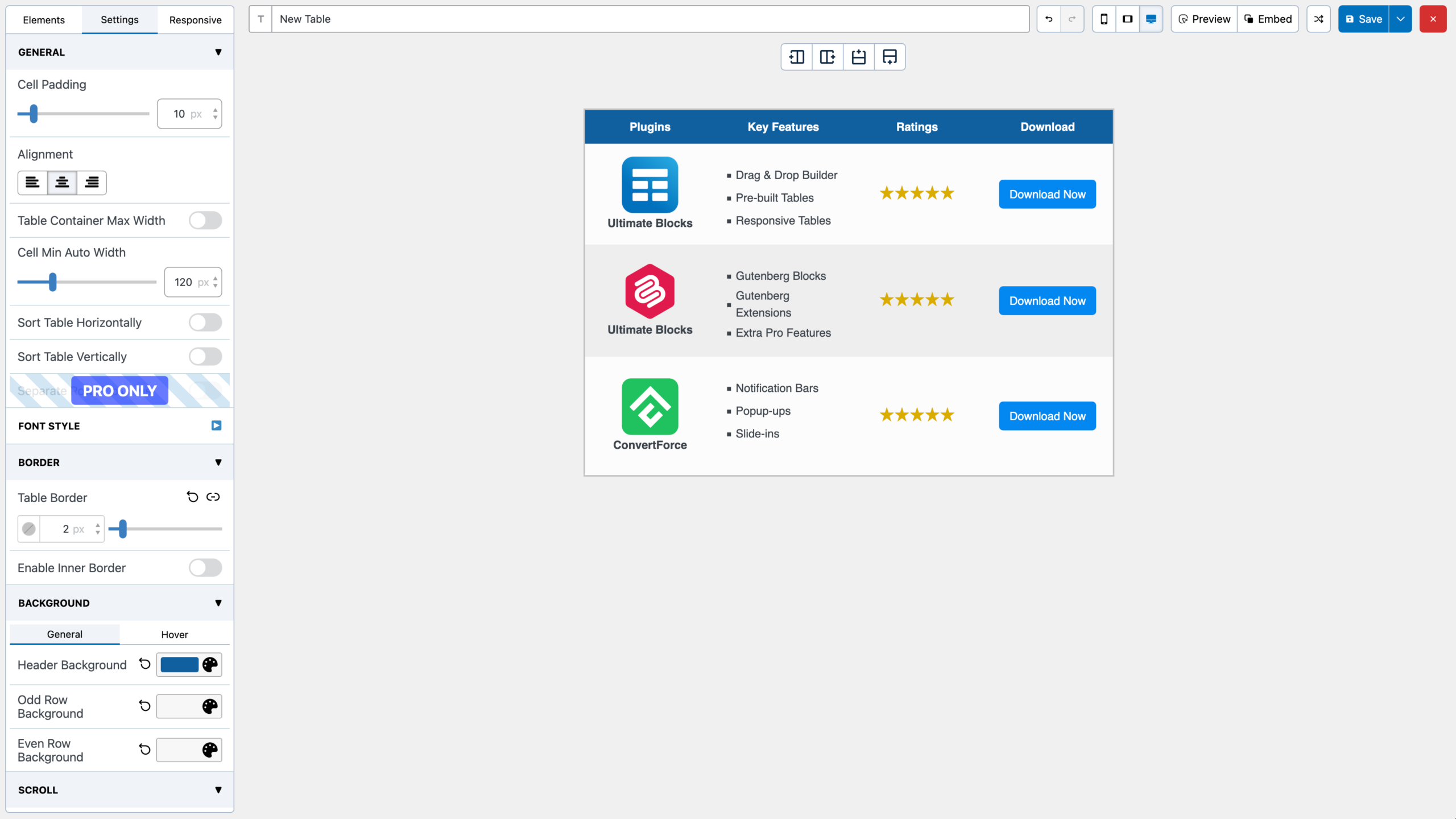
You can apply a consistent color scheme to an entire table or style individual cells differently. The “Highlight” option in Pro lets you emphasize specific rows or columns, which is useful for marking a recommended plan in a pricing table.
One limitation I noticed: the styling interface requires manual value entry for some fields rather than visual sliders. It is functional but slightly less immediate than some page builder table widgets. This is a minor friction point, not a dealbreaker.
Pagination, Search, and Sticky Headers (Pro)
For larger tables, Pro adds three important usability controls:
Search: A live filter bar above the table that narrows visible rows as the user types. Useful for feature comparison tables with more than 15 rows.
Pagination: Splits long tables into pages. You set the rows-per-page limit. This keeps the page lightweight and prevents the “wall of data” problem on long product lists.
Sticky Headers and First Column: The header row stays pinned as the user scrolls vertically. The first column stays pinned as the user scrolls horizontally. Both are configurable independently, which is useful for wide tables where column context is otherwise lost during scrolling.
These features are absent in the free version. For basic static tables with fewer than 15 rows, that is acceptable. For any table with more than 20 rows, these Pro controls are worth having.
Responsive Design Controls
WP Table Builder handles responsive tables with breakpoint-based controls. You set a custom breakpoint pixel width and choose how the table behaves at that screen size: horizontal scroll or vertical stacking, where each row reflows into a readable block for mobile visitors.
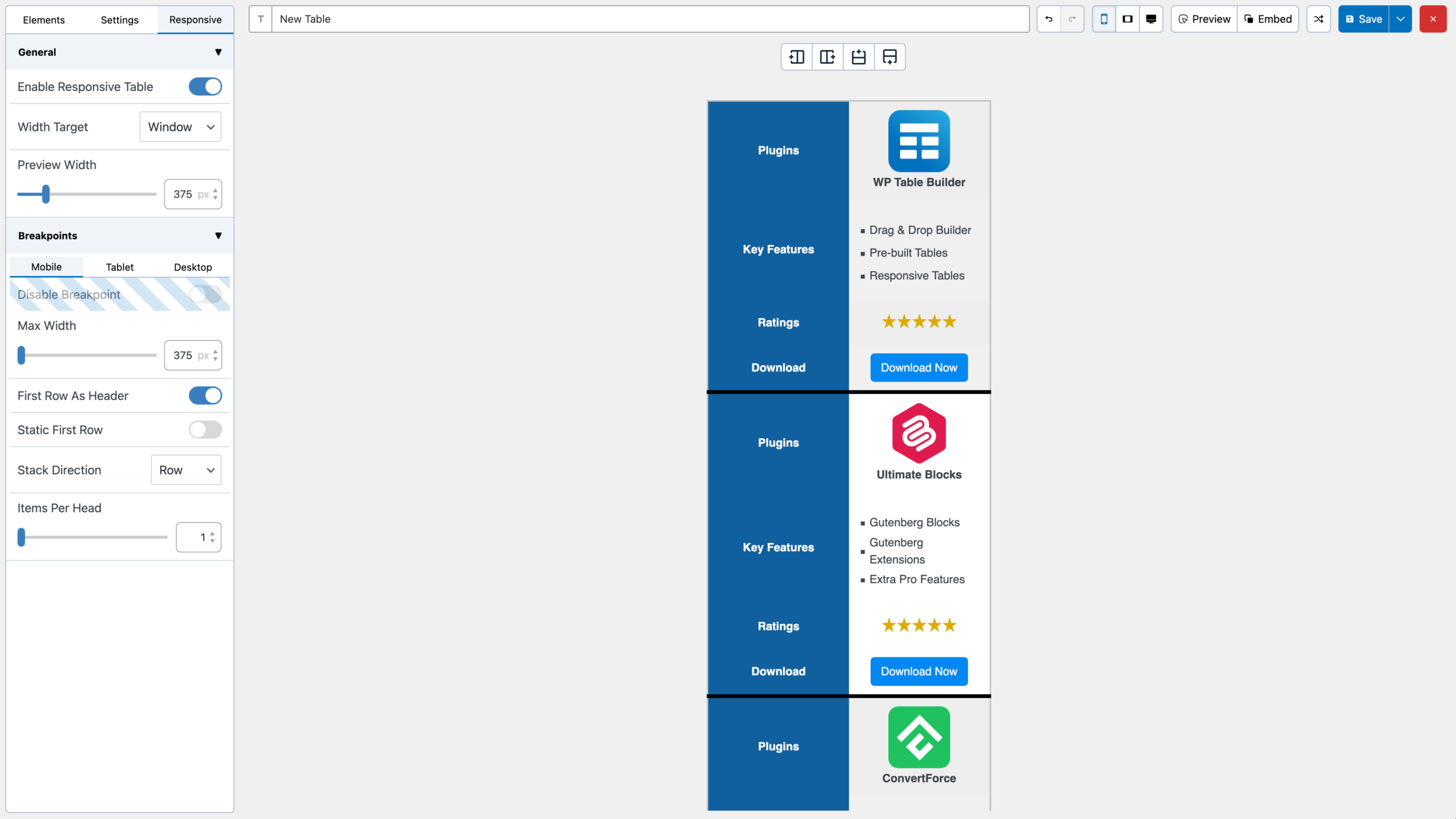
The responsive handling is reliable for common layouts. It covers the primary mobile problem that basic HTML tables have: horizontal overflow and tiny text on small screens. The controls are less granular than Ninja Tables Pro (which offers six individual breakpoints), but sufficient for most single-breakpoint responsive needs.
AI Assistant (Pro)
Pro includes an AI Assistant for generating table content from a text prompt. You describe the table you need, and the assistant populates the structure and initial content. This is useful for creating a feature comparison table or pricing breakdown from a brief description rather than filling in cells manually.
I tested the AI Assistant with a prompt to generate a WordPress hosting comparison table with five providers and columns for price, storage, support tier, and uptime. The output was a reasonable starting point that needed minor cleanup. It is a useful accelerator, not a replacement for reviewing the content yourself before publishing.
Import and Export
WP Table Builder supports importing tables from CSV files, XML files (single or multiple, zipped), and TablePress (one-click import). Exporting is available to CSV and XML in both free and Pro versions. The XML export preserves table settings, making it the better option for moving tables between WordPress sites. The TablePress importer is particularly useful for users migrating from the most widely used free alternative.
Pricing
| Plan | Type | Sites | Price |
|---|---|---|---|
| Starter | Annual | 1 | $39/year |
| Agency | Annual | Unlimited | $99/year |
| Starter | Lifetime | 1 | $99 (one-time) |
| Agency | Lifetime | Unlimited | $249 (one-time) |
All Pro plans include all features, updates, and priority support for the license period, plus a 30-day money-back guarantee.
Value assessment: The $39/year Starter plan is one of the lowest entry points in the WordPress table plugin market. The Agency plan at $99/year for unlimited sites is strong value for freelancers or agencies who build comparison tables across multiple client projects. Compared to Ninja Tables ($103/year for 20 sites), WP Table Builder’s Agency plan covers more sites at a lower price, though Ninja Tables Pro includes data integrations that WP Table Builder does not offer.
Lifetime plans are worth considering for anyone who expects to use the plugin long-term. $249 for unlimited sites with lifetime updates eliminates recurring cost entirely.
Pros and Cons
Pros
- Clean, intuitive drag-and-drop builder with minimal learning curve
- 14 content elements in Pro, including badges, progress bars, and circle ratings
- 27 pre-built templates for pricing, comparison, and review tables
- AI Assistant saves time on initial table content generation
- Competitive pricing: $39/year (1 site) or $99/year (unlimited sites)
- One-click TablePress importer for easy migration
- Import/export via CSV and XML in both free and Pro versions
- Free version is genuinely usable for basic static tables
- No aggressive upsell overlays in the admin interface
- 4.8/5 rating across 681 reviews on WordPress.org
- Active maintenance: version 2.2.2 released September 1, 2026
Cons
- No live data source integrations: no Google Sheets sync, no WooCommerce product tables, no SQL connection
- Free version lacks search, pagination, and sticky headers
- Styling interface requires manual value entry for some fields
- Responsive controls are simpler than some competitors (single breakpoint vs. multi-breakpoint)
- Support resolution rate was 2 of 4 recent WordPress.org tickets at time of review
- Pro elements (badges, progress bars, circle ratings) are locked in the paid version, limiting the free version’s visual range
Alternatives
TablePress: The most widely used free WordPress table plugin, with over 900,000 active installations. The free version is more capable than WP Table Builder Free for standard data tables. TablePress tables rely on HTML and lack the visual element-based approach of WP Table Builder, but if you just need clean data tables without drag-and-drop visual content, it is the free benchmark. Read our TablePress review.
Ninja Tables: Offers a similar drag-and-drop mode but adds data source integrations in Pro: Google Sheets auto-sync, WooCommerce product tables, and WordPress post tables. Ninja Tables Pro is stronger for data-driven or live-sync use cases; WP Table Builder Pro is more polished for static visual comparison tables. Read our Ninja Tables review.
wpDataTables: A more powerful tool for complex data management, SQL database connections, large dataset handling, and chart generation. Heavier and more expensive than WP Table Builder, but the right choice for business data use cases where WP Table Builder is too limited. Read our wpDataTables review.
Final Verdict
WP Table Builder earns its strong rating on WordPress.org because it solves a specific problem very well. Building a polished comparison table, pricing grid, or feature checklist in WordPress without writing code is genuinely faster and cleaner with this plugin than with most alternatives at its price point.
The trade-off is scope. WP Table Builder is a design-forward table tool, not a data management platform. If your use case is creating comparison tables for blog posts or pricing tables for product pages, it is a strong and well-priced choice. If you need Google Sheets sync, WooCommerce product tables, or SQL-connected data grids, you will reach its limits quickly.
At $99/year for unlimited sites, the Agency plan is one of the better deals in the WordPress table plugin space. If you run multiple sites and build comparison or pricing tables regularly, that price point is easy to justify.
Score: 4.1 out of 5
FAQ
Is WP Table Builder free?
Yes. A free version is available on WordPress.org. It includes the drag-and-drop builder with seven content element types and basic responsive support. Pro features including pagination, search, sticky headers, additional content elements, templates, and the AI Assistant require a paid plan.
What is WP Table Builder Pro?
WP Table Builder Pro is the paid version of the plugin. It adds 7 extra content elements (Badge, Circle Rating, Progress Bar, Ribbon, Styled List, Text Icon, Icon), 27 pre-built templates, search, pagination, sticky headers, advanced responsive controls, highlight and tooltip options, advanced cell customization, and an AI Assistant for generating table content.
How much does WP Table Builder cost?
Annual plans start at $39 per year for a single site and $99 per year for unlimited sites. Lifetime plans are $99 (single site) and $249 (unlimited sites). All plans include a 30-day money-back guarantee.
Can I use WP Table Builder on multiple sites?
Yes, with the Agency plan. The annual Agency plan costs $99 per year and covers unlimited sites. The lifetime Agency plan is a one-time payment of $249.
Does WP Table Builder work with Gutenberg?
Yes. The plugin includes a native Gutenberg block for embedding tables directly in the block editor without using shortcodes. Shortcode embedding also works in the classic editor or any theme template.
Can I import tables from TablePress?
Yes. WP Table Builder includes a one-click TablePress importer that converts your existing TablePress tables to WP Table Builder format.
Does WP Table Builder support mobile responsive tables?
Yes. The plugin handles mobile with a configurable breakpoint. At screens narrower than your set breakpoint, the table switches to a vertically stacked layout so mobile visitors see one row per block instead of a horizontal scroll. Responsive controls are available in both free and Pro versions.
Does WP Table Builder integrate with WooCommerce?
No. WP Table Builder does not include a WooCommerce product table integration. For WooCommerce product table use cases, Ninja Tables Pro is the better choice.
Is there a money-back guarantee?
Yes. WP Table Builder offers a 30-day money-back guarantee on all Pro plans, with no questions asked.
How is WP Table Builder different from Ninja Tables?
WP Table Builder focuses on visual, design-forward tables using draggable content elements. Ninja Tables offers a similar drag-and-drop mode but adds live data source integrations (Google Sheets, WooCommerce, WordPress posts) in Pro. WP Table Builder Pro is better for static comparison or pricing tables; Ninja Tables Pro is better when your table data needs to sync with external sources.