

WordPress does not back up itself. Your host’s daily snapshot only goes back so far, and the day you need the file you deleted three weeks ago is exactly the day that window runs out. A backup plugin closes that gap, and for a small site it should cost nothing to get started.
I went through every major plugin in the category for 2026: I checked what the free version actually backs up, where it stores the files, whether the scheduled backup runs reliably on shared hosting, and what the restore path looks like when something actually goes wrong. Seven plugins made this list because all seven have live, hands-on reviews here and represent the realistic range of options for a small WordPress site owner.
Four of these plugins offer a genuinely capable free tier. Two are premium-only with trial periods. One is technically premium but earns its place because it solves a recovery problem the free options cannot. I will tell you which is which throughout.
How I chose these WordPress backup plugins
Every plugin on this list was selected based on:
- Free-tier value. Does the free version actually protect a live site, or does it just gate all useful features behind a paywall?
- Scheduling reliability. Does automatic backup run on a cron schedule that works on typical shared hosting?
- Remote storage. Where do the backup files go? Local-only storage is not a backup.
- Restore simplicity. Can a non-technical site owner actually run a restore, or does it require FTP and a developer?
- Active maintenance. Last updated date, security patch history, and community review patterns.
- Small-site fit. Configuration overhead, resource consumption, and pricing at the entry point.
I excluded SaaS backup services that do not run as a WordPress plugin. Every plugin on this list installs from the WordPress admin or the vendor’s account portal.
Quick comparison table
| Plugin | Free tier | Best for | Standout feature | Main limitation |
|---|---|---|---|---|
| UpdraftPlus | Yes | Bloggers, solo site owners | 8 free remote storage destinations | No real-time backup; restore requires working WordPress |
| WPvivid Backup | Yes | Developers and freelancers who migrate often | Free one-click migration plus staging | Security patches frequent; no crashed-site restore |
| BackWPup | Yes | Technical users with existing S3 or Azure accounts | Azure and S3 in the free tier; WP-CLI free | Steeper setup than competitors; Google Drive is Pro-only |
| Duplicator | Yes (manual only) | Agencies and developers doing site migrations | Archive-and-installer migration model | Free version has no scheduling or cloud storage |
| BlogVault | No (7-day trial) | Business sites that cannot afford downtime | Emergency Connector restores crashed sites | Paid-only; storage is BlogVault’s cloud, not your own |
| Jetpack VaultPress Backup | No | Sites already in the Jetpack ecosystem | Event-driven real-time capture | No Multisite support; 10 GB starting storage |
| Solid Backups | No | Kadence/SolidWP ecosystem users | ImportBuddy restores sites without WordPress access | No longer sold standalone; no free version ever |

1. UpdraftPlus: best free WordPress backup plugin overall
UpdraftPlus is the most-downloaded WordPress backup plugin ever built, with 3+ million active installs and a 5-star rating across more than 8,500 reviews on WordPress.org. For a small site running on shared hosting and pointing its backups at Google Drive or Dropbox, it is the closest thing to a default recommendation in this category.
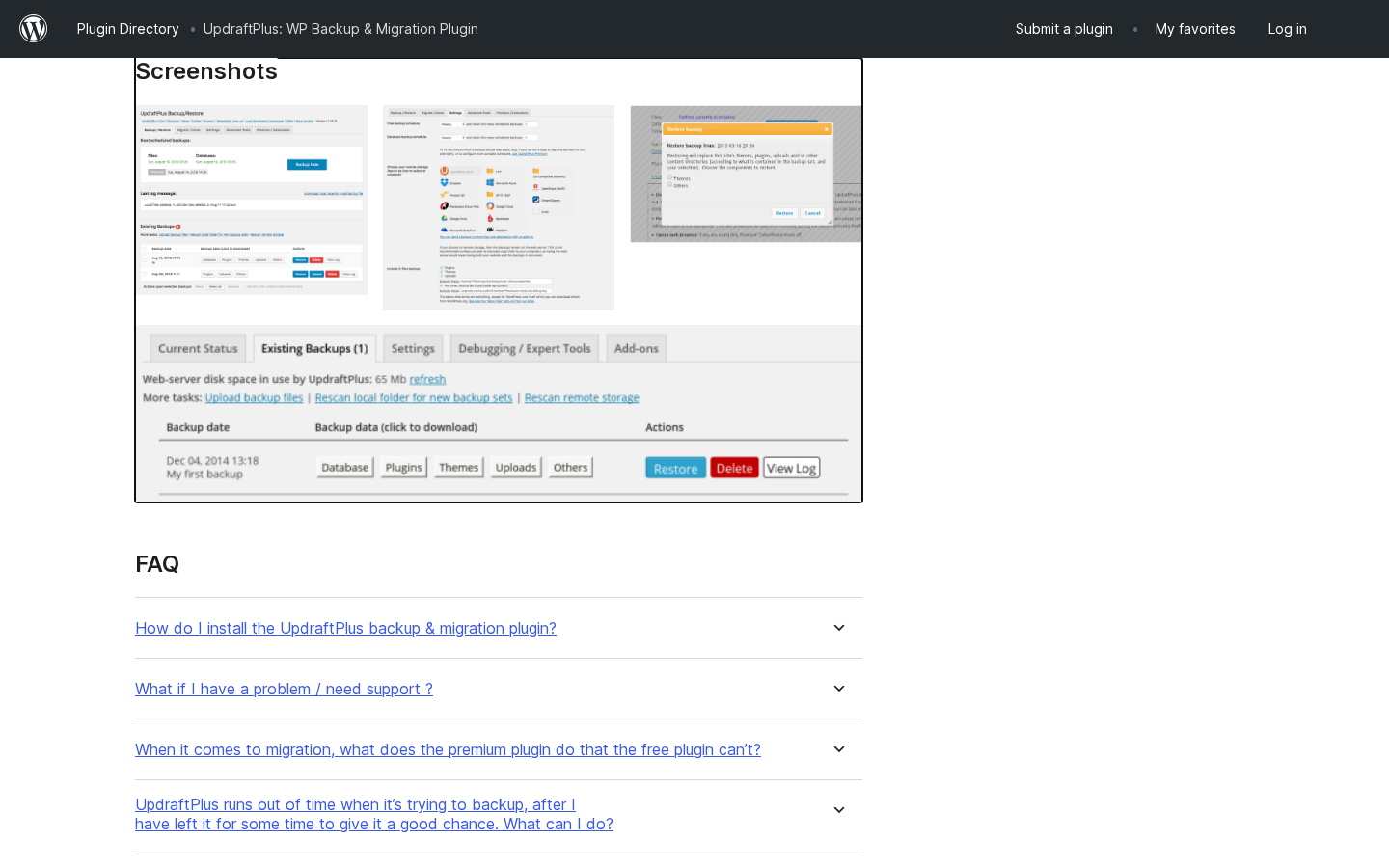
The free version is not a limited trial. It backs up your full site on a schedule, writes the files to your choice of eight remote storage destinations, and lets you restore individual components (database, plugins, themes, uploads) without wiping everything.
Best for: bloggers, portfolio sites, small business owners, freelancers managing a site or two, anyone setting up a first-time backup routine.
Key features (free)
- Scheduled full-site backups: database, plugins, themes, uploads, and other wp-content
- Eight remote storage destinations: Google Drive, Dropbox, Amazon S3, Rackspace, FTP, DreamObjects, OpenStack Swift, email
- Selective component restore (roll back database without touching plugins, or vice versa)
- Built-in search-and-replace migration engine for domain changes
- Backup schedule from every 2 hours to monthly; files and database scheduled independently
Hands-on notes: setup is a four-step flow: install the plugin, pick a storage destination, complete the OAuth handshake (Google Drive or Dropbox is a 30-second browser redirect), set a schedule, and click Save. On a clean WordPress install the full settings review takes under five minutes. The backup runs as a WordPress cron job; on busy shared hosting where cron only fires with page visits, UpdraftPlus surfaces a warning in the admin and points you to the expert settings to improve reliability.
Pricing: The free version on WordPress.org is fully functional and has no time limit. UpdraftPlus Premium starts at roughly $70 per year ex-VAT (Personal tier, 2 sites) and adds incremental backups, automatic backup before WordPress updates, more storage destinations, Multisite support, WP-CLI, and database encryption.
Pros
- The most capable free WordPress backup plugin available in 2026
- Eight free remote storage destinations, more than any competitor at no cost
- Selective restore: roll back database-only without touching the file system
- 3+ million active installs and 14 years of active development
- Actively maintained: version 1.26.5 shipped June 2026 with a security patch
Cons
- No real-time backup capability; WooCommerce stores risk losing orders placed between runs
- Restore requires a working WordPress install; crashed sites need manual file access
- Free version runs full backups every time (no incremental); large sites use more storage and time
- Backup schedule runs via WordPress cron, which is unreliable on low-traffic shared hosts
Read the full UpdraftPlus review for a complete feature-by-feature breakdown.
2. WPvivid Backup: best free backup plugin for freelancers and developers
WPvivid Backup is one of the most generous free backup plugins in the directory. With 900,000+ active installs and a 4.9-star rating across 1,500+ reviews, it earns its position by bundling three capabilities most plugins split into paid features: backup, migration, and staging.
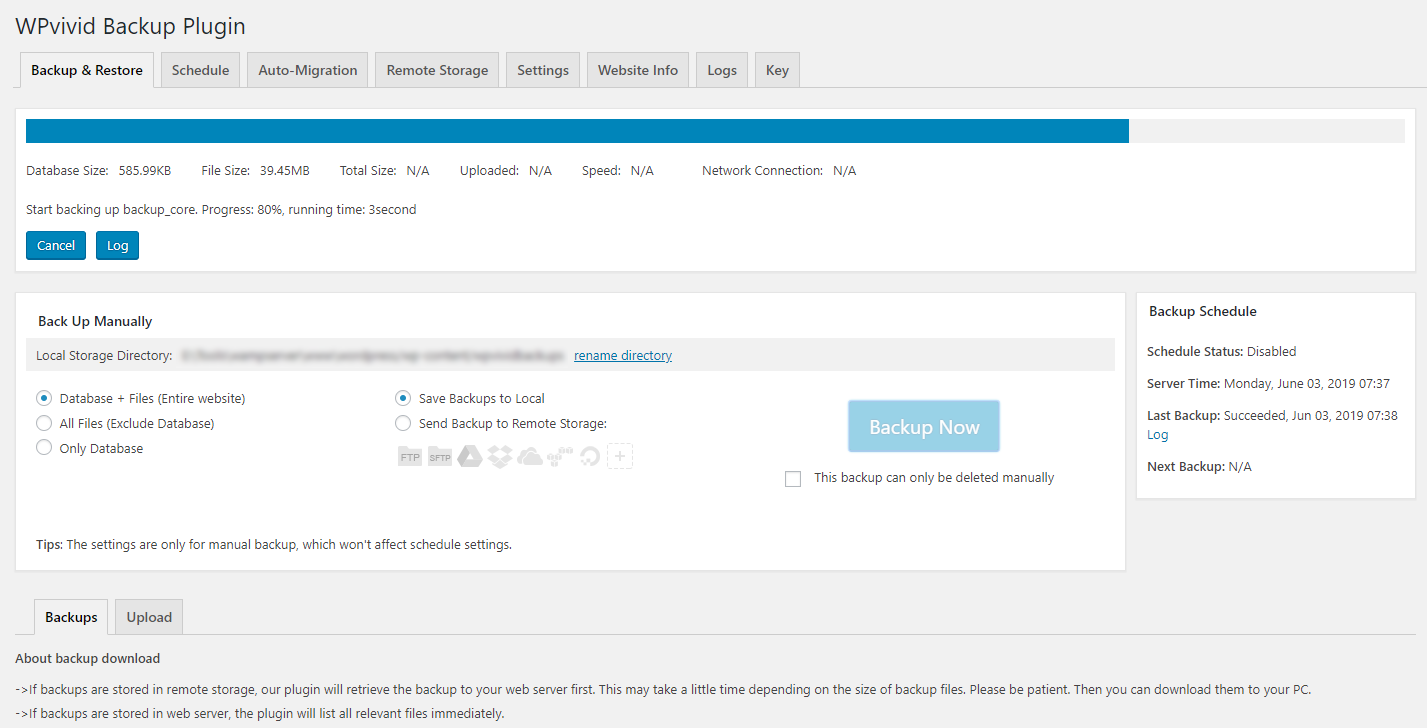
The free version connects to seven cloud storage destinations, runs scheduled backups, handles site migration with automatic URL rewriting, and includes a subdirectory staging environment. That combination makes it the most complete free option for anyone who also moves WordPress sites between hosts.
Best for: freelancers and developers who migrate sites regularly, small agencies managing client sites, site owners who want free staging without upgrading their hosting plan.
Key features (free)
- Scheduled backup to seven cloud destinations: Google Drive, OneDrive, Dropbox, Amazon S3, Backblaze B2, FTP, and local
- Manual and scheduled full-site backup (database and files)
- One-click migration with crash protection (prevents live site corruption if restore fails mid-way)
- Built-in subdirectory staging for testing changes before pushing them live
- Adaptive mode adjusts backup parameters for shared hosting resource limits
- White-label branding on all Pro plans
Hands-on notes: the admin panel is organized into distinct Backup, Migration, Staging, and Settings tabs. First-time users will find the layout cleaner than BackWPup’s job-based interface. Connecting Google Drive uses a standard OAuth flow. Since version 0.9.127, the plugin randomizes the backup start time within a 30-minute window at midnight UTC, so you cannot pin an exact backup time on the free plan. The plugin includes crash protection in the migration flow: if a restore fails partway through, the live site is not corrupted.
Pricing: The free version on WordPress.org is fully functional. WPvivid Pro starts at $49 per year or $99 one-time (2 sites, Blogger plan). The Freelancer plan (up to 10 sites, $69/yr or $139 lifetime) is the practical minimum for freelancers who transfer licenses between projects, because the Blogger plan limits license transfers to 3 days. Verify pricing on wpvivid.com before purchasing.
Pros
- Free one-click migration with serialized data URL rewriting
- Free subdirectory staging (most competitors charge for this)
- Seven cloud storage destinations in the free tier
- 4.9-star rating across 1,500+ reviews is one of the highest in the category
- Lifetime pricing option available: $99 one-time for 2 sites, $199 for 50 sites
Cons
- Multiple security vulnerabilities patched across recent releases; check the changelog before deploying on sensitive sites
- Restore requires a working WordPress install; crashed sites need manual server access
- Backup time is randomized within a 30-minute midnight window; no exact scheduling on free
- The entry-level Blogger Pro plan limits license transfers to 3 days
Read the full WPvivid Backup review for hands-on setup notes and a Pro tier comparison.
3. BackWPup: best free option for developers with existing cloud accounts
BackWPup is the backup plugin for people who already have an Amazon S3 bucket or a Microsoft Azure storage account and want to connect a WordPress backup directly to it at no cost. With 400,000 active installs and a 4-star rating on WordPress.org, it stands out in the free tier for two features that competing free plugins charge for: Microsoft Azure Blob Storage and WP-CLI support.
The plugin is now maintained by WP Media, the company behind WP Rocket, following a rough ownership transition in earlier years. Version 5.7.5 (July 2026) introduced a Cross-Site Scripting security fix and continues a recovery in development momentum under new ownership.
Best for: developers and technical site owners, sites already using Amazon S3, Microsoft Azure, or Rackspace, anyone who wants command-line backup control via WP-CLI, WordPress Multisite operators (basic Multisite coverage in free tier).
Key features (free)
- Backup to Amazon S3 (and S3-compatible services), Microsoft Azure, Dropbox, Rackspace, FTP, SFTP, and SugarSync (all in the free tier)
- WP-CLI support for command-line backup control (free)
- Job-based configuration: multiple independent backup tasks with different schedules and destinations
- Manual, cron-scheduled, or external-URL-triggered backup runs
- Backup history log with timestamps and file sizes
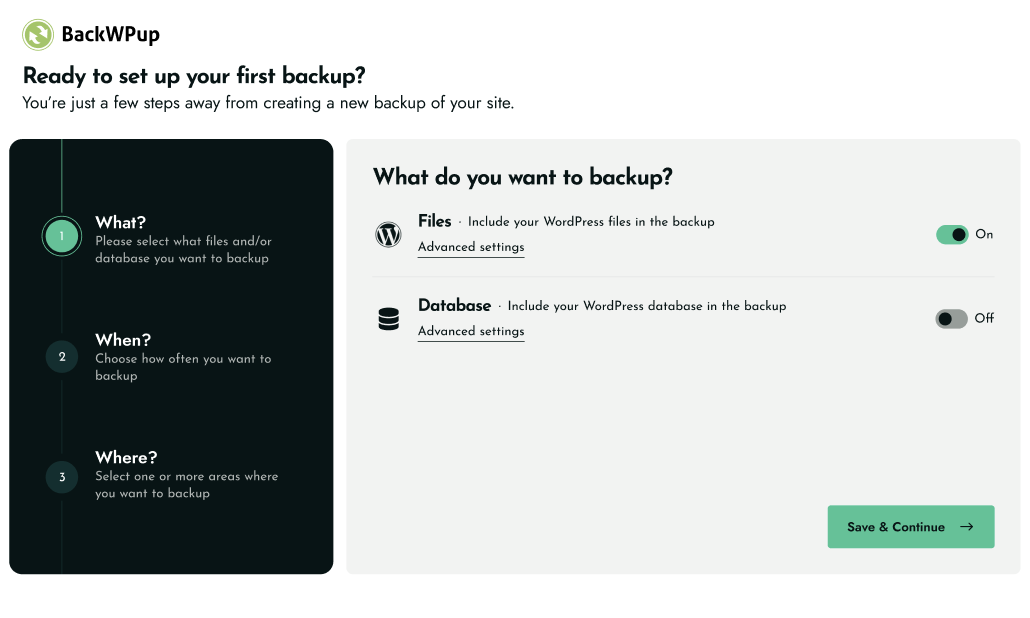
Hands-on notes: setup works through a tabbed job editor: General (what to back up), Schedule (when to run), Destination (where to store), and Log (email notification config). The job-based model gives more flexibility than a single-schedule system, but it also means more configuration decisions upfront. New users should expect to spend 10 to 15 minutes configuring the first job properly. The external-URL trigger is the right approach for shared hosts with unreliable WordPress cron: you ping the URL from a server cron job and BackWPup fires on demand.
Pricing: BackWPup is free on WordPress.org. Pro plans start at $49 per year for 2 domains (Starter), which adds AES-256 backup encryption, a standalone restore application (recover sites without WordPress access), website migration, direct cloud restore, and more destinations including Google Drive and OneDrive. The Agency plan covers 20 domains. Verify pricing at backwpup.com/pricing before purchasing.
Pros
- Microsoft Azure and Amazon S3 in the free tier (both are paid in most alternatives)
- WP-CLI support in the free tier
- Job-based model supports multiple independent backup schedules on the same site
- External-URL trigger works around unreliable WordPress cron on shared hosting
- Actively maintained by WP Media (WP Rocket team) since 2025
Cons
- Google Drive and Microsoft OneDrive are Pro-only (both are free in UpdraftPlus)
- No backup encryption in the free tier (Duplicator includes AES-256 free)
- Steeper configuration curve than UpdraftPlus or WPvivid for first-time users
- WordPress.org reviews show a bimodal split reflecting the ownership transition; trust is recovering but not fully rebuilt
- No incremental backups at any tier
Read the full BackWPup review for setup details and a complete Pro-tier breakdown.
4. Duplicator: best free WordPress migration and backup tool
Duplicator is best known as a migration plugin, and its free tier reflects that. What makes the cut here is that the same archive-and-installer model that makes it excellent for migrations also functions as a robust manual backup system. With 1+ million active installs and a 4.9-star rating across 4,900+ reviews on WordPress.org, it is the most-recommended tool for anyone who needs to move a WordPress site between hosts.
The honest caveat: the free version does not schedule backups automatically and does not connect to cloud storage. Every backup is a manual full-site archive stored locally. For ongoing daily backup protection, you either pair Duplicator free with a dedicated backup plugin like UpdraftPlus, or you upgrade to Duplicator Pro.
Best for: agencies and developers doing site migrations, anyone cloning a site for staging or testing, developers working between local environments and live servers, site owners who need to move hosts or change domains.
Key features (free)
- Unlimited manual full-site backups (archive + installer.php)
- Scan-before-build step that checks for PHP limits and file size issues before the build starts
- Serialized data search-and-replace during restore handles domain changes automatically
- AES-256 encryption on all packages (free and paid)
- Drag-and-drop import on the destination site (no FTP required for smaller sites)
- Deploys WordPress on a completely empty server (no WordPress install required at the destination)
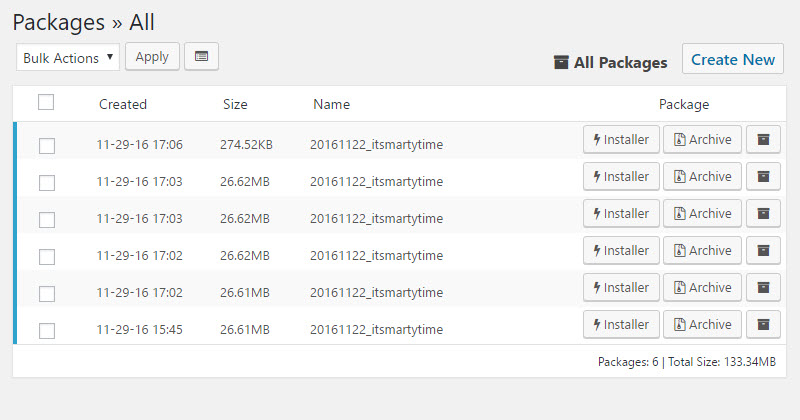
Hands-on notes: the backup wizard runs three steps: Setup (name the package, configure filters), Scan (checks PHP limits, file sizes, table prefixes), and Build (creates the archive and installer.php). On a clean sandbox install the scan completed in under 1 second with all checks passing, and the build produced a 31 MB archive in about 7 seconds. The scan step is what makes Duplicator the agency standard: it tells you what will cause problems before the build starts, rather than failing silently mid-import.
Pricing: Duplicator free is on WordPress.org with no license fee. Duplicator Pro uses dynamic promotional pricing that varies between sessions; check duplicator.com/pricing for current figures. The Basic plan (2 sites) adds scheduled backups, cloud storage to one destination, Recovery Points, and 1-click restore. The Plus plan (5 sites) adds hourly backup frequency and unlimited cloud destinations.
Pros
- Best free WordPress migration tool in 2026 by a clear margin
- Scan-before-build step surfaces configuration issues before they cause a mid-build failure
- Works on a completely empty server; the installer bootstraps WordPress from the archive
- DupArchive format handles very large sites up to 400 GB
- AES-256 encryption included in the free version
Cons
- Free version has no scheduled backups and no cloud storage; not a daily backup solution on its own
- Multisite support is Pro-only (Pro plan and above)
- Staging is Pro-only and runs on the same server as the live site
- No real-time WooCommerce backup; hourly is the highest frequency (Pro only)
- No emergency restore path for fully crashed, inaccessible servers
Read the full Duplicator review for a hands-on walkthrough of the migration wizard and a detailed Pro-tier comparison.
5. BlogVault: best backup for business-critical small sites (paid, 7-day trial)
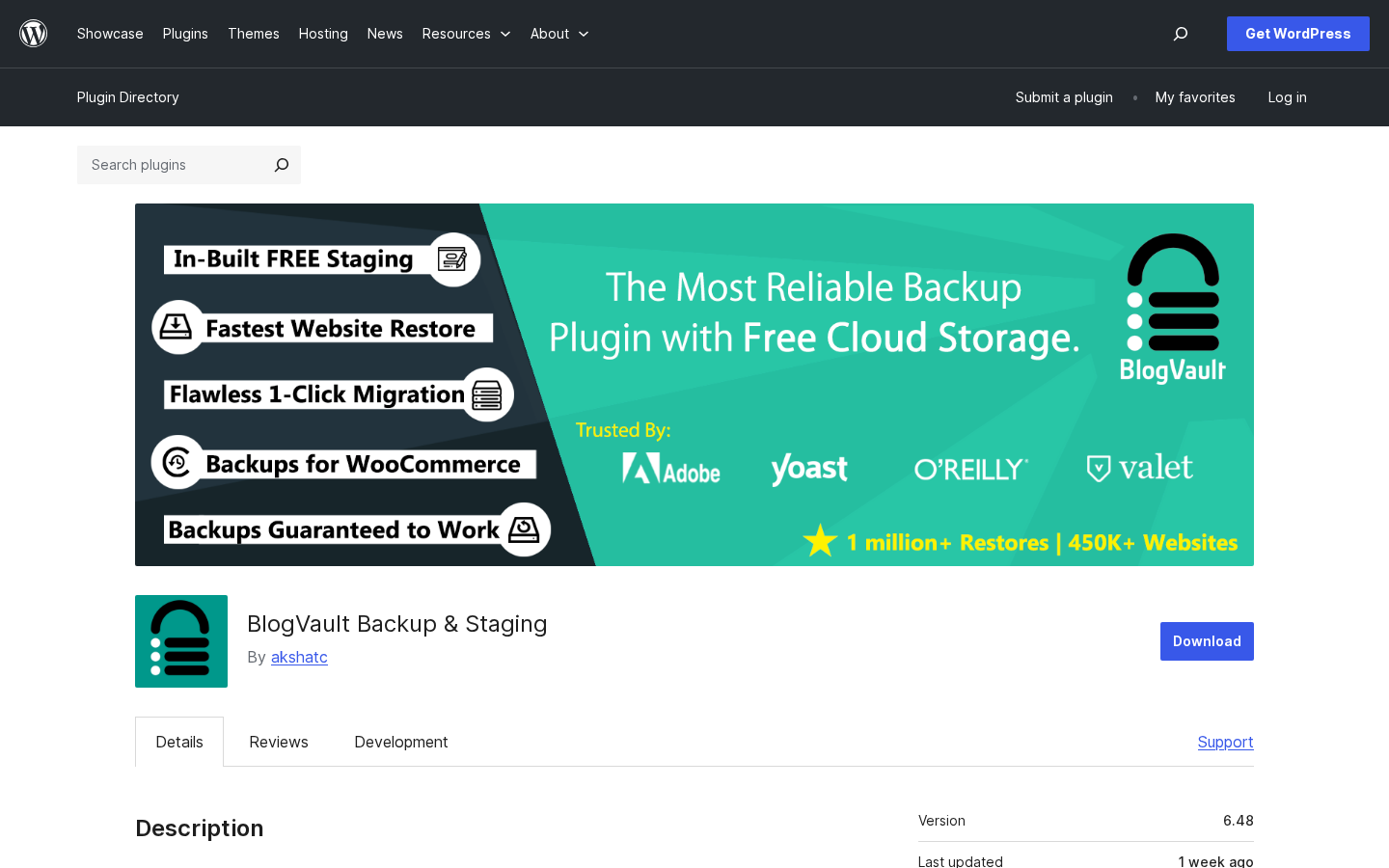
BlogVault is not a self-hosted plugin. It is a managed backup service: a thin connector plugin on your site sends changed data to BlogVault’s cloud, where the actual backup engine, storage, and restore interface live. There is no free tier; the entry point is a 7-day free trial, after which you pay.
It earns a spot on this list because it solves two problems that none of the free options can touch: restoring a WordPress site when the admin panel is completely inaccessible, and backing up WooCommerce orders in real time between scheduled backup runs. For a small e-commerce site or a business-critical service site, those two capabilities change the recovery calculus.
Best for: small business sites where downtime means lost revenue, WooCommerce stores (WooCommerce tier only for real-time backup), sites that want offsite encrypted storage without managing a cloud account.
Key features
- Incremental backup engine runs on BlogVault’s servers (minimal load on your hosting)
- Encrypted offsite storage in GDPR-compliant EU data centres, included in the plan price
- Emergency Connector restores a fully crashed site without WordPress admin access
- Test Restore validates a backup on BlogVault’s servers before touching the live site
- One-click staging on BlogVault’s own subdomains with SSL and selective merge
- One-click migration with automatic URL rewriting
- Real-time WooCommerce order capture (WooCommerce tier only)
Hands-on notes: the connector plugin installs from WordPress.org, you enter an email address, and the first full backup syncs automatically. Every backup after that is incremental. The restore dashboard lives at app.blogvault.net, not inside wp-admin. The Emergency Connector is the feature that sets this service apart from self-hosted plugins: it runs against your origin even when WordPress is down, so a crashed site does not mean a lost site.
Pricing: BlogVault is paid only. Plans start at $99 per year sticker (Personal, 1 site), with promotional pricing often visible at $49.50 per year. The Business plan ($299 sticker) adds twice-daily backups, 90 days of retention, and Multisite support. The WooCommerce plan ($499 sticker) adds real-time order capture and 365-day retention. All plans have a 14-day money-back guarantee. Plan your renewals against the sticker price, not the promotional figure. Verify current pricing at blogvault.net/pricing before purchasing.
Pros
- Emergency Connector restores fully crashed sites (no self-hosted plugin offers this)
- Backup engine runs on BlogVault’s infrastructure; minimal impact on shared hosting
- Encrypted offsite EU storage included in the plan (no separate S3 bill)
- Test Restore validates backup integrity before it touches the live site
- One-click staging on BlogVault’s own subdomains (no subfolder on your host)
- 10-year track record, 400,000+ customers, 1M+ successful restorations claimed
Cons
- No permanent free tier; 7-day trial only
- Real-time backup is exclusive to the WooCommerce tier (Personal and Business are scheduled only)
- Storage is BlogVault’s cloud; you cannot point it at your own S3 or Google Drive
- Promotional pricing rotates; renewals are at the sticker price
- Personal plan does not support Multisite
Read the full BlogVault review for a tier-by-tier breakdown and an honest look at the feature-page inconsistencies.
6. Jetpack VaultPress Backup: best real-time backup for Automattic ecosystem sites (paid)
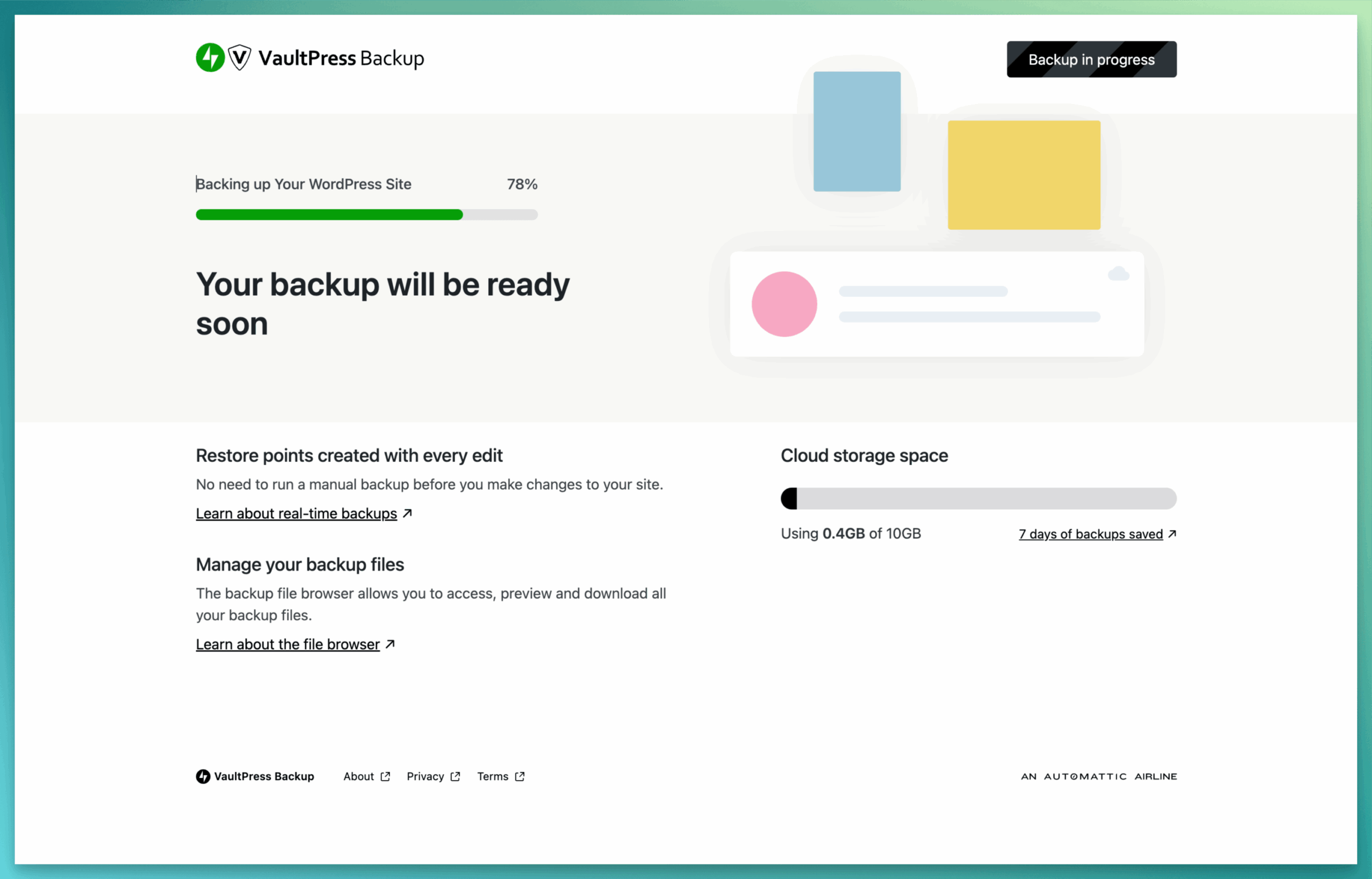
Jetpack VaultPress Backup is a managed WordPress backup service from Automattic, the company behind WordPress.com. It runs as a standalone plugin; you do not need the full Jetpack plugin suite to use it. The backup engine is event-driven: every time you publish a post, install a plugin, or change a setting, the service captures the change immediately rather than waiting for the next scheduled window.
There is no free tier. The service starts at $4.95 per month in the first year (billing reverts to the full price on renewal). For a small site already paying for Jetpack or WordPress.com services, this is the natural backup addition from the same vendor.
Best for: single-site WordPress operators already in the Jetpack or WordPress.com ecosystem, WooCommerce stores that need WooCommerce order protection, teams that want mobile-app restore access.
Key features
- Event-driven real-time backup capture: every site change is backed up immediately
- One-click restore from any retained backup
- Granular activity log tracking every user action, plugin update, and settings change
- Mobile app restore so recovery does not require a desktop
- WooCommerce order data backed up immutably (orders cannot be rolled back by a restore)
- Migrate a site to a new host or domain with automatic URL rewriting
Hands-on notes: the plugin installs from the WordPress plugin directory, connects to a WordPress.com account (create one free), and the first full backup runs automatically. Subsequent backups are incremental. Real-time differential captures fire on specific triggers: post publish, plugin install, theme activation, settings change. The restore interface and activity log live on cloud.jetpack.com, not inside wp-admin.
Pricing: First-year introductory price starts at $4.95 per month (billed annually). The renewal price is higher; check jetpack.com/upgrade/backup/ for the current year-two rate before purchasing. All plans start with 10 GB of backup storage. The Security bundle bundles VaultPress Backup with malware scanning and a web application firewall.
Pros
- Event-driven real-time capture: no data lost between scheduled windows
- Built by Automattic, the company running WordPress.com infrastructure at scale
- Mobile app restore access
- WooCommerce order data backed up immutably (restores do not roll back paid orders)
- Granular activity log for every site change
- 269 million site backups claimed over ten years of operation
Cons
- No free tier; introductory price does not reflect the renewal rate
- No WordPress Multisite support
- No bring-your-own-storage; backups live on Automattic’s cloud only
- 10 GB starting storage may be tight for media-heavy sites
- Does not support sites where the home URL and site URL differ across domains
Read the full Jetpack VaultPress Backup review for a detailed look at real-time capture, pricing, and how it compares to BlogVault.
7. Solid Backups: best for the Kadence ecosystem (premium only)
Solid Backups started life in 2010 as BackupBuddy, built by iThemes, and spent over a decade as a go-to premium backup plugin for agencies and developers. By 2026, it has been through three names and a May 2026 consolidation into Kadence, the Liquid Web product ecosystem. It is no longer sold as a standalone plugin.
The reasons to know it: the ImportBuddy standalone restore script (recover a WordPress site without any WordPress access) and Stash Live (a cloud-side incremental backup that runs on SolidWP’s servers rather than your hosting account). Those two features are genuinely distinct from what the other plugins on this list offer.
Best for: WordPress agencies and developers already in the Kadence or SolidWP ecosystem, existing Solid Backups license holders, development teams who need a standalone restore path for worst-case scenarios.
Key features
- Scheduled full-site and component-specific backups to Amazon S3, Dropbox, OneDrive, FTP, and others
- Stash Live: cloud-side incremental backup that runs on SolidWP’s servers, removing backup load from your hosting account
- ImportBuddy: a standalone PHP restore script that recovers a WordPress site when wp-admin is completely inaccessible
- One-click restore and database-only rollback from the WordPress dashboard
- Individual file recovery and full-site restore
- Site cloning and domain migration with URL search-and-replace
Hands-on notes: the plugin installs through the SolidWP member portal (now redirected to Liquid Web’s Nexcess docs) and adds a tabbed admin panel covering Backups, Scheduling, Remote Destinations, Stash Live, Restore/Migrate, and Settings. Stash Live’s cloud-side model means the backup job does not consume CPU and memory on your hosting account during runs. ImportBuddy is the standout: place the standalone PHP script at the server root and run it in a browser, and it can restore a site even if the WordPress database is completely empty.
Pricing: Solid Backups is no longer sold as a standalone plugin. Access now requires the Kadence Pro bundle, priced around $219 per year, which includes a theme builder and block library alongside the backup functionality. Existing standalone licenses are honoured until renewal; standalone plans are no longer available for new purchases. Legacy security updates run through April 2027. Verify current pricing and availability at kadence.com before purchasing.

Pros
- ImportBuddy restore script works when WordPress is completely inaccessible
- Stash Live cloud-side processing removes backup load from shared hosting accounts
- 15-year track record as BackupBuddy; deeply proven in agency workflows
- One-click restore, database-only rollback, and individual file recovery in one tool
- Site cloning and staging deployment built in
Cons
- No standalone purchase since May 2026; requires the Kadence Pro bundle (~$219/yr)
- No free tier; never had one
- Google Drive support removed in November 2024 (version 9.1.14)
- Stash Live includes only 1 GB of storage; additional storage is an add-on cost
- Long-term roadmap uncertainty as the product integrates into a multi-product bundle
Read the full Solid Backups review for the complete history of the product transition and an honest look at the 2026 buy decision.
How to choose a WordPress backup plugin for a small site
You want a free backup, nothing else to install
Install UpdraftPlus. It is the strongest free option in the category, with the widest cloud storage list, selective restore, and reliable scheduled backups. Point it at Google Drive or Dropbox and you are done in under five minutes.
You move sites between hosts regularly
Use Duplicator (free) for migrations and UpdraftPlus (free) for scheduled daily backups. You get the best migration tool and the best ongoing backup tool at no cost. When you are ready to pay for one plugin that does both jobs, Duplicator Pro covers migrations, scheduling, cloud storage, and staging in one license.
You have an existing Amazon S3 or Azure storage account
Try BackWPup. It connects to S3, Azure, and Rackspace in the free version without extra account setup. WP-CLI is also included free if you want command-line control.
You want the simplest free backup with migration included
WPvivid Backup covers scheduled backups, one-click migration, and subdirectory staging in the free tier. The admin panel is cleaner than BackWPup’s job-based interface. Best choice for a freelancer or small agency that wants one plugin to handle migration and backup at no cost.
You run a WooCommerce store and cannot lose orders
BlogVault (WooCommerce tier) is the only plugin on this list with real-time order capture between scheduled backup windows. Jetpack VaultPress Backup also backs up WooCommerce order data immutably at an event-driven granularity. Either option is significantly better than a scheduled backup plugin for active stores. Both are paid.
Your site crashed and you cannot access WordPress
BlogVault’s Emergency Connector and Solid Backups’ ImportBuddy script are the only two products on this list that give you a restore path when wp-admin is completely down. Both are paid. If this scenario is a real concern for your site, a managed backup service is the right investment.
You are already paying for Jetpack or WordPress.com services
Add Jetpack VaultPress Backup and keep everything on the same Automattic account. The event-driven real-time capture is the best architecture for sites that change frequently, and the mobile app restore is useful when you need to act from a phone.
FAQ
What is the best free WordPress backup plugin?
UpdraftPlus is the best free WordPress backup plugin for most small sites. It has the widest remote storage list in the free tier (eight destinations including Google Drive, Dropbox, and Amazon S3), runs scheduled full-site backups, and lets you restore individual components without wiping the whole site. It has 3+ million active installs, a 5-star rating across 8,500+ reviews, and has been actively maintained since 2012.
Do free WordPress backup plugins actually work for restoring a site?
Yes, for most common failure scenarios. Free plugins like UpdraftPlus and WPvivid handle restores through the WordPress admin panel: you select the backup, choose which components to restore, and the plugin handles the rest. The limitation applies when WordPress itself is completely down and the admin panel is inaccessible; in that situation, a self-hosted plugin cannot run a remote restore. You either need to manually restore via FTP, or use a managed service like BlogVault that includes an Emergency Connector.
How often should I back up a WordPress site?
For a small blog or portfolio site, daily backups are sufficient. For a small business site with regular content updates, daily file backups and twice-daily database backups are a reasonable baseline. For a WooCommerce store with active transactions, you need either hourly backups (available in Duplicator Pro and BackWPup Pro) or real-time order capture (BlogVault WooCommerce tier, Jetpack VaultPress Backup).
Where should I store my WordPress backups?
Never store backups only on your own server. If your server is compromised, a local backup goes down with it. Use a remote destination: Google Drive, Dropbox, Amazon S3, or any of the other cloud destinations offered by your backup plugin. Most free backup plugins support at least one consumer cloud destination. UpdraftPlus supports eight in the free tier.
Can a backup plugin slow down my WordPress site?
Self-hosted backup plugins run the backup engine on your hosting account, which consumes CPU and memory during the backup run. On shared hosting this can cause noticeable slowdowns, particularly for large sites with extensive media libraries. Scheduling backups during off-peak hours reduces the impact. Managed services like BlogVault and Jetpack VaultPress Backup shift the heavy processing to their own cloud infrastructure, significantly reducing the load on your origin server.
Is UpdraftPlus Premium worth paying for?
For most small personal sites, the free version is enough. For business sites, UpdraftPlus Premium earns its price primarily for two features: automatic backup before WordPress core, plugin, or theme updates (which prevents the most common cause of avoidable site loss), and incremental backups (which make the plugin sustainable on large sites). At roughly $70 per year ex-VAT for the Personal tier, that is a reasonable investment for a site where uptime matters.
Does Duplicator free back up a WordPress site automatically?
No. Duplicator free creates manual full-site archives only. You have to trigger each backup yourself. For automatic scheduled backups to cloud storage, you need Duplicator Pro (Basic plan at minimum) or a separate backup plugin like UpdraftPlus alongside Duplicator for migration. The combination of Duplicator free (for migrations) and UpdraftPlus free (for scheduled backups) covers both jobs at no cost.